HMI System
The HMI (Human-Machine Interface) node is where the visual project screens are developed. This system creates a functional interface between the operator and the Virtual PLC, allowing for message display, variable monitoring, data entry, and manual process control.
HMI Editor Interface
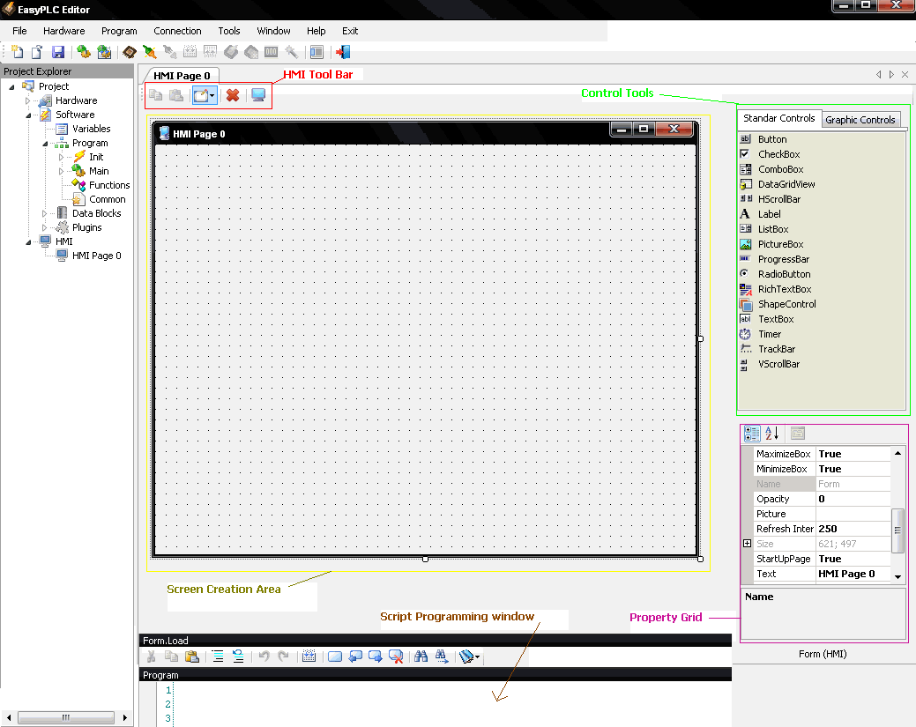
The programming environment integrates a drag-and-drop editor to build screens efficiently:
- Screen Creation Area: The main canvas where controls are placed, moved, and resized.
- Controls Tools: Divided into two tabs:
- Standard Windows Controls: Common UI elements like buttons and labels.
- Specialized Graphical Controls: Gauges, switches, and industrial indicators.
- Property Grid: Used to modify the attributes (color, size, name) of the currently selected control.
- HMI Tool Bar: Provides quick access to Copy/Paste, Delete, Control Properties (to manage events), and the Test HMI Page button to preview the results in test mode.
- Script Programming Window: A dedicated area to write C# code for screen behavior.
Page Management
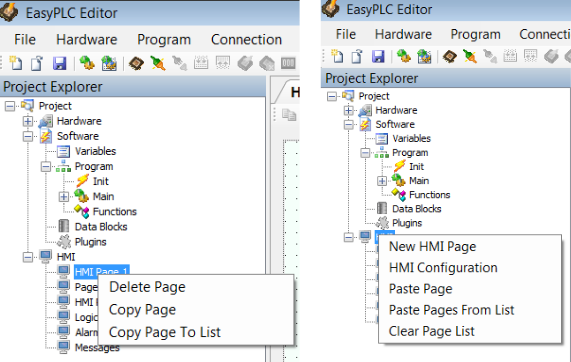
EasyPLC allows for flexible screen organization through the Page List system:
- Copy & Paste: Right-click a page node to copy it within the same project.
- Cross-Project Transfer: Use Copy Page To List to store multiple screens in a temporary buffer, then use Paste Pages From List to import them into a different project.
- Clear Page List: Select to clear all the pages from the list.
Advanced Customization (Scripting)
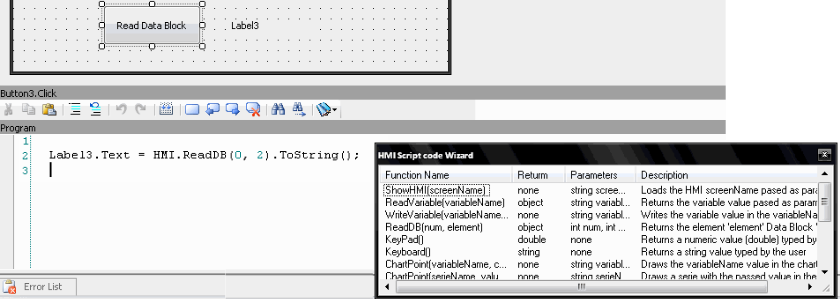
For behaviors that exceed standard control properties, the HMI supports C# Scripting. This allows for total customization of screen logic, including event handling and timer management.
- Script Programming Window: A dedicated area to write C# code for screen behavior.
- External HMI Controls: Users can extend the library by adding custom .dll files into the EasyPLC\ and HMILib\ folders. These external controls must be programmed directly via script.
- Script Wizard: Pressing F2 in the Script Window opens a wizard that allows you to double-click and insert available functions automatically.
Configuration & Communication
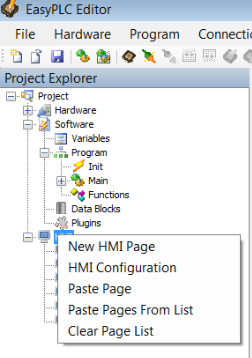
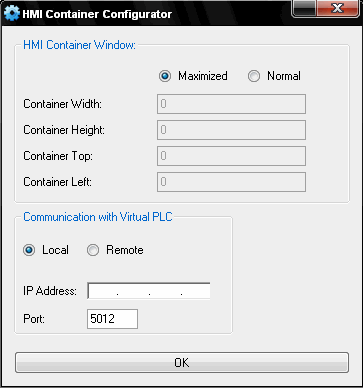
The HMI behavior and its link to the PLC are defined in the configuration settings:
- HMI Container Window:
- Maximized (Default): The HMI occupies the entire monitor.
- Normal: Allows setting specific window dimensions and screen positions.
- Communication Modes:
- Local: HMI and Virtual PLC CPU run on the same machine.
- Remote: HMI connects in the same net to Virtual PLC CPU on a different computer via IP Address and Port.
HMI Scripting Reference
HMI Script Methods
EasyPLC provides a comprehensive library of C# methods to manage screens, data, and user interaction within the HMI. These functions are accessible through the Script Programming Window or by using the Script Wizard (F2).
| Function | Parameters | Return | Description |
|---|---|---|---|
| ShowHMI | string screenName | void | Loads the specified HMI screenName as parameter. |
| ReadVariable | string variableName | object | Returns the current value of the specified variable. |
| WriteVariable | string variableName, object value | void | Writes the specified value to the variableName. |
| ReadDB | int num, int element | object | Returns the value of a specific element from Data Block num. |
| KeyPad | none | double | Opens a numeric keypad and returns the value typed by the user. |
| Keyboard | none | string | Opens a virtual keyboard and returns the string typed by the user. |
| ChartPoint | string variableName, string chartName, bool legend, int chartType | void | Draws a variable value in the specified Chart control (Types 0-9). |
| ChartPoint (Overload) | string serieName, double value, string chartName, bool legend, int chartType | void | Draws a specific value for a series in the Chart control. |
| ChartFIFO | string variableName, int numElements, string chartName, bool legend, int chartType | void | Draws values in FIFO mode with a fixed number of X-elements. |
| ChartPoints | string serieName, double[] values, string chartName, bool legend, int chartType | void | Draws an entire array of values for a specific series in the Chart. |
| ClearChart | string chartName | void | Clears all data from the specified Chart control. |
| MessageBox.Show | string text | void | Displays a standard Windows message box with the specified text. |
Control Events
| Category | Event | Description |
|---|---|---|
| Common | Click | Launched when the user clicks on any standard control. |
| Form (Screen) | Load | Triggered when the form is initialized for the first time. |
| Form (Screen) | Form Closing | Triggered when the user closes the HMI window. |
| Form (Screen) | Key Down | Triggered when a key is pressed while the form is in focus. |
| Form (Screen) | Click | Triggered by a click on the form. |
| Form (Screen) | Double Click | Triggered by a double-click on the form. |
| Check Box | Checked Changed | Triggered when the check mark state changes. |
| Combo Box | Selected Index Changed | Triggered when a different value is selected. |
| Data Grid | Cell Content Click | Triggered when a specific cell inside a grid is clicked. |
| Scroll Bars | Scroll | Triggered as the user moves the scroll bar thumb. |
| Timer | Tick | Triggered repeatedly based on the defined Interval property. |
On Form (Screem) Common: Although located within the events management, is not a triggered event. It is a dedicated space to write C# code that is globally accessible by all controls on the screen, making it the ideal place for global variable declarations.