HMI System
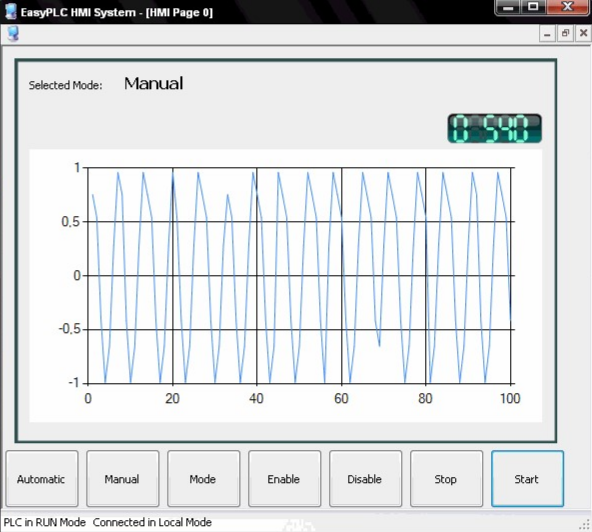
The HMI System manages all project screens, providing the human-machine interface for data exchange between the PLC and the user.
The application can be launched using any of the following methods:
- EasyPLC Editor Menu Select Connection -> Launch HMI System.
- Virtual PLC CPU Menu Select HMI -> Launch HMI Application.
- Direct Execution Run the HMI_System.exe file directly.
The HMI System supports two execution modes:
- Local Mode runs on the same computer as the Virtual PLC CPU.
- Remote Mode runs on a different computer within the same network.
If running in Remote Mode, you must manually copy the logic program file (\Slot\logic.cmp) from the Virtual PLC machine to the same directory on the computer running the HMI System.
Upon startup, the system loads the default screen and establishes communication with the Virtual PLC CPU to execute the screen-specific logic.
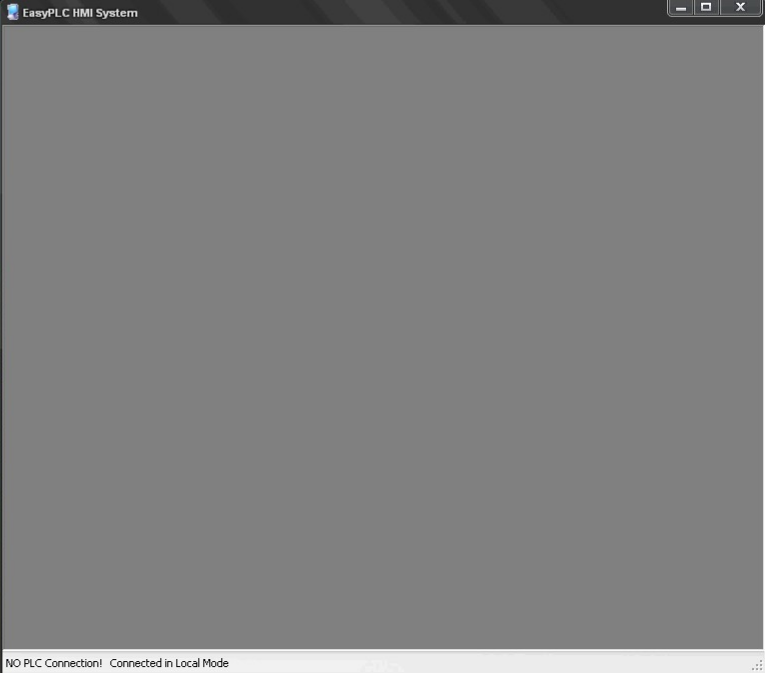
If the project contains no screens, the HMI System will remain empty. The bottom status bar displays the current PLC status and connection mode.
Below is an example of an HMI screen interacting with the Virtual PLC CPU. Using command buttons, users can modify PLC variable values in real-time, while chart controls provide a graphical representation of variable data.