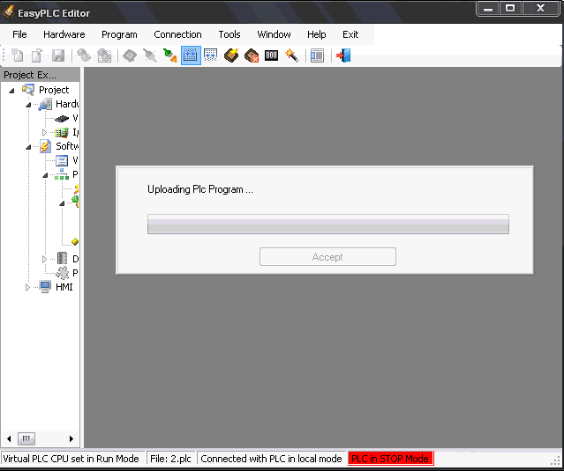
Virtual PLC CPU Connection
The EasyPLC Editor establishes a bidirectional communication link with the Virtual PLC CPU. This connection is required for transferring programs, performing real-time diagnostics, and monitoring the logic execution.
Local and Remote Connection Modes
The communication setup depends on where the Virtual PLC CPU is running relative to the Editor:
- Local Connection: Both the Editor and the Virtual PLC CPU are running on the same computer. The Hardware node in the project tree must be set to Local.
- Remote Connection: used when the Editor and the Virtual PLC CPU are on different computers within the same network.
- The IP Address and Listening Port of the target computer must be specified in the Hardware parameters.
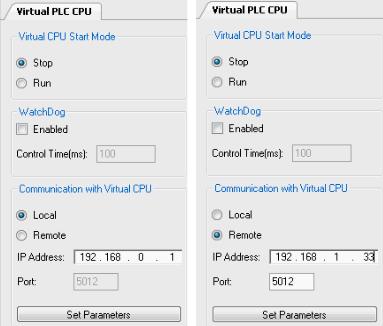
Important
The designated port must be opened in the firewall of the computer running the Virtual PLC CPU.
In both modes, the Virtual PLC CPU must be running before attempting to connect. To start the link, click Connect On-Line with PLC or select Connection -> Connect with Virtual PLC CPU.

Available Operations
Once a successful connection is established, the Editor displays the Virtual PLC Status and enables the following operations:
| Operation | Direction | Description |
|---|---|---|
| Upload | from Editor to Virtual PLC | Transfers the compiled logic program to the Virtual PLC for execution. |
| Download | from VirtualPLC to Editor | Receives the current program stored in the Virtual PLC back into the Editor. |
| Control | from Editor to Virtual PLC | Change the PLC working status (Run/Stop/Reset) using the toolbar buttons. |