Monitoring & Debug
The EasyPLC Editor provides several integrated tools to monitor logic execution and verify the status of hardware and software variables in real-time. These features are essential for identifying anomalies and ensuring the control system behaves as expected.
Viewing Logic Programs Running
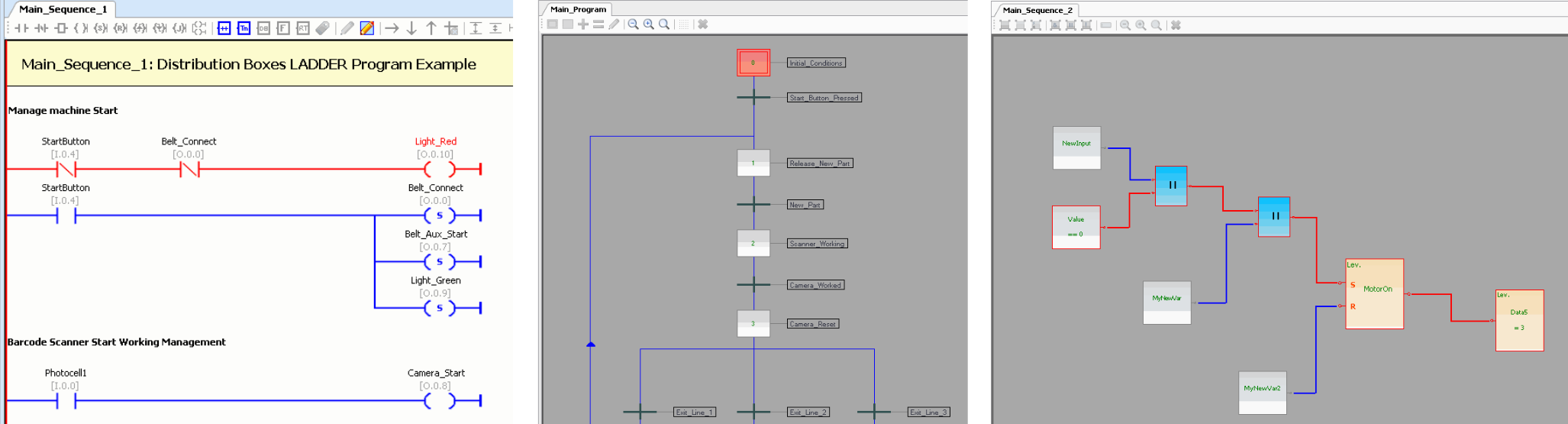
Once the Editor is connected to the Virtual PLC CPU, you can monitor any sequence in real-time. It is a powerful tool to debug the logic and detect software or hardware anomalies.
- Visual Feedback: Active items and logical paths are highlighted in red, allowing for immediate verification of the execution flow.
note
The Script (C#) language is the only one that does not support a visual debug/monitoring mode.
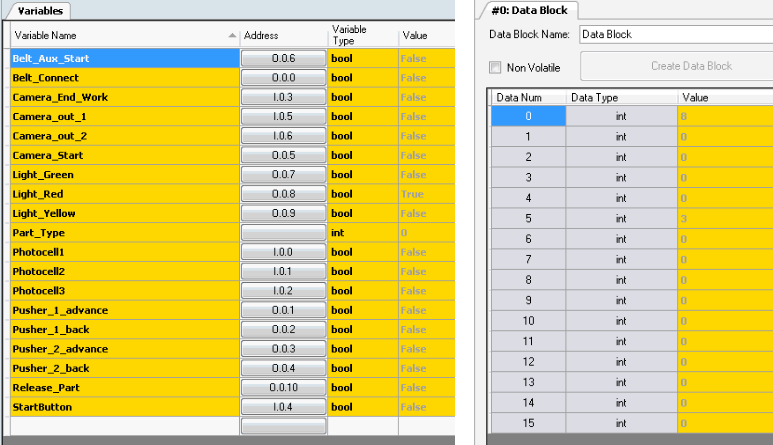
- Data Access: The current states of Variables and Data Blocks can be read dynamically.
See/Force Variables
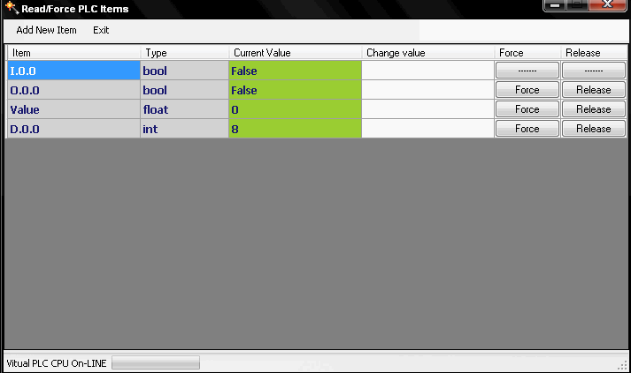
The Read/Force PLC Items tool allows you to read or write PLC elements while the logic program is executing. This is particularly useful for simulating conditions or testing specific logic branches.
How to use Force Variables:
- Access: Click the Force PLC Variables icon on the toolbar or select Connection -> Force Variables. (Note: This is only available when connected to the Virtual PLC).
- Adding Items: Click on Add New Item and select the element you want to monitor or modify.
- Reading vs. Writing:
- Read-Only: Some items, such as digital/analog inputs, can only be read.
- Forcing Values: To change an element's value, type the new value in the Change Value cell and press the Force button.
- Releasing: When you want to return to the normal situation (item managed by the PLC), click the Release button.