Compilation & Transfer
Once the logic program is finalized, it must be compiled and transferred to the Virtual PLC CPU for execution. This process converts the high-level diagrams and scripts into object code that the simulation engine can process.
Compilation Process
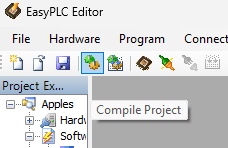
To compile the project, select Program -> Compile from the menu or use the Compile Project icon on the toolbar. The editor compiles each sequence individually.
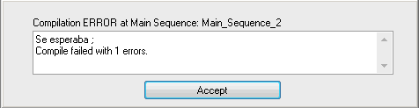
- Error Handling: If the process fails, a screen appears indicating the specific sequence where the error was found and the cause.
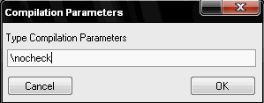
- Compilation Options: In specific cases where all sequences must be compiled together, navigate to Program -> Compile -> Compilation Options.
- Available Command:
\nocheck(Compiles all sequences as a single block).
- Available Command:
Connecting and Transferring
Before sending the program, the Virtual PLC CPU must be running and the Editor must be connected to it.
- Launch: Start the Virtual PLC CPU (from the system or the Editor toolbar).
- Connect: Click Connect On-Line with PLC or navigate to Connection -> Connect with Virtual PLC.
- Transfer: Once connected, click the Transfer Program to PLC icon. A progress bar will track the upload status.

tip
Use the Compile and Transfer (or "Compile and Send Project") button to execute both steps automatically with a single click.
Logic Execution Files
When a program is transferred, the system generates a file named logic.cmp in the \Slot\ folder of the EasyPLC installation path.
- This file contains all necessary information for the Virtual PLC CPU and the HMI System.
- Local Transfer: The file is copied directly to the local folder.
- Remote Transfer: The Virtual PLC generates the file upon receiving the data.