Introduction
The Nirtec License Server Manager tool allows you to configure the license package (seats) for each of the users who will use Machines Simulator software. You can purchase a minimum of five server licenses and a maximum of 50 server licenses. All the server license users will use the same User Name, but each license server user (this is each seat) will need a server password in order to allow access to the seat, in this way access to the software is controlled by the license administrator who will be the only one who uses this tool.
Program interface & usage
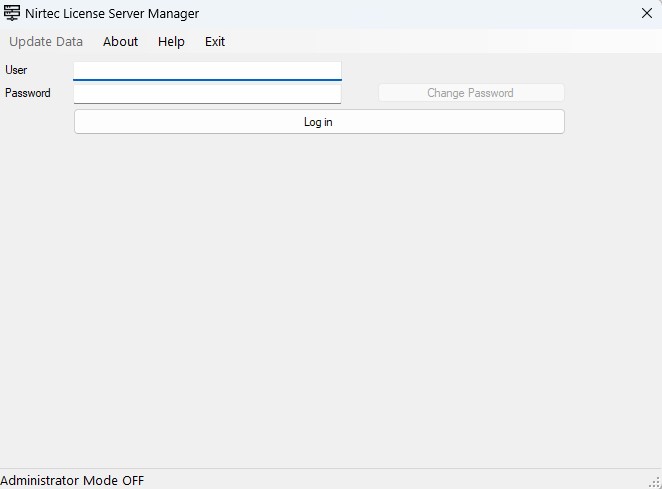
Here is shown the program interface, where you can configure your server license account, setting the user, the administrator password and each license seat password.
First time you must to log in your account, to do it, type the username (a valid email address) when you purchased the licenses and the license key code that Nirtec provided you, choose your password and press the Log in button:
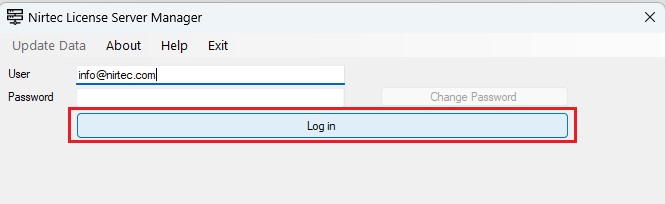
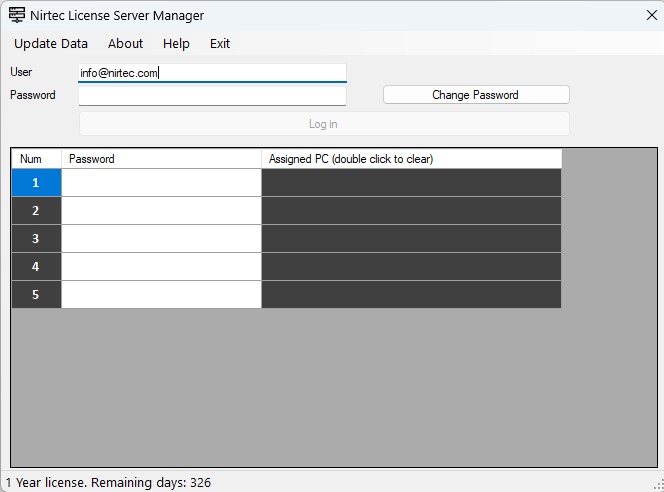
The first time you log in, you'll see a list of all the available seats on your server license. All fields are empty, waiting for you to configure them. It's highly recommended that you enter a password for the server license manager. Click the Change Password button:
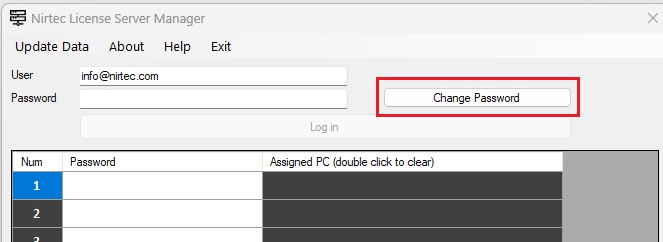
A new window appears to confirm your user password:
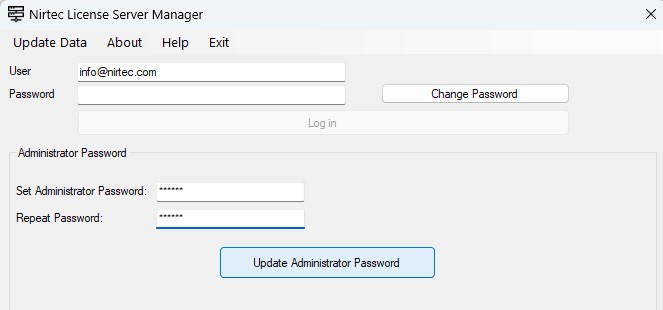
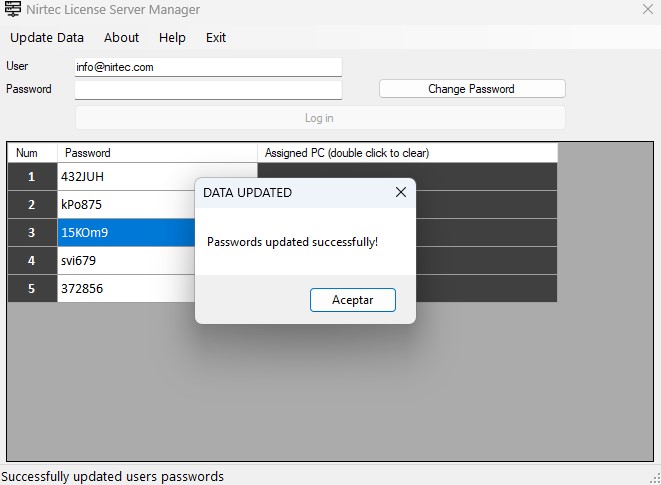
Enter the password (check the second text box and press the Update Administrator Password button) Now you can set the password for each license seat, type the desided passwords for each license seat:
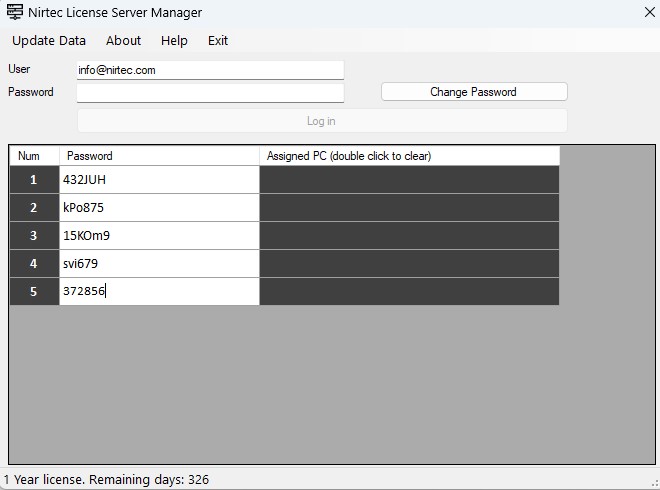
Once configured click on Menu Update Data
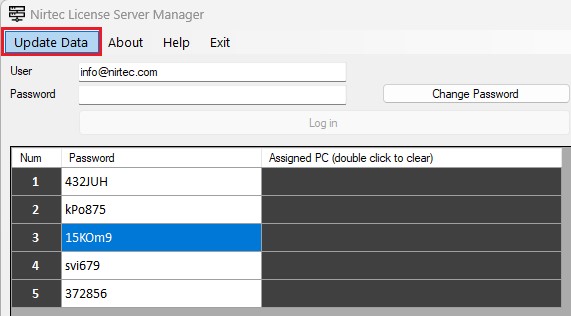
Now when a server license user will use the license seat on the computer, must fill the following fields, this example is for Machines Simulator usage:
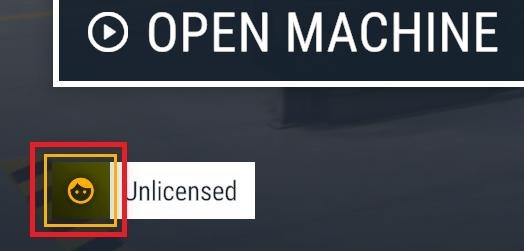
- Select the User icon in Machines Simulator:
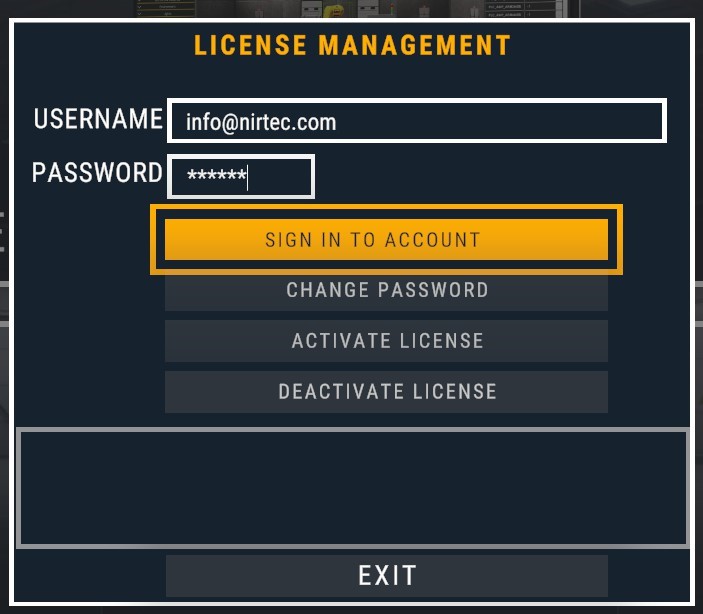
- Type the server user and password for the seat (in this case is used the first seat password
432JUH). Then press theSIGN IN TO ACCOUNTbutton:
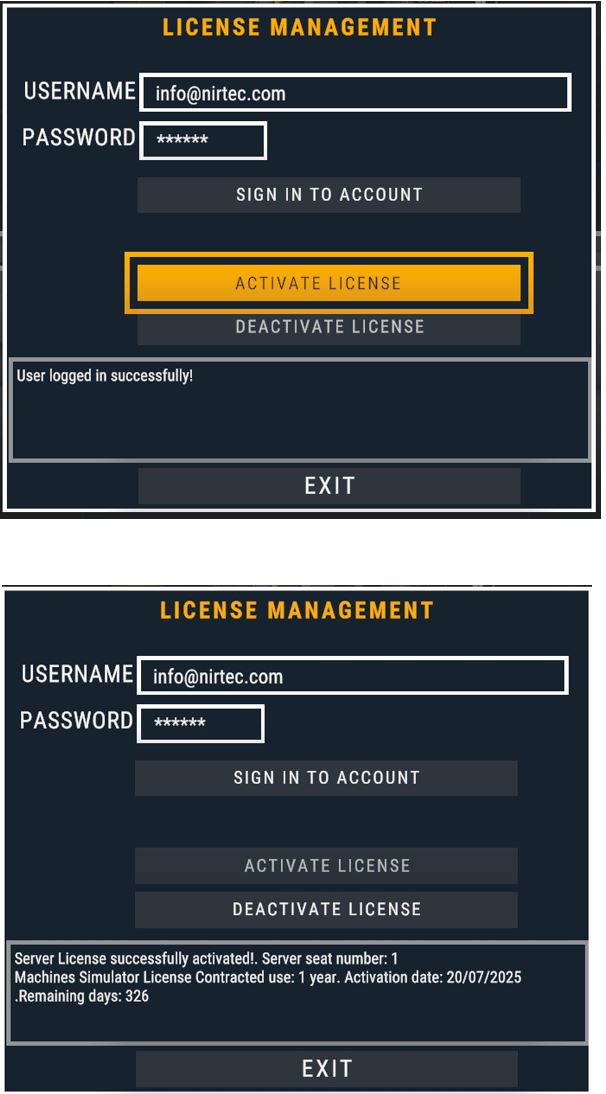
- Once the user has logged successfully, press the
ACTIVATE LICENSEbutton in order to activate the license seat in this computer.
The server licenses can be deactivated using Machines Simulator (process explained in the Machines Simulator Instruction Guide) by each user, or using the Nirtec Server License Manager utility, where the server administrator can deactivate the license assigned to each computer and change their seat password.
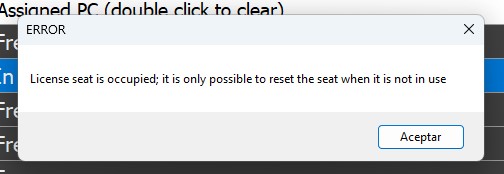
IMPORTANT: In order to reset the seat or change the seat password, the seat must be unused by the user; that is, while the user is using Machines Simulator software, it will not be possible to change the password or reset the seat. Once the users leave Machines Simulator, the server license administrator will be able to change the password and reset the seat in order to cancel the user's access to the seat and enable a new one.
How to manage the seats in the Nirtec License Server Manager
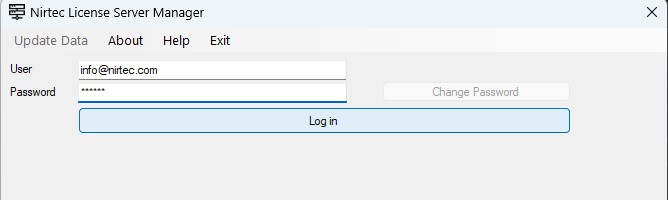
Type your user name (email account name) and password:
Meaning of the Assigned PC Column:

The assigned PC Column can have three values:
- Free: this means this seat is not being used for any computer.
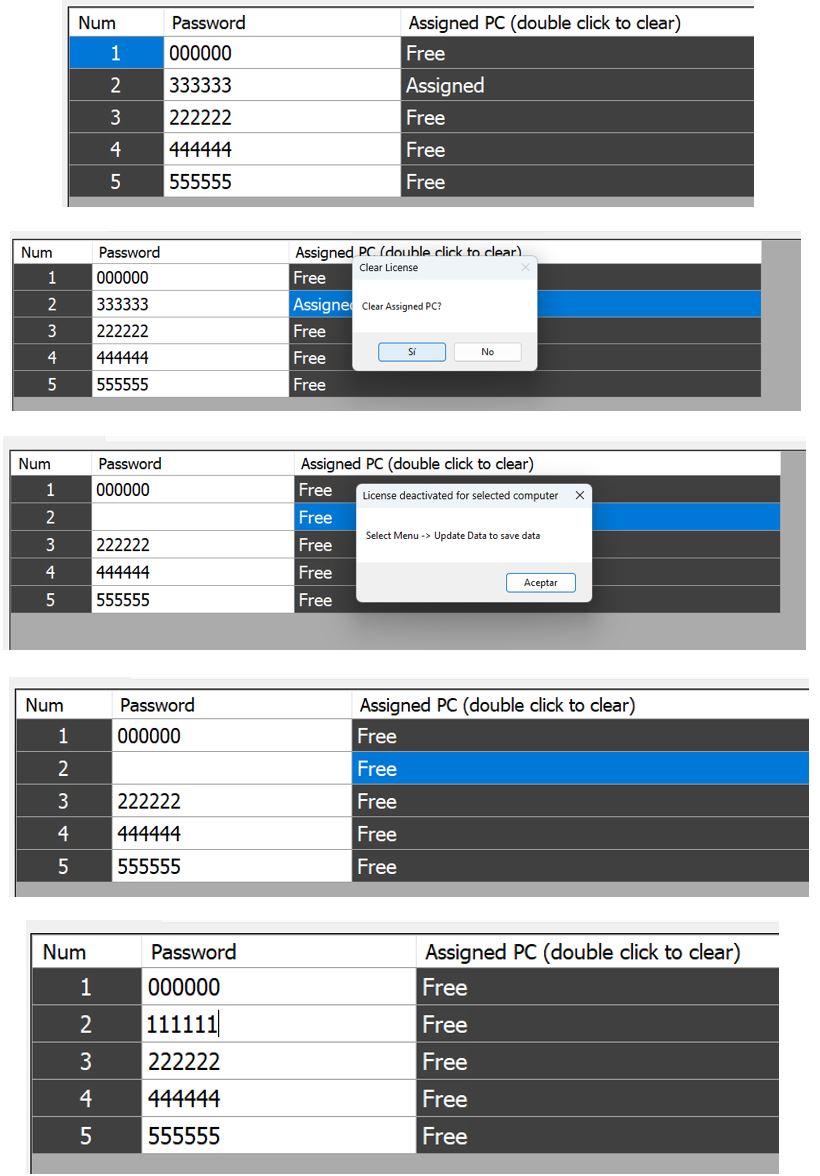
- Asigned: means that the seat has been assigned to a computer, but it is not currently in use.
- Computer name: If a computer name (Windows name of the PC) is indicated in the column, it means that a computer has been assigned to this position and is currently being used by that PC.
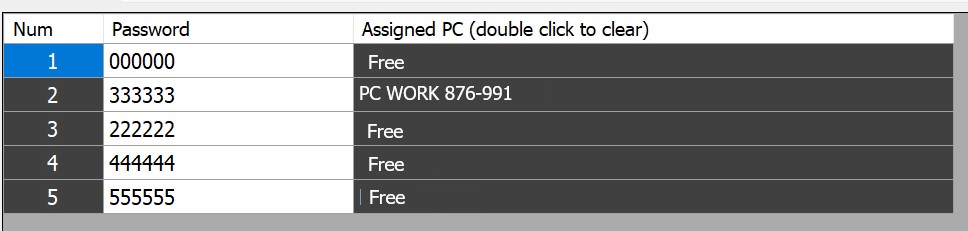
Here you can see the asigned seats, see how ony one is currently using the software, the user using the seat number 2:
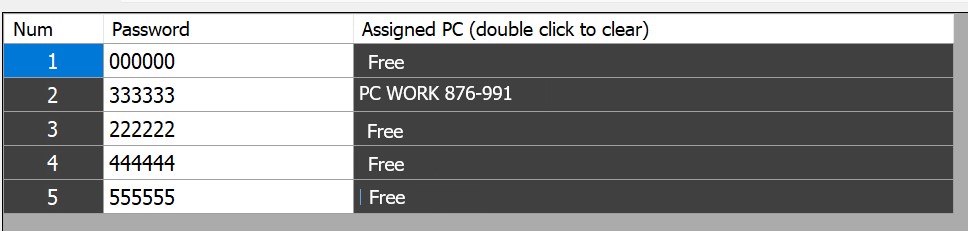
In the Assigned PC column, is indicated the Computer’s name (Windows name) that is using this license seat. The remaining seats are free and unused and have not yet been assigned to any PC. Make double click in the Assigned PC colum for the row you want to deactivate the license. Remember is not possible to deactivate a seat that is currently in use with Machines Simulator active.
In the following example the seat number 2 assigned to one PC is going to be reseted to be used for other user:
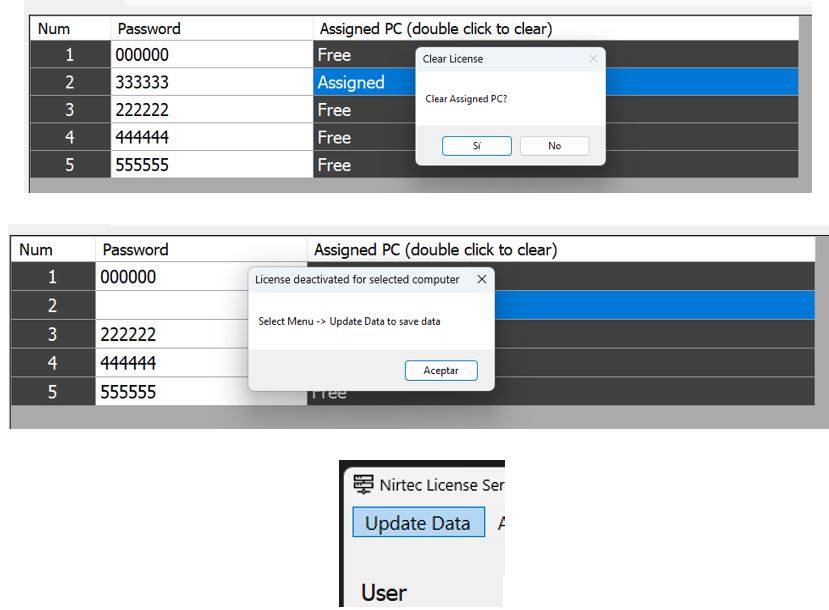
Set now a new password and the seat will be ready to be used for other user:
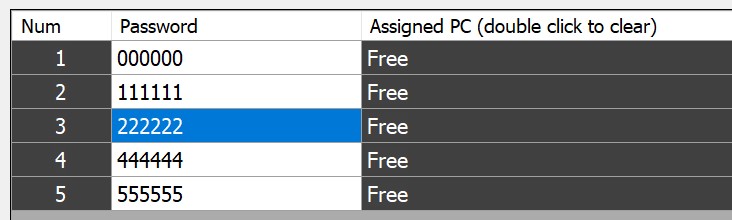
And click on Update Data menu:
If one computer is using currenlty the software will appear the computer name:
Now is not possible to reset the seat or change the password until the users exits from Machines Simulator:
When the user who was using the seat leaves the software, the seat will appear as assigned, and then the seat can be reset and the password changed if required.