Programming & HMI Tools
Programming Reference
In order to give more power to your machines or your User Defined Components, you can use the programming module available in Machines Editor, with this module you can access all the main installation and components objects to interact with it. The Programming Module has available a syntax check feature that informs you when an error is detected on the code. Machines Editor has two different environments where the programming can be applied, the machine and the User Defined Components, there are common and different objects applicable to these environments. The Script Code must to be programmed using the C# language.
Program Structure: For both (machine & UDC) the program structure is the following. In the Code are four methods:
-
Init() -
Main() -
Physics() -
Finish() -
Init method only is executed once, when the Machines Editor starts in Run Mode, (In Machines Simulator when a Machine is loaded).
-
Main method is executed cyclically while the Machines Editor is in Run Mode.
-
Physics method is executed cyclically while the Machines Editor is in Run Mode.
-
Finish method is executed once when the Machines Editor finish the Run Mode.
Differences between Main and Physics methods: * Main() method is called every frame, used for regular updates such as:
- moving non-physics objects
- simple timers
- receiving inputs
- read/write plc inputs & outputs
Physics()method is called every physics step, inPhysics(), intervals are consistent with the physics engine. Used for regular updates such as:- adjusting physics
- applying movements, forces, torques, or other physics-related functions
How to call components in code:
In this example, we are going to see how any of the available components can be called in the body of the script code:
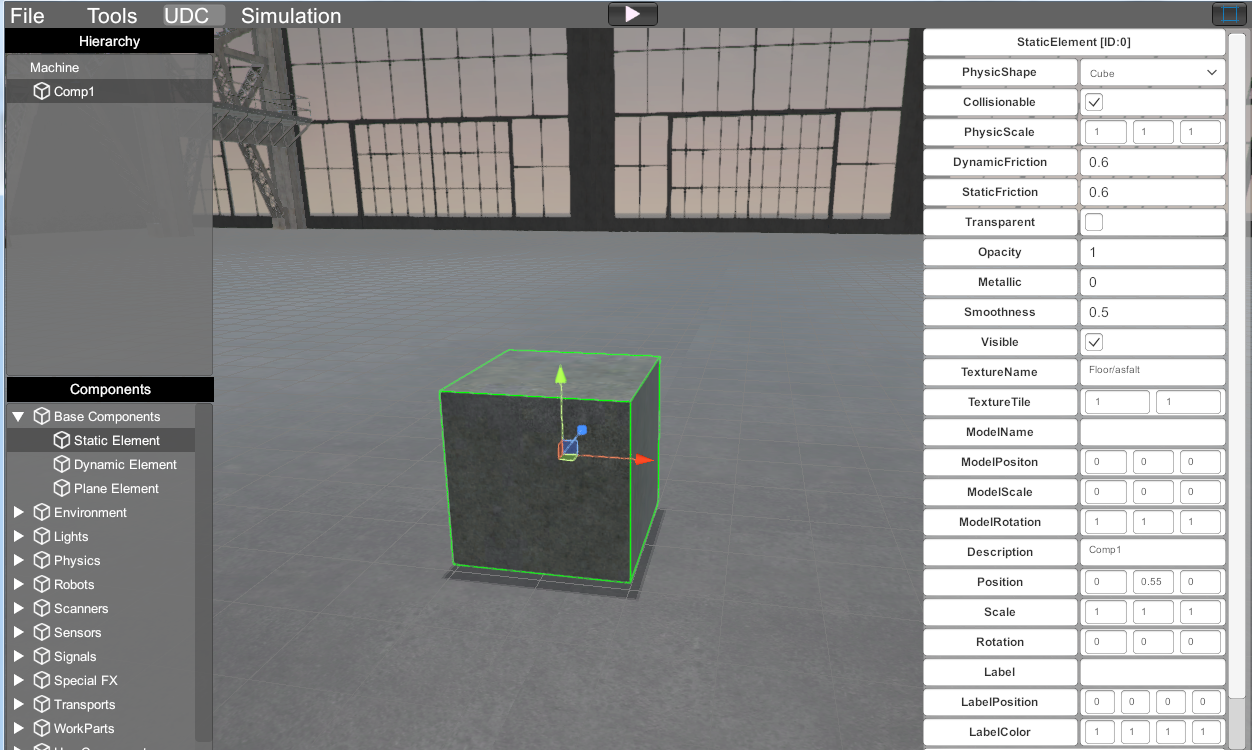
Here is showed a Static Element where their Description property is Comp1.
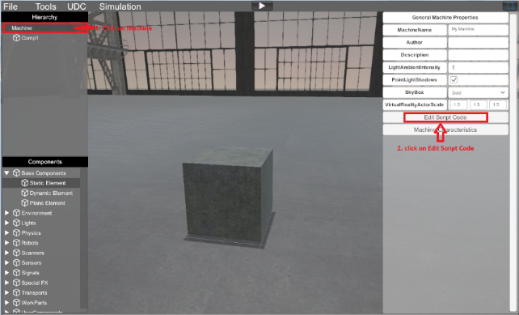
Now Click on Hierarchy tree -> Machine Component, next click in the Edit Script Code button:
The Script Editor will open:
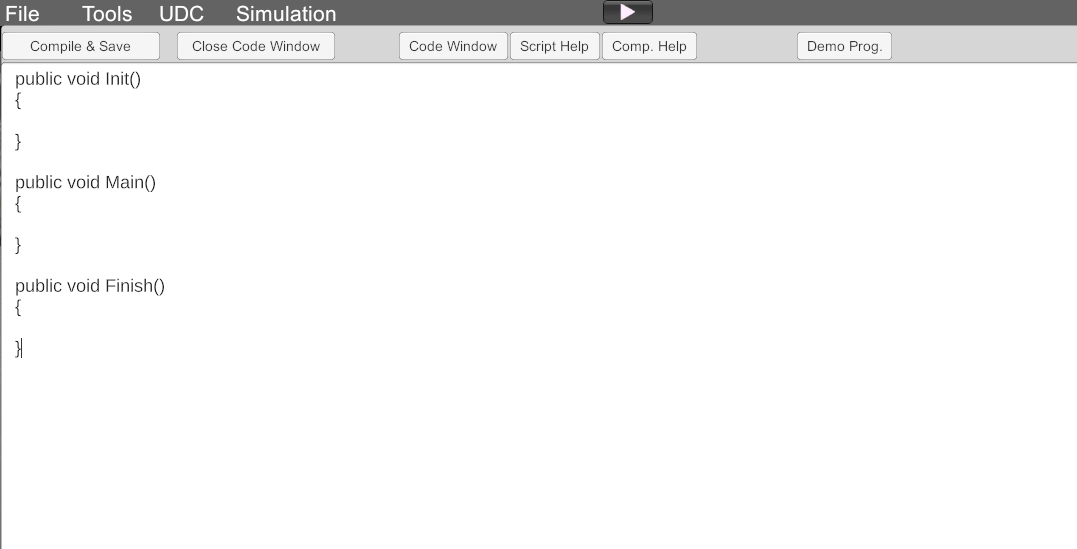
Now type in the body of Main() method the following code:
if(Input.GetKey(KeyCode.P))
{
    Comp1.ChangeTexture("Metal\\metal0");
}
Then press Compile & Save Button, if there not errors in the bottom area of script windows appear the text: Compilation OK! Otherwise, a message will show the error type.
Now pass to run mode and press P key, then you will see how the Static Element will change the texture:
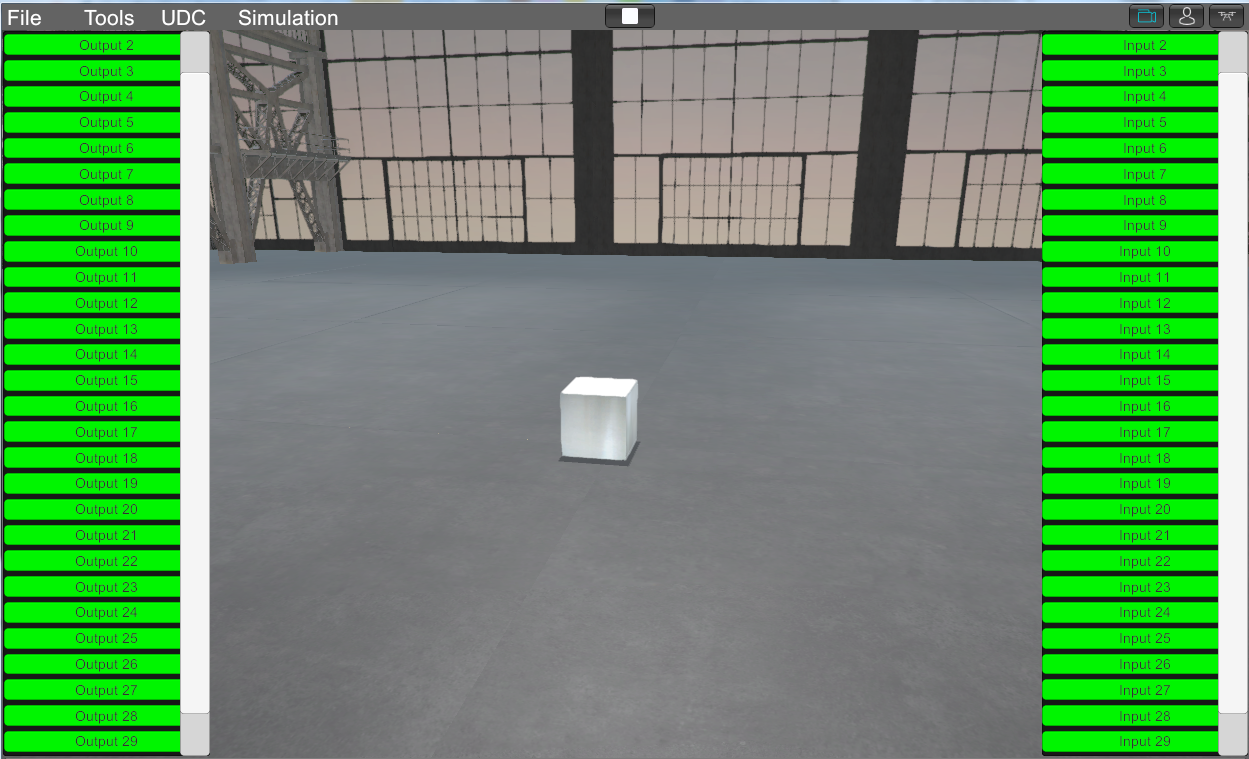
Pay attention, how the Static Element has been called in the script code, as their description name Comp1, this is the way you can call the machine and UDC object components in the script code.
Machines Simulator HMI Tools
Machines Simulator includes a series of tools that allows to display and enter data on the screen. These tools can be activated using the script code or graph nodes. The different tools are listed here:
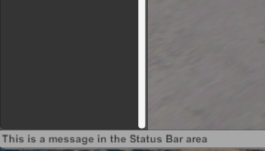
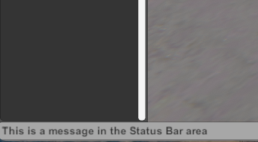
Status Bar Text:
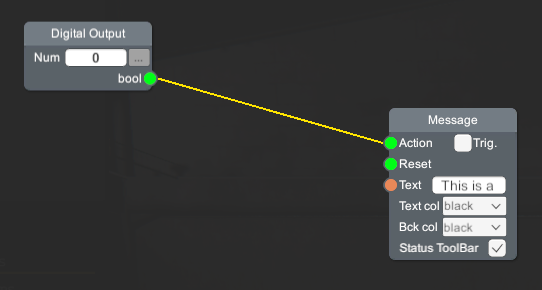
Allow to show a message in the status bar area:
- Using Script Code:
MS.ShowText("This is a message in the Status Bar area");
- Using Graph Code:
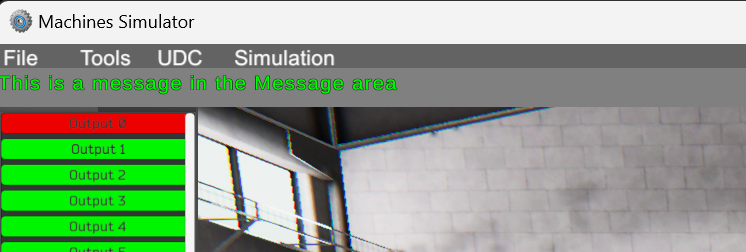
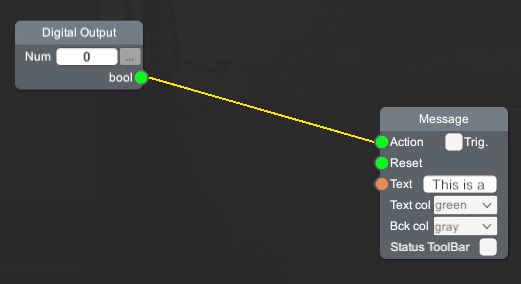
Message area:
Allow to show a message in the message area:
- Using Script Code:
MS.Message("This is a message in the Status Bar area", Color.gray, Color.green);
- Using Graph Code:
Panel Display:
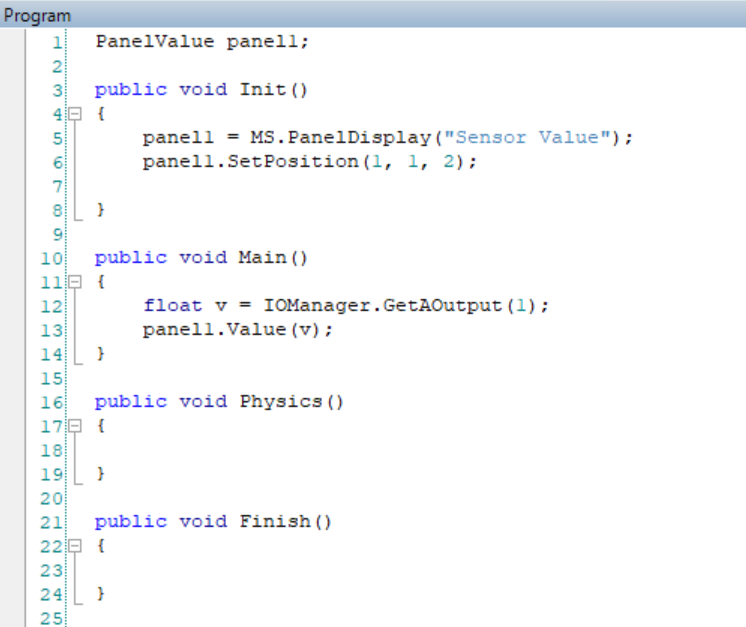
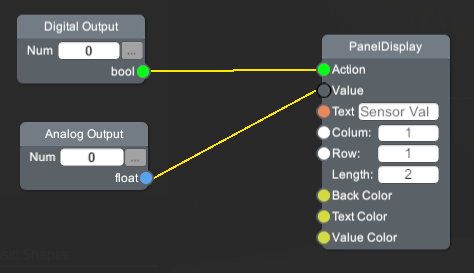
Shows a 2D panel to show numeric Values, the parameter description sets the description text in the Panel.
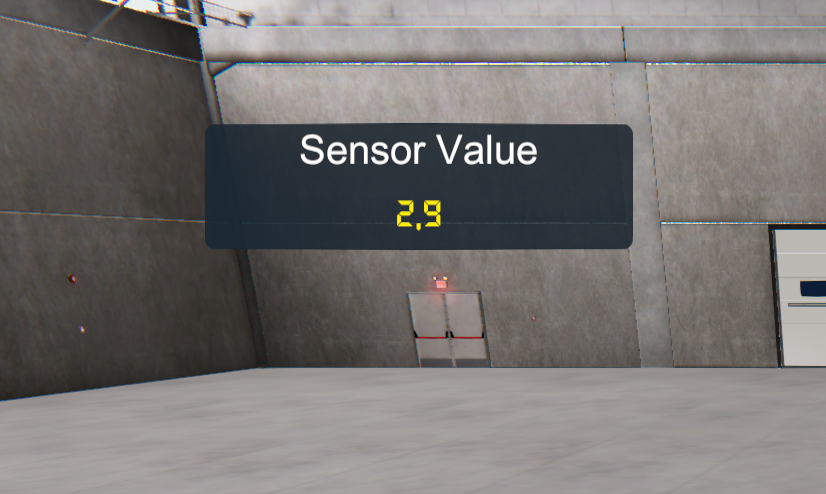
- Using Script Code:
- Using Graph Code:
Panel Button:
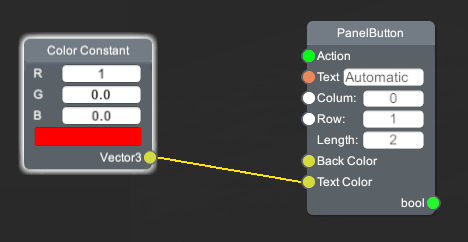
Shows a button in the screen. When the user presses the button an action can be launched.
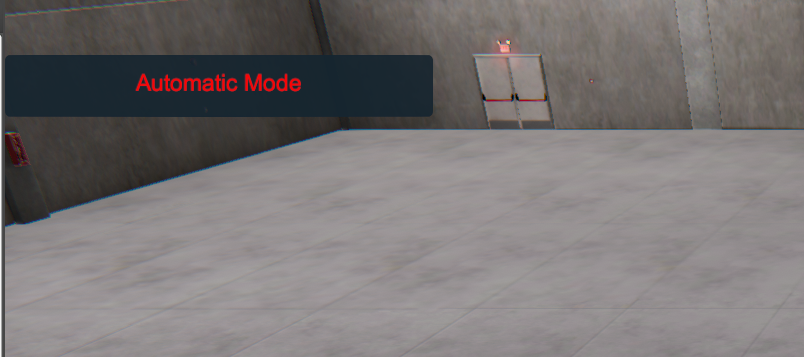
- Using Script Code:
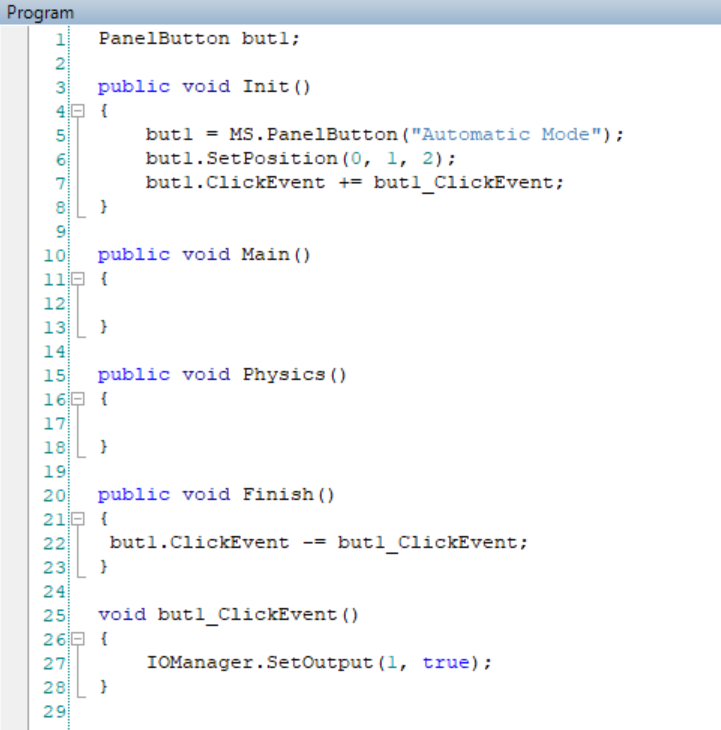
- Using Graph Code:
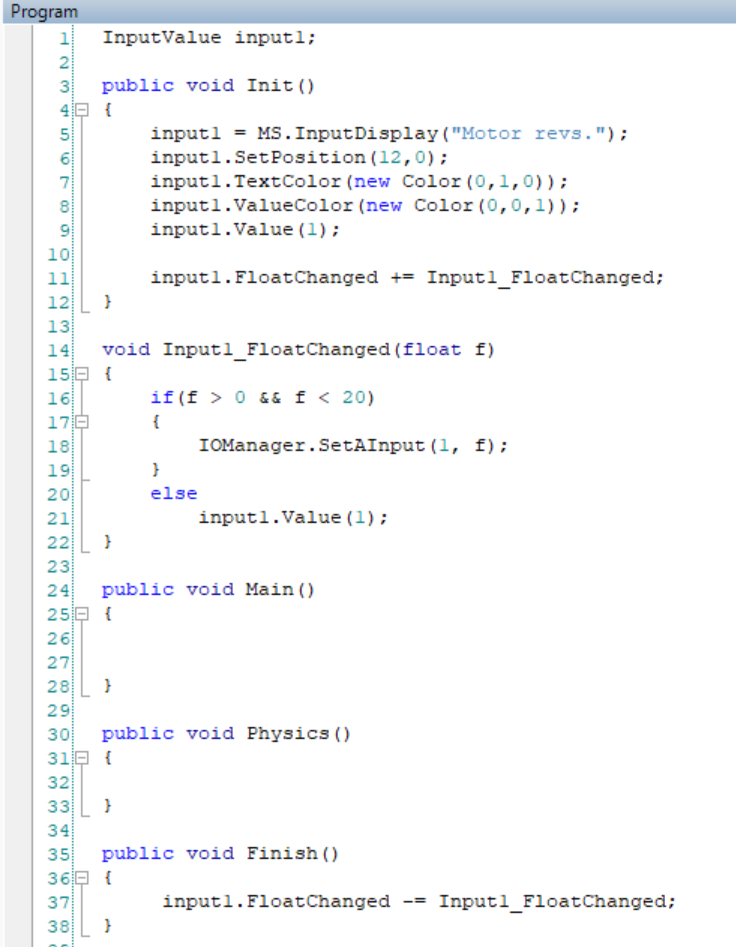
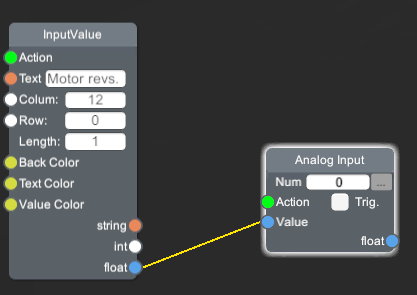
Input Display:
Shows a 2D panel, where users can type values, the parameter description sets the description text in the Panel.
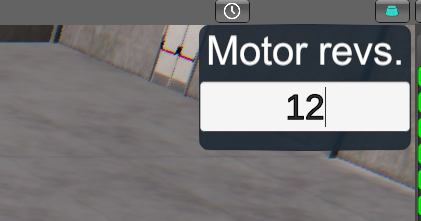
- Using Script Code:
- Using Graph Code:
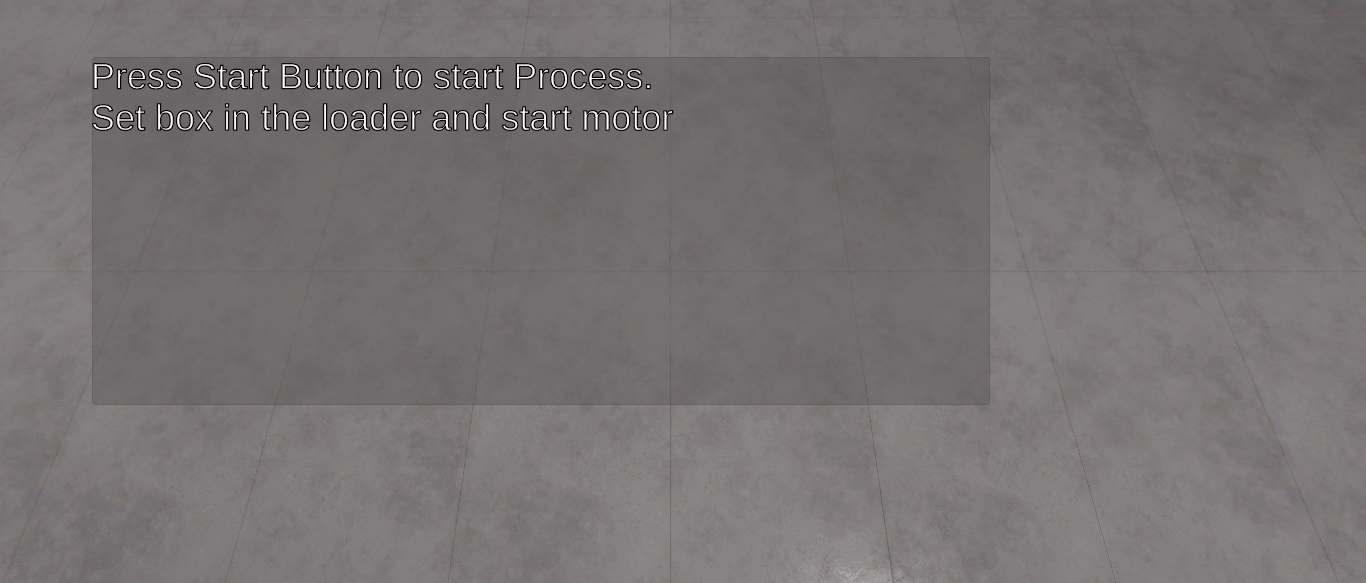
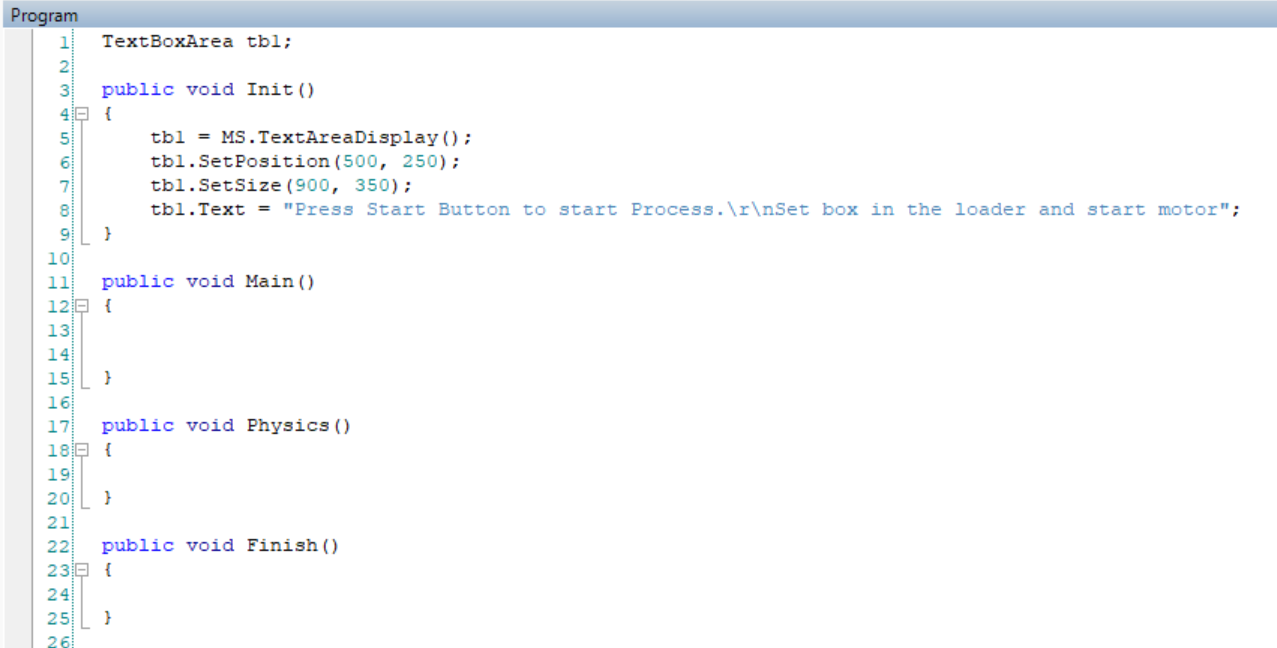
TextBox Area Display:
Shows a 2D text area to show text information.
- Using Script Code:
- Using Graph Code: Not available in Graph node!
CustomWindow:
Shows a Window in front of the screen where the previous HMI components can be added:
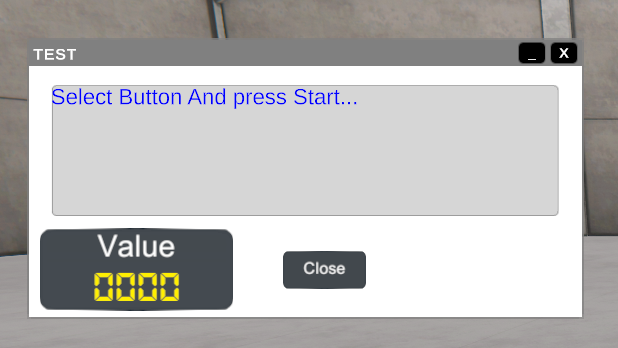
- Using Script Code:
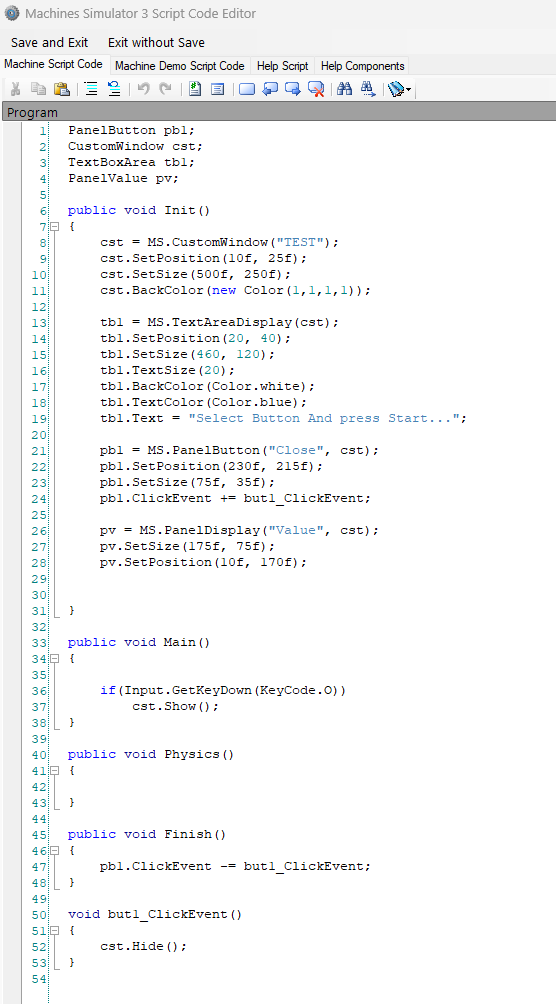
- Using Graph Code: Not available in Graph node!