Adding Components
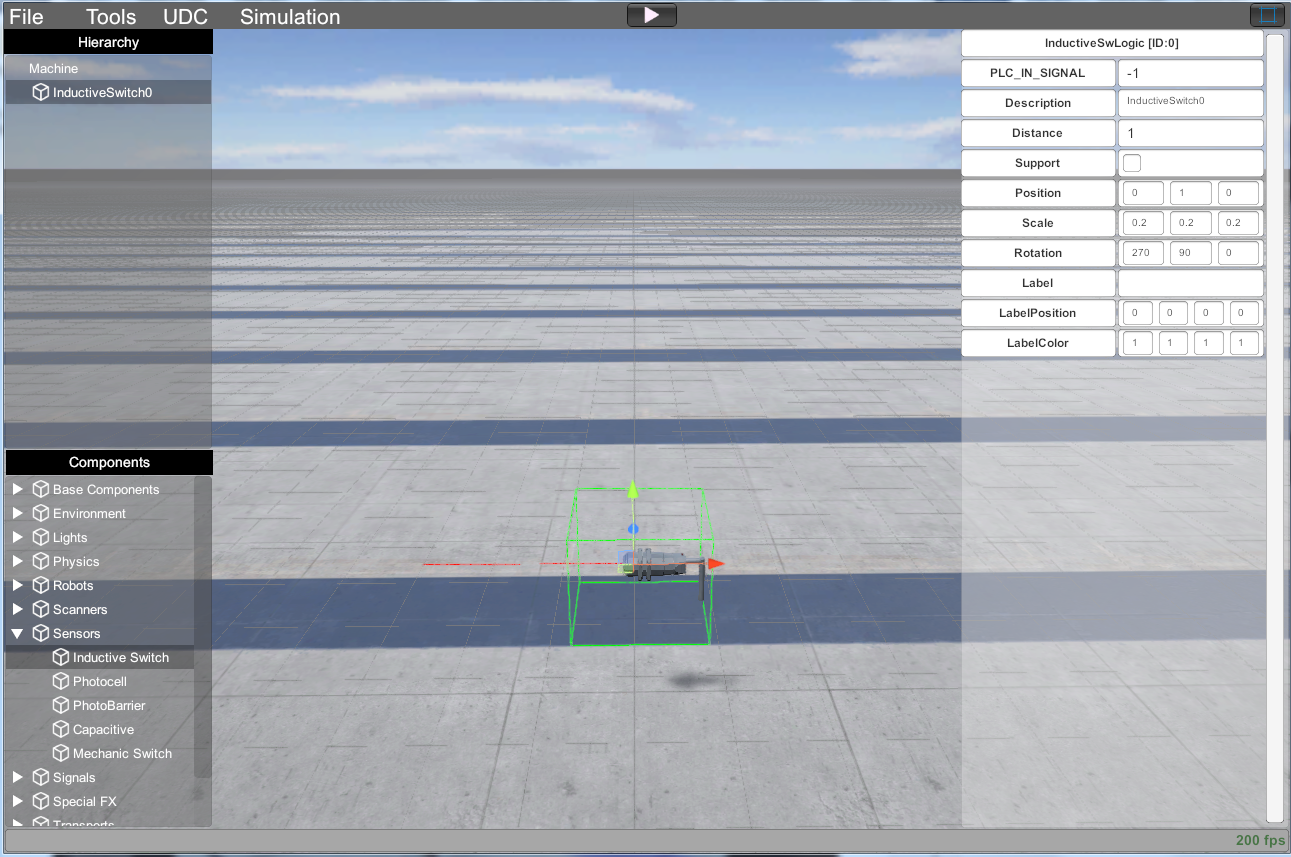
When a new component is added to the installation, it’s added to the Hierarchy tree and is selected. When a component is selected the translation Gizmo is on the component and this means that their properties can be changed. To change their properties, you must use the Property Grid.
When a component is selected, you can use the numeric key pad keys to move around the world. Use 4 and 6 to move it in the X axis, 8 and 2 to move it in the Y axis and 9 and 1 to move it in the Z axis. Use 5 and 7 to rotate in anti-clock wise or clockwise senses.
Press F2 key to toggle between free and step movement mode, use free mode to move quickly and step mode to be more precise.
With delete key, a selected component can be removed from the installation. To select an existing component, you must make click on the Hierarchy Tree or click over the component, then the component will be ready to modify or delete.
When you want to test your installation, press the Start Simulation menu option or click on the Play tool bar icon, then the Design Mode will be leaved and the Run Mode will be activated. In this mode the physics engine will be active and you can test your machines behavior. In this mode it’s not allowed to change the components properties. In the right side will appear a grid with the available digital outputs ready to be simulated by the user pressing over the desired one with the mouse:
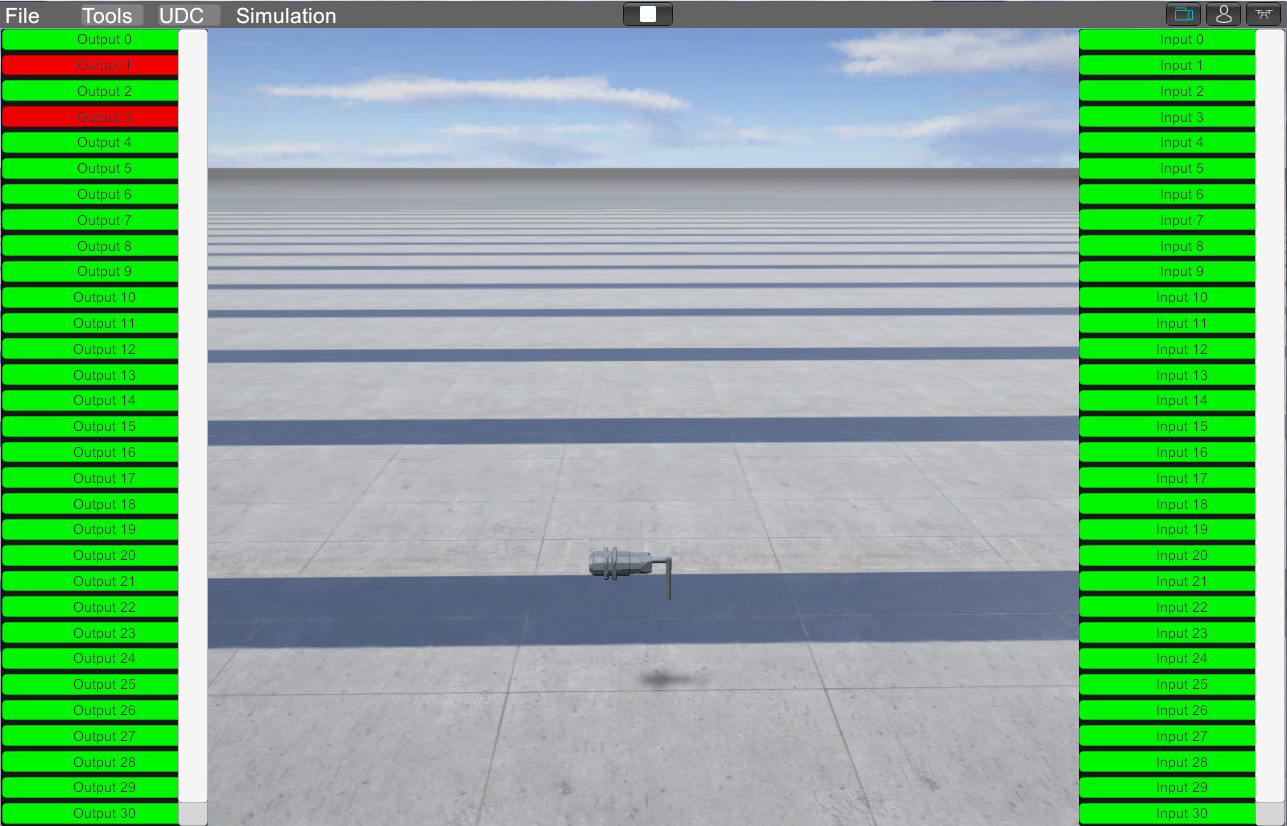
In the left side, you will see the status of the Digital PLC Inputs (that are active by the virtual machine), useful to see if a photocell is being activated, an inductive switch is on, etc.…
Once a machine is created is saved in the folder:
C:\Nirtec\Machines Simulator 4\MyMachines\ (where C:\ is the installation drive you have chosen during the software installation).
You can open, copy & paste your different machine files (.maq) created by you or other users placing the files in the indicated folder.
In the Machines Editor there are not communication between the machine and EasyPLC.
Press Stop Machine menu option (or press F12, or press Stop icon at menu bar) to leave the Run Mode and return to design mode.