Installation and Requirements
Machines Simulator Installation
Install the Machines Simulator from the USB Key. Execute the file MachinesSimulatorSetup.exe located in the EasyPLC Software Suite folder of your USB Key and follow the installer instructions.
Minimum Requirements
| Hardware | Specification |
|---|---|
| Processor: | Compatible with the SSE2 instruction set |
| RAM: | 4 Gb. |
| Disk Space: | 5.0 Gb of free disk space. |
| Graphics card: | Support DIRECTX Version 12 |
| Operative System: | Windows 11 (64 bits) also compatible with Windows 7/8/10 (64 bits) |
Machines Simulator Licenses
Machines Simulator needs a license key in order to run. If you have not a license file Machines Simulator will not work. If you want to purchase some of the available licenses for Machines Simulator, please follow the instructions available in the Nirtec website: https://www.nirtec.com/purchase-price/
There are three types of licenses, floating licenses, Server licenses and USB licenses.
- Floating licenses allows to run the software on only one PC at a time. You can deactivate the license on the assigned PC to activate it on another. Computers using floating licenses needs an Internet connection in order to use the software.
- Server licenses allow to run the software on as many computers at the same time as licenses have been purchased. The minimum is 3 and maximum 30. Computers using server licenses needs as Internet connection in order to use the software.
- USB License allows to run the software on only one PC at a time. The software will run while the USB will be plugged in the computer. Could be transferable between computers. The USB licenses do not need an Internet connection.
How to activate your License
USB License
Only is necessary to install the software from the provided USB Key and keep the USB key connected to the computer where the software is running.
Standalone & Server License
Once you complete the purchase process, your license account will be created with the username you provided on the purchase form.
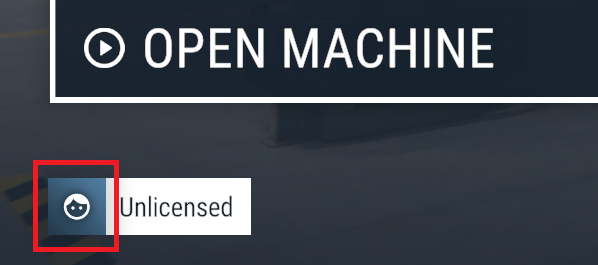
To activate your license, select the User icon in Machines Simulator (down left side):
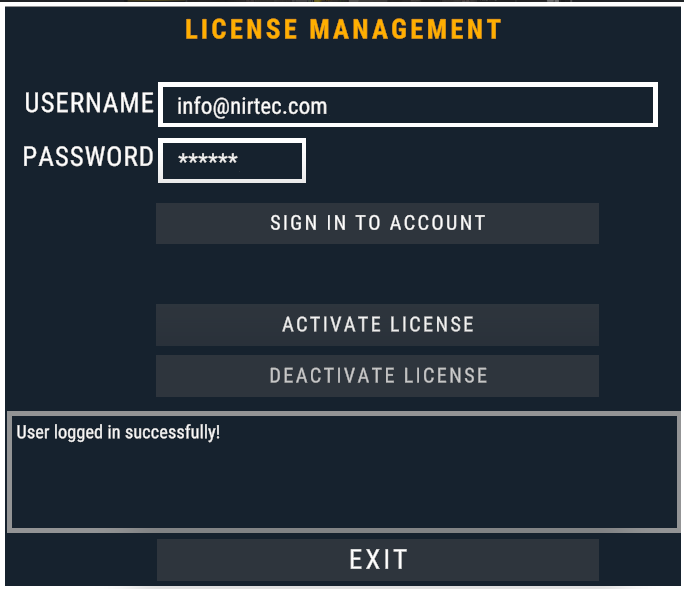
In the License Management Windows, type your username and click on SIGN IN TO ACCOUNT button:
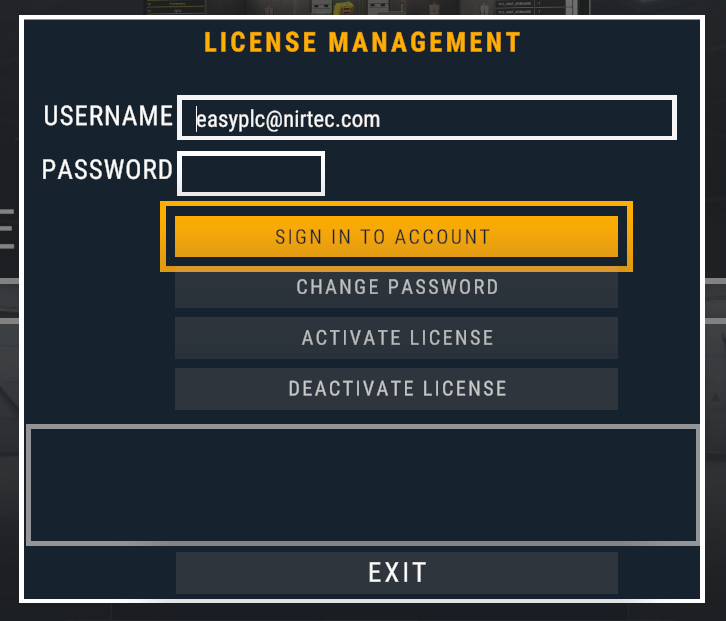
If you have entered the correct username (the same email address you entered as your username during the purchase process), a message will appear confirming that you have logged in successfully.
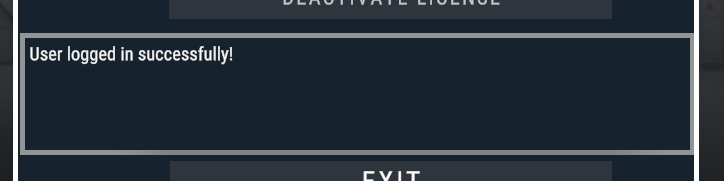
Now you can, if you wish, set a password to your account (highly recommended), press the CHANGE PASSWORD button:
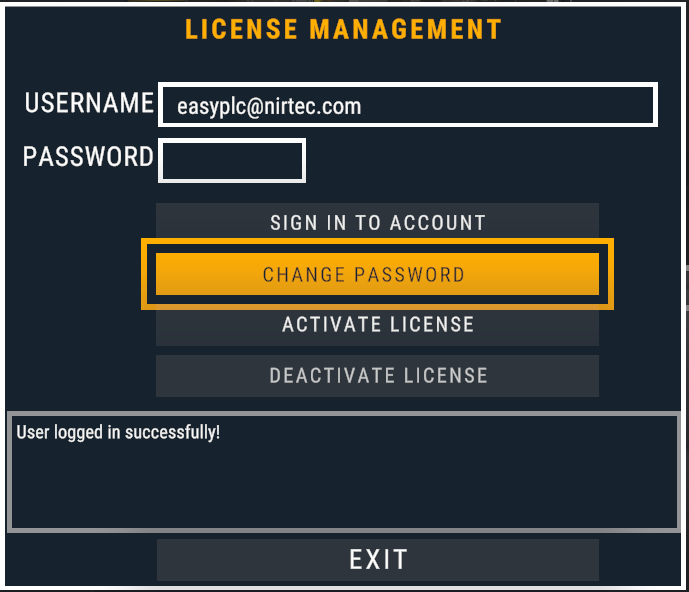
Enter the desired password and confirm it in the text box on the right. Once you have it, press again CHANGE PASSWORD button:
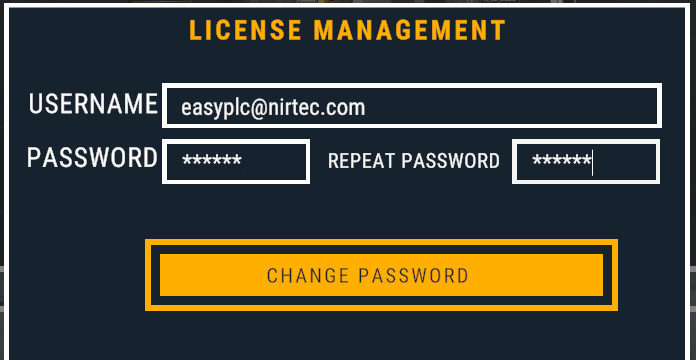
You'll now have set a password for your account. You can now activate your license by clicking the ACTIVATE LICENSE button.
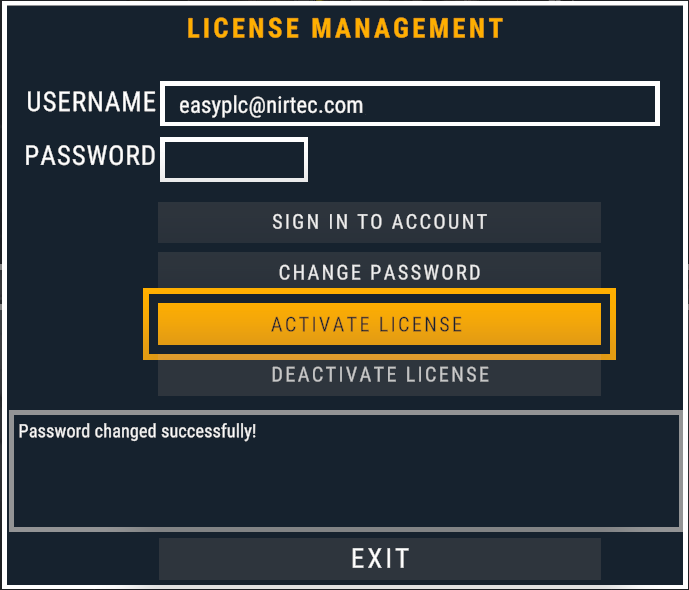
A message appears confirming the activation of the license and informing you of the validity period: monthly, annual or perpetual.
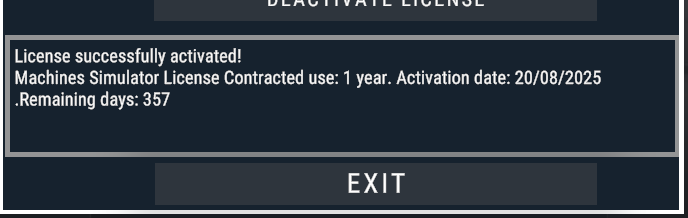
Press EXIT button.
How to change the license on another computer:
If you want to change the computer where you’re using Machines Simulator, you must to deactivate the license in the current computer you’re suing it, to do it, click on user Icon:
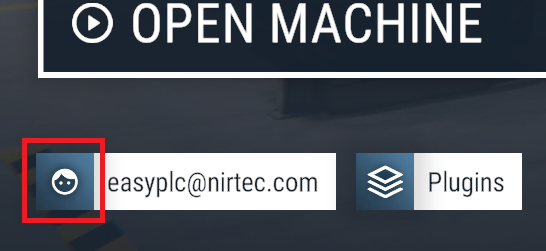
You must log in to your account to perform any operation on your license, whether it's changing your password or activating or deactivating your license. Enter your username and password:
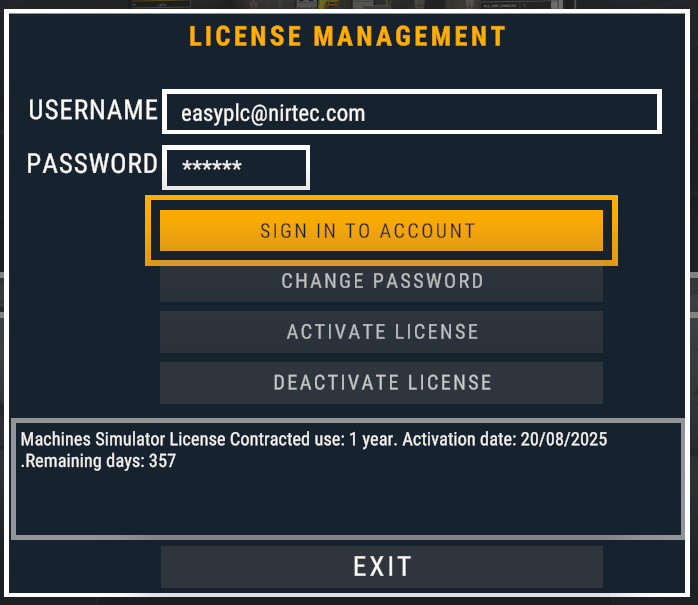
Now click on DEACTIVATE LICENSE button:
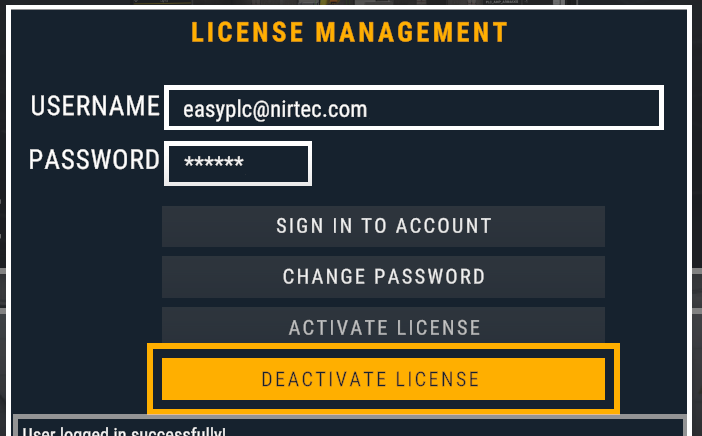
A message will indicate the license is deactivated:

You can now activate your license on another computer.
Server License
If you are using a Server license, you must follow the exact same steps. Instead of entering the account password, you must enter the password for the Server license seat you are using. This password must be provided by the Server license administrator. The Server license user is not authorized to change the seat password; therefore, when you log in as a Server license seat user, the option to change the password will not appear:
How to configure the program exit to disconnect the user:
In some scenarios, such as when using Server licenses, it may be interesting to have the server license automatically disconnect when a user leaves the program and leave the position free for another server user.
If you want to configure this behavior, you must edit the config.ini file located in the program's installation path:
C:\Nirtec\Machines Simulator 4\ms4bin_Data\config.ini
In the [General] section, you'll find a key called LogOff.
LogOff = 0(by default the value is 0, It means that the username and password are remembered for each new entry to the program)LogOff = 1(When you exit the program, the license will be automatically disconnected)
Plugins
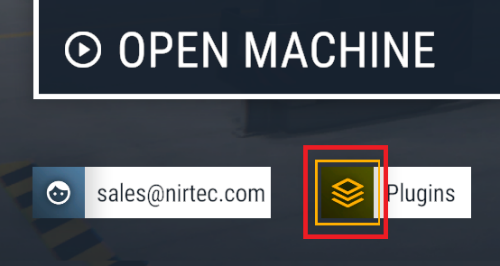
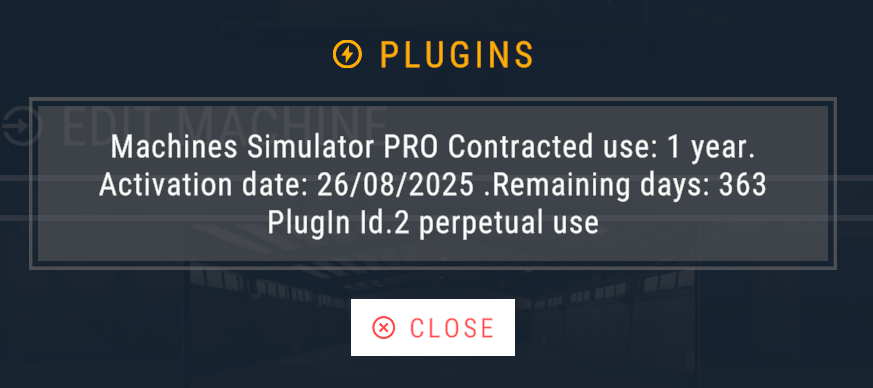
If you have purchased a plugin for Machines Simulator, it will be automatically associated with your account. You can view the plugin and related information by clicking on the Plugins icon in the bottom left corner, next to the user information field:
USB License users
Users with a perpetual USB license do not need to log in with a license account. However, to access items downloaded from the Nirtec Asset Store, they must register. To do so, follow these steps:
With the USB key connected to the PC, select the User icon in Machines Simulator (down left side):
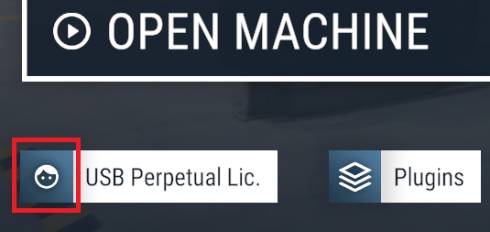
Enter your username (the same one you used during the purchase process) and password (if you have already changed it, otherwise leave it blank):
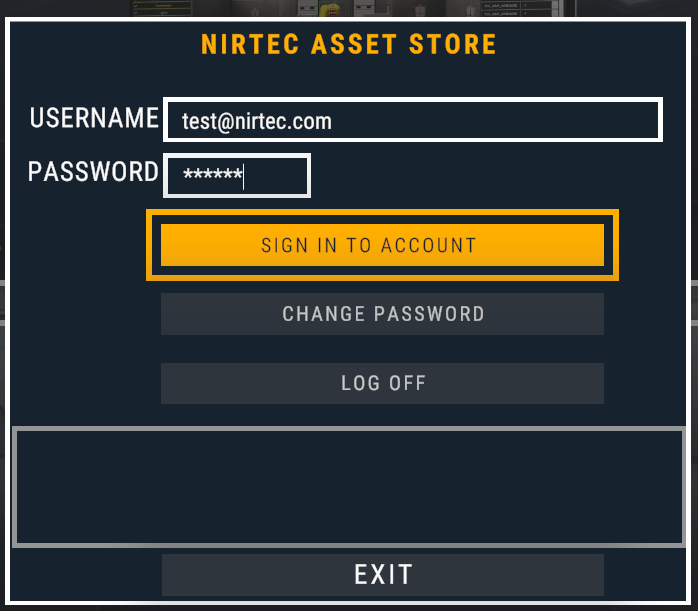
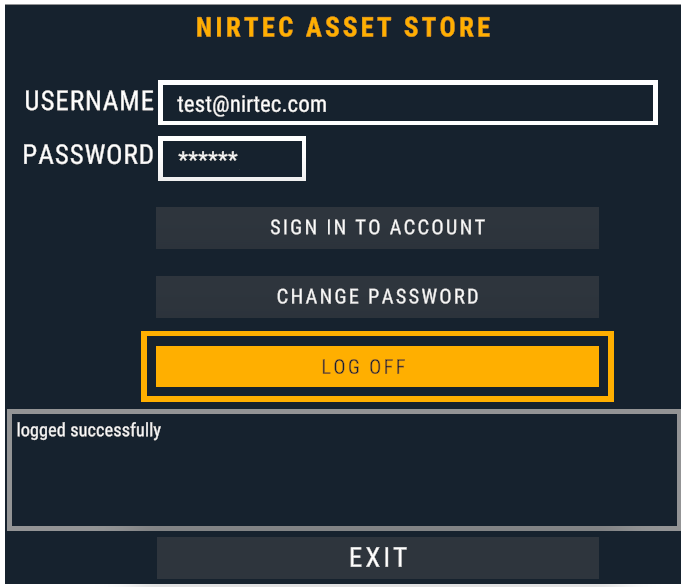
A message will confirm you are logged successfully and you can access to all the content downloaded from the Nirtec Asset Store:
Once logged, you can set a new password or change your current one:
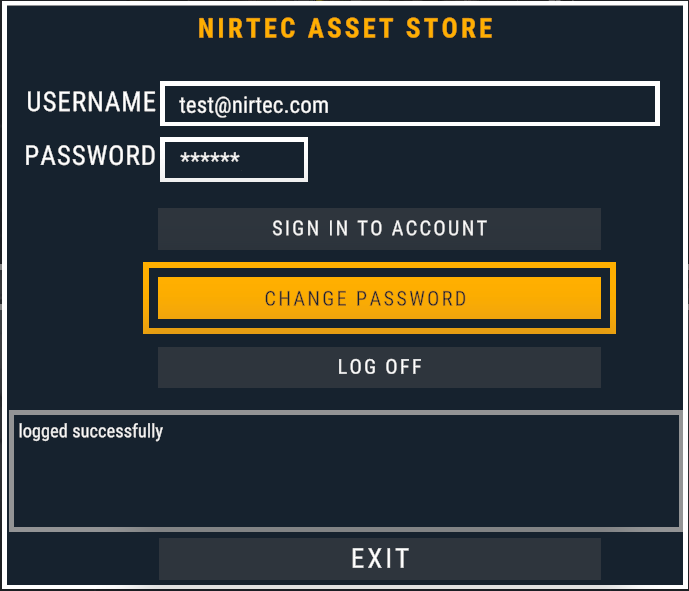
Press the Log off button if you want to close your Nirtec Asset Store account on this computer and activate it in other one: