Machines Simulator Virtual Reality
Machines Simulator VR is the virtual reality module for Machines Simulator.
It allows you to run and interact with machine simulations in a VR environment using a compatible headset and controllers.
Machines Simulator VR does not include the editor. To create or modify machines, use Machines Simulator Editor. Once a machine has been created, it can be tested in both Machines Simulator and Machines Simulator VR.
Requirements and compatibility
Machines Simulator VR is designed to work with SteamVR.
SteamVR download link: https://store.steampowered.com/app/250820/SteamVR/
In general, any headset compatible with SteamVR can be used with Machines Simulator VR. This includes supported devices from platforms such as HTC Vive, Oculus / Meta, Pico, and other SteamVR-compatible systems.
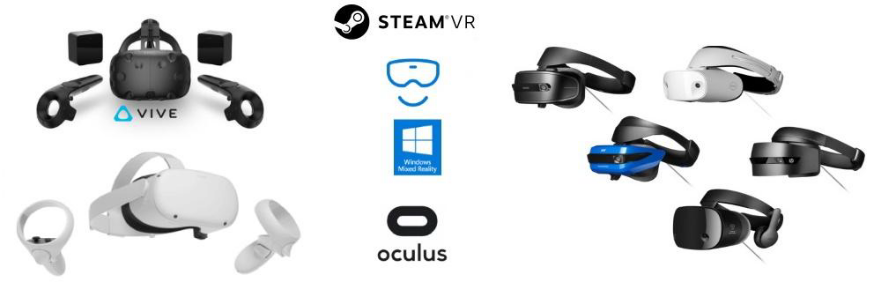
Before using Machines Simulator VR, make sure that:
- your VR headset is installed correctly
- SteamVR is installed and working
- your headset vendor software is installed if required
- the headset and controllers are recognized correctly by SteamVR
If your VR platform requires an additional compatibility layer, install and configure it before launching Machines Simulator VR.
Before you start
Before launching Machines Simulator VR:
- Install and configure your VR headset.
- Install SteamVR and confirm that it works correctly.
- Install Machines Simulator VR.
- Confirm that your license is available.
- If the license is not detected correctly, run
MachinesSimulatorVR.exewith administrator privileges.
If you installed the software in a custom location, verify that the executable has the required permissions in that installation path.
License configuration
Machines Simulator VR supports the same licensing model as Machines Simulator.
USB license
If you are using a USB license:
- install the software from the provided USB key if required by your package
- keep the USB key connected while the software is running
Standalone or server license
If you are using a standalone or server license, the license must first be activated in Machines Simulator.
After that:
- Launch
MachinesSimulatorVR.exe. - The User Login window appears on the desktop.
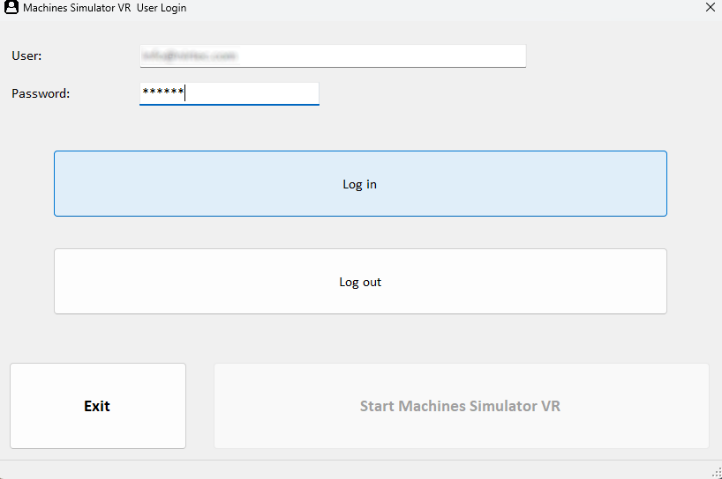
- Enter your registered email address.
- Enter the password defined in Machines Simulator, or the password provided by your server administrator.
- Click Log in.
- After the credentials are validated, click Start Machines Simulator VR.
The login process is completed on the desktop, not inside the VR environment.
How it works
Machines Simulator VR operates in a similar way to Machines Simulator.
When a machine is loaded, the application communicates with the Virtual PLC to exchange I/O signals. This allows you to test machine behavior and interact with the simulated environment in real time.
You can interact with machine elements such as parts, sensors, and controls directly from the VR environment.
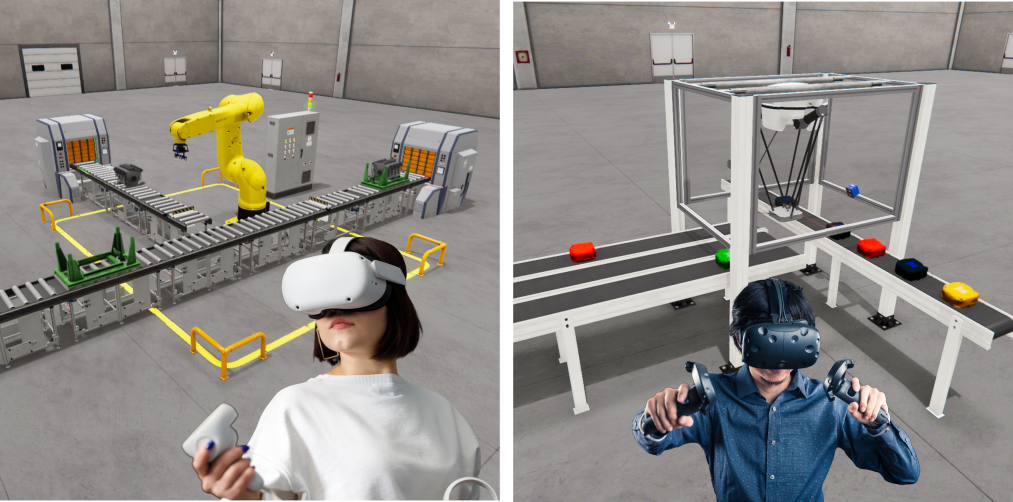
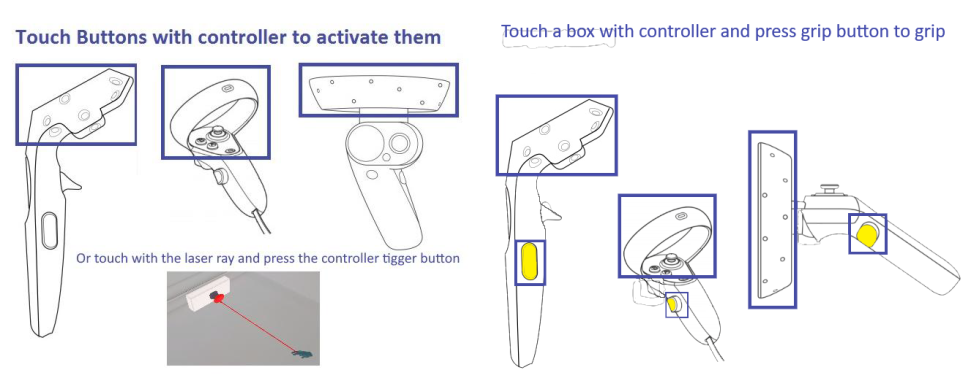
If you touch a sensor such as an inductive, photocell, or proximity sensor with the controller, the sensor is activated. This can be useful for testing faults, signal handling, and unexpected operating conditions.
Movement and controls
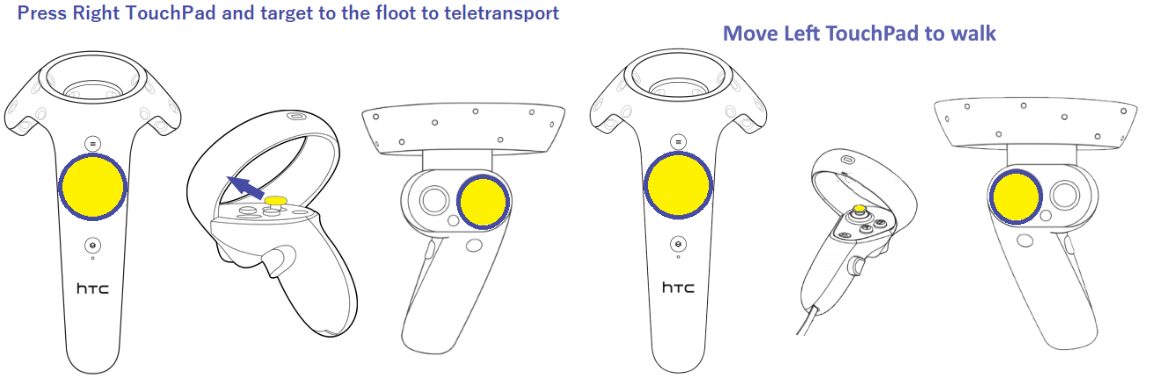
From the main screen, open Settings to choose the movement mode:
- Teleport
- Teleport + Free Movement
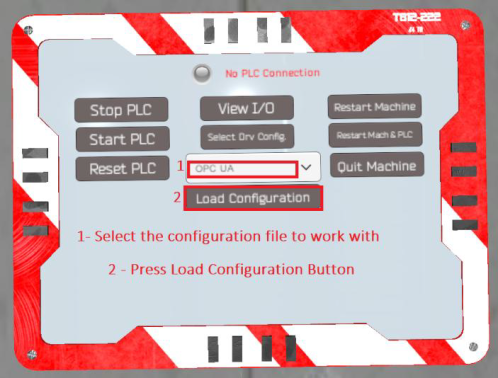
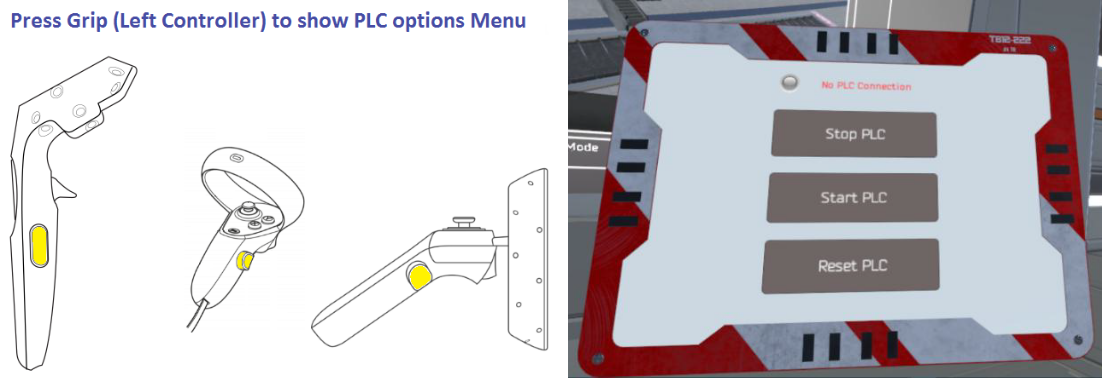
When you press the left controller grip button, a tablet appears on the left controller. This tablet provides access to PLC-related options and other in-scene commands.
Use the controller pointer to select buttons and interact with menus.
Starting room
When Machines Simulator VR starts, you enter the starting room.
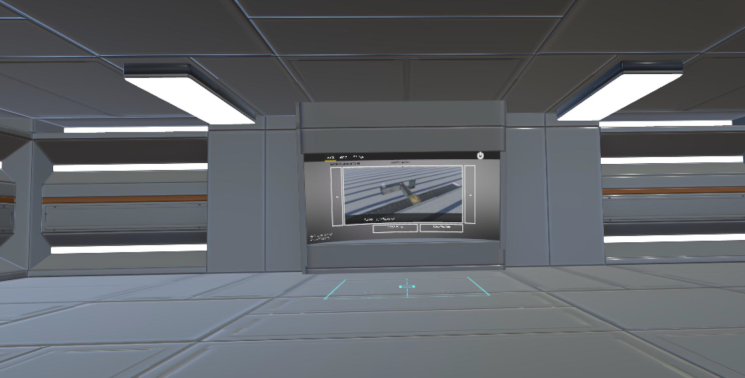
From there, you can:
- review basic controller usage
- browse the available machines
- load a machine
- start a demo mode, if available
Use the pointer from the right controller to select items on the machine selection screen.
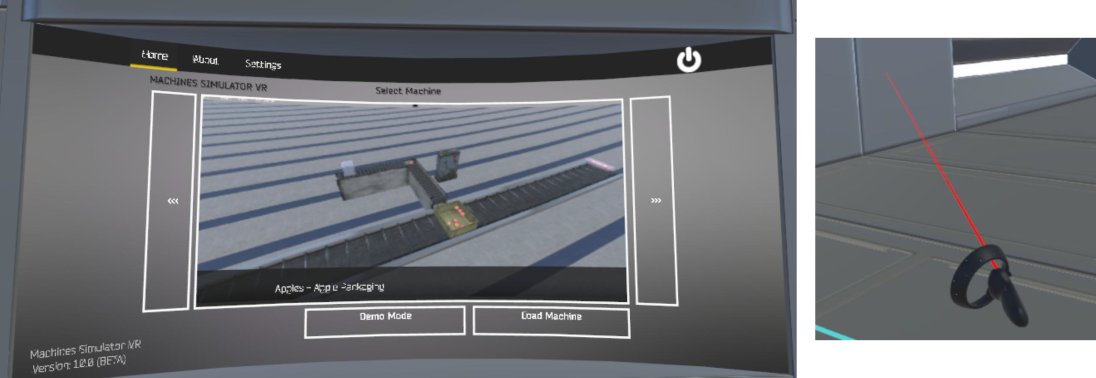
To choose a machine:
- Use the left and right selection buttons next to the preview image to browse the available machines.
- Select Demo Mode to view the expected machine operation.
- Select Load Machine to open the machine and connect it to the Virtual PLC.
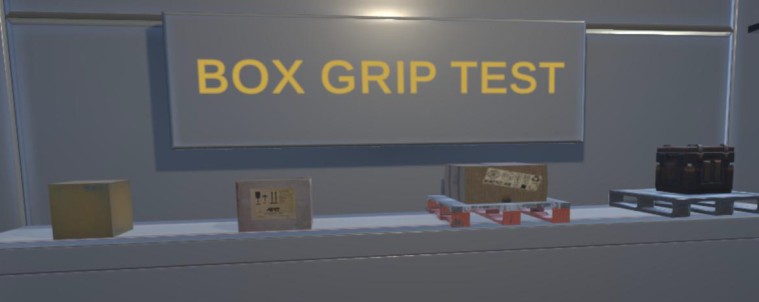
The starting room may also include simple interactive objects for practicing grip and touch interaction before loading a machine.
Load custom machines
Machines created with Machines Simulator Editor can also be used in Machines Simulator VR.
To load a custom machine in VR:
- Create or modify the machine in Machines Simulator Editor.
- Locate the generated
.maqfile in the Machines Simulator machine folder. - Copy that file to the corresponding MyMachines folder used by Machines Simulator VR.
- Restart Machines Simulator VR if needed and load the machine from the selection screen.
Driver configuration
Machines Simulator VR can reuse driver configurations from Machines Simulator when external interfaces are required.
To reuse a driver configuration:
- Copy the required driver files, such as
.iniand.drv, from the Machines Simulator driver folder (ms4bin_Data\Drivers) to the corresponding driver folder in Machines Simulator VR. - Load a machine in Machines Simulator VR.
- Open the tablet using the left controller grip button.
- Open the PLC options menu.
- Select Drv. Config.
- Choose the configuration file using the controller.
- Select Load Configuration.
Once loaded, the selected driver configuration can be used to interface Machines Simulator VR with the required external setup.