MS Hologram Augmented Reality
Machines Simulator Hologram AR extends Machines Simulator with an augmented reality experience based on the Tilt Five platform.
It allows users to load and interact with industrial simulation scenes in a shared holographic environment. Depending on the scene and system setup, up to four users can participate in the same experience.
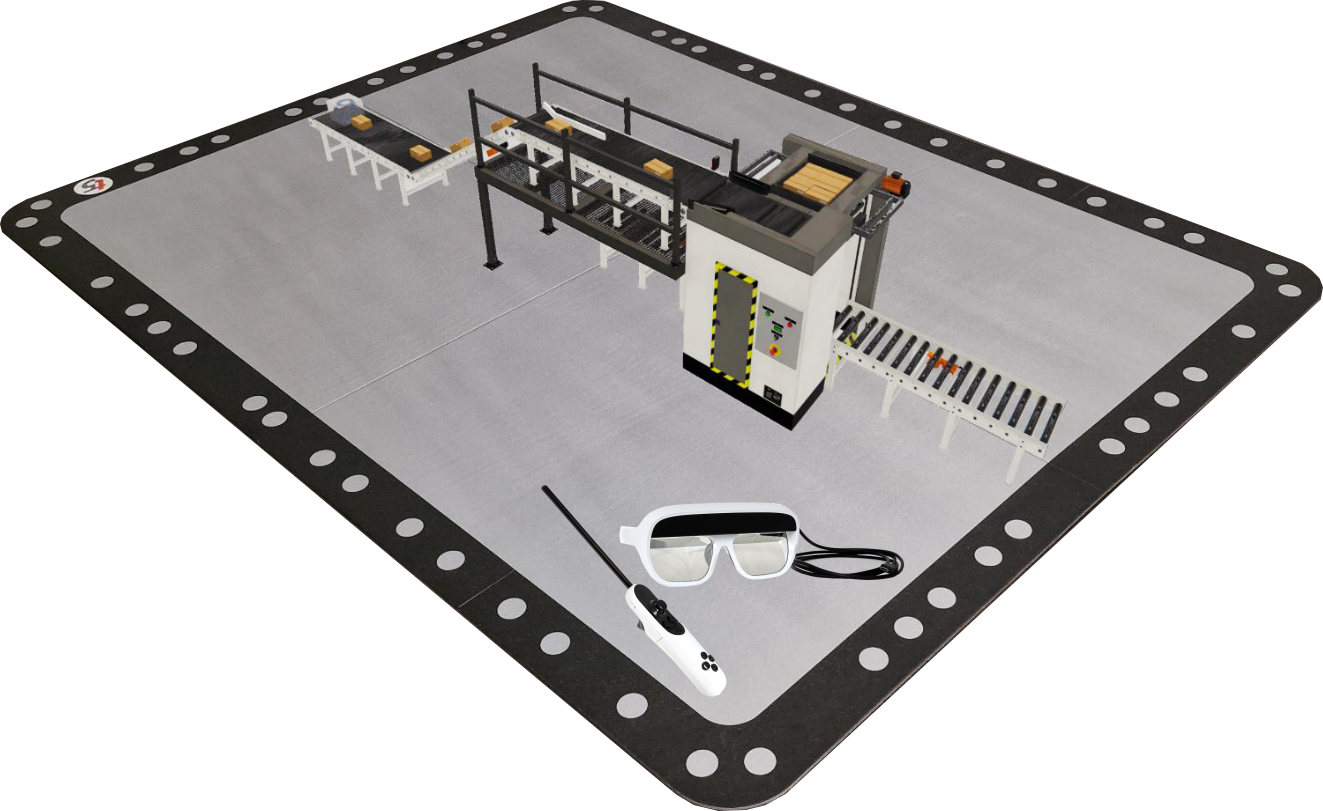
Requirements
To use Machines Simulator Hologram AR, you need:
- the Tilt Five bundle system installed and configured on your computer
- a Machines Simulator Suite USB license
- the Machines Simulator Hologram AR module
Before using the software for the first time, complete the device setup process recommended by Tilt Five.
Setup
- Install and configure the Tilt Five system on your computer.
- Install Machines Simulator Hologram AR.
- Connect the Nirtec USB license.
- Launch the application.
Once the software starts correctly, you can browse the available scenes and open a simulation.
Controls
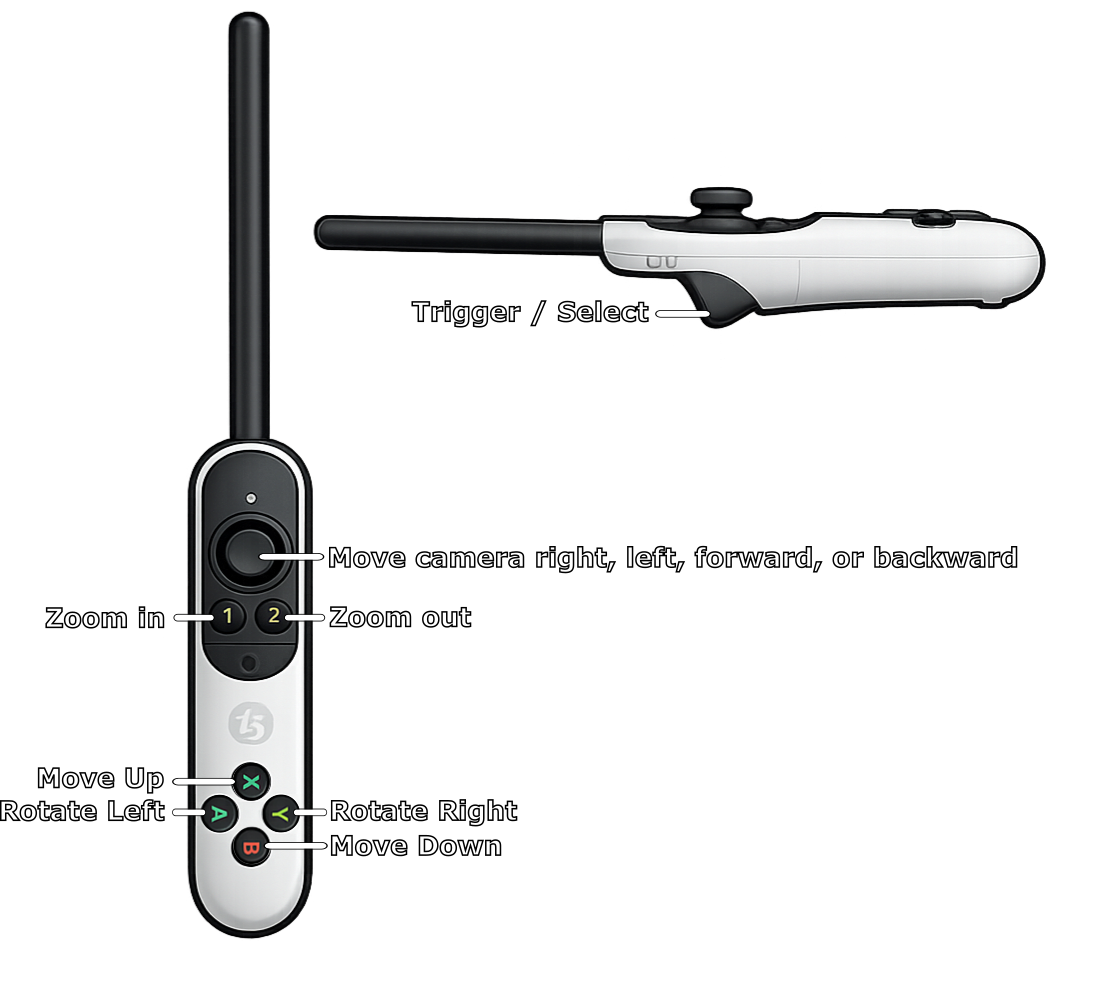
Use the Tilt Five wand to navigate menus and interact with the simulation.
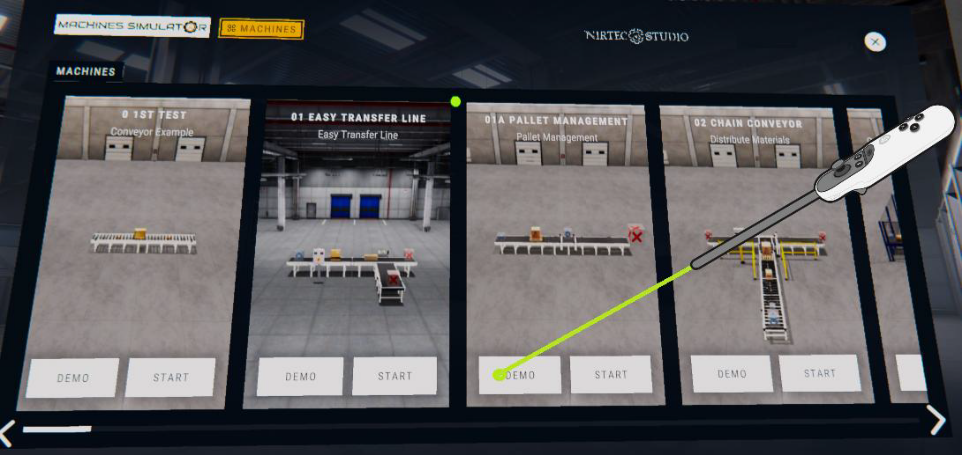
Machine selection
Point at a button with the wand and press the trigger button to select it.
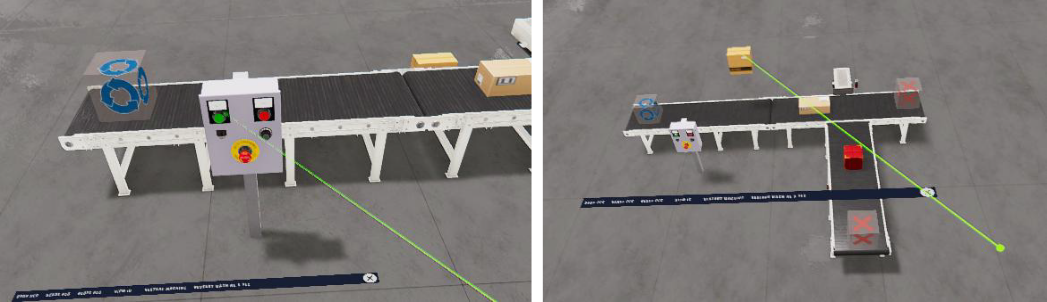
Scene interaction
Inside a scene, you can use the wand to interact with supported elements such as:
- workparts
- push buttons
- selectors
- other machine controls
To move a workpart, point at it, select it, and move it to the desired position.
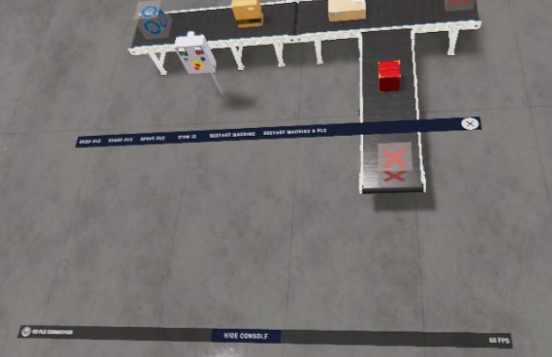
When a scene is loaded, the menu appears at the bottom of the board.
Use the console to monitor and interact with the machine signals during the simulation.
I/O Menu
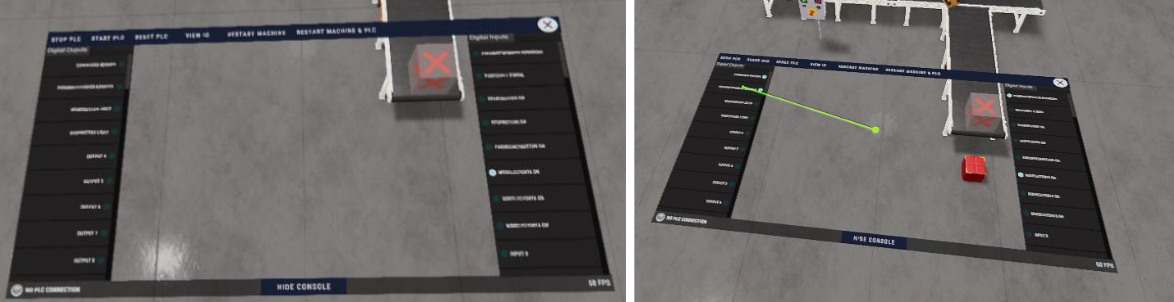
Press View IO to open the I/O panel.
You can toggle an output by selecting it in the panel or touching it with the wand.
Show or hide the console
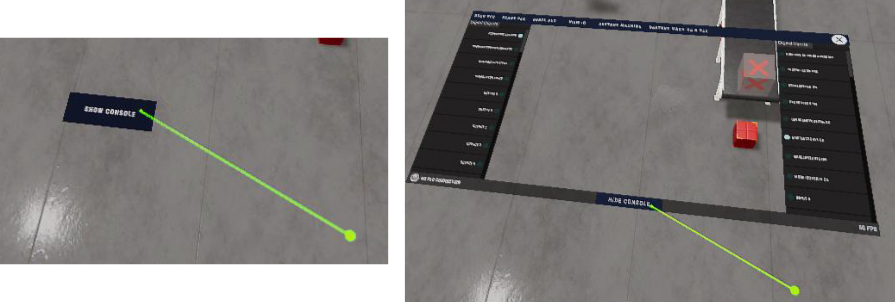
Use Hide Console or Show Console to collapse or expand the console as needed.
EasyPLC integration
Machines Simulator Hologram AR uses EasyPLC to manage machine logic.
You can use EasyPLC to:
- run the simulation with Virtual PLC CPU
- test machine logic
- interface with third-party PLC environments and external software
For the step-by-step procedure, see the corresponding guide in Guides & Examples.