Use SteamVR with Oculus Rift
This guide explains how to use Machines Simulator VR with an Oculus Rift headset through SteamVR.
note
This setup depends on third-party software from Meta and Steam. Menu names and options may vary depending on the installed version.
Before you start
Make sure that:
- your Oculus Rift is installed and working correctly
- the Oculus desktop app is installed
- Steam is installed
- SteamVR is installed
- your headset and controllers are detected correctly by the Oculus software
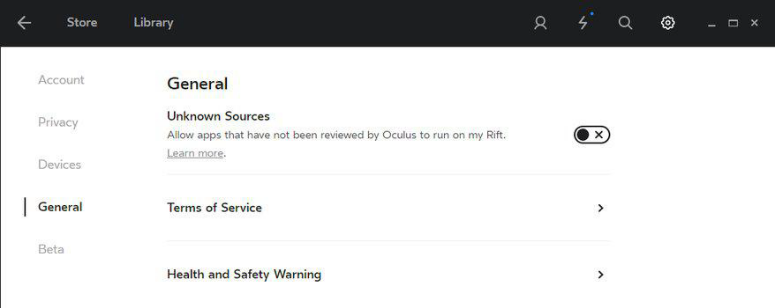
Enable Unknown Sources
- Open the Oculus desktop app.
- Open Settings.
- In the General section, enable Unknown Sources.
- Confirm the change if prompted.
Do not close the Oculus desktop app after enabling this option.
Install SteamVR
- Open Steam.
- Go to Library > Tools.
- Install SteamVR if it is not already installed.
Launch SteamVR
- Start the Oculus desktop app.
- Open Steam.
- Launch SteamVR.
If the headset is detected correctly, SteamVR should start in VR mode and the headset should become available for compatible applications.
Start Machines Simulator VR
Once SteamVR is running correctly:
- Launch Machines Simulator VR.
- Complete the desktop login process if required by your license.
- Put on the headset and continue from the VR environment.
Troubleshooting
If SteamVR does not detect the headset correctly:
- confirm that the Oculus software is running in the background
- confirm that Unknown Sources is still enabled
- restart SteamVR
- disconnect and reconnect the headset
- check that the headset works correctly in the Oculus software before launching SteamVR
If the issue persists, restart the Oculus software, Steam, and the headset connection before trying again.