How to launch the PLC program simulation for Rockwell Studio 5000
Follow these steps to load, configure, and simulate a proposed solution using Rockwell Studio 5000 and Machines Simulator.
Step 1: Accessing the Solution
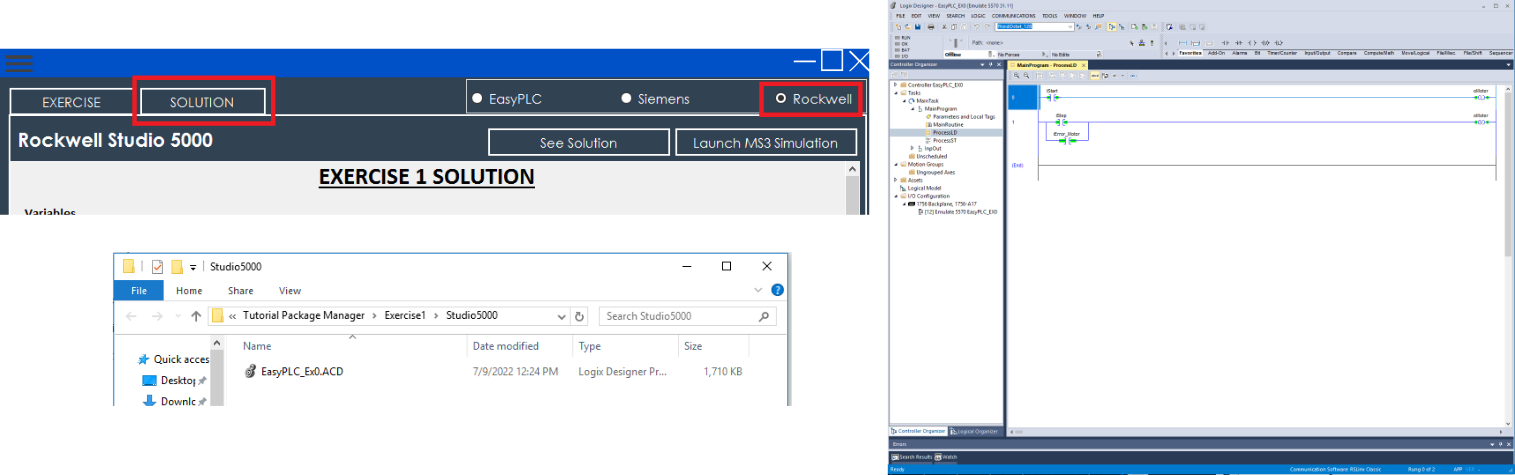
- In the Tutorial Manager, click the Solution button.
- Select the Rockwell platform from the top-right toggle.
- Click the See Solution button. A folder will automatically open containing the Studio 5000 project files.
- Double-click the project file to open it in Studio 5000 Logix Designer.
Step 2: Preparing the Emulator
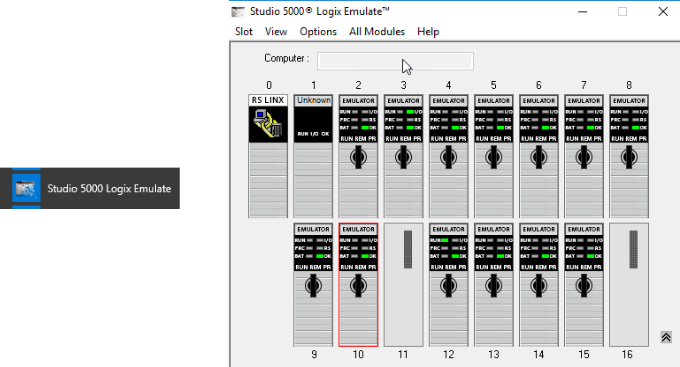
- Launch Studio 5000 Logix Emulate.
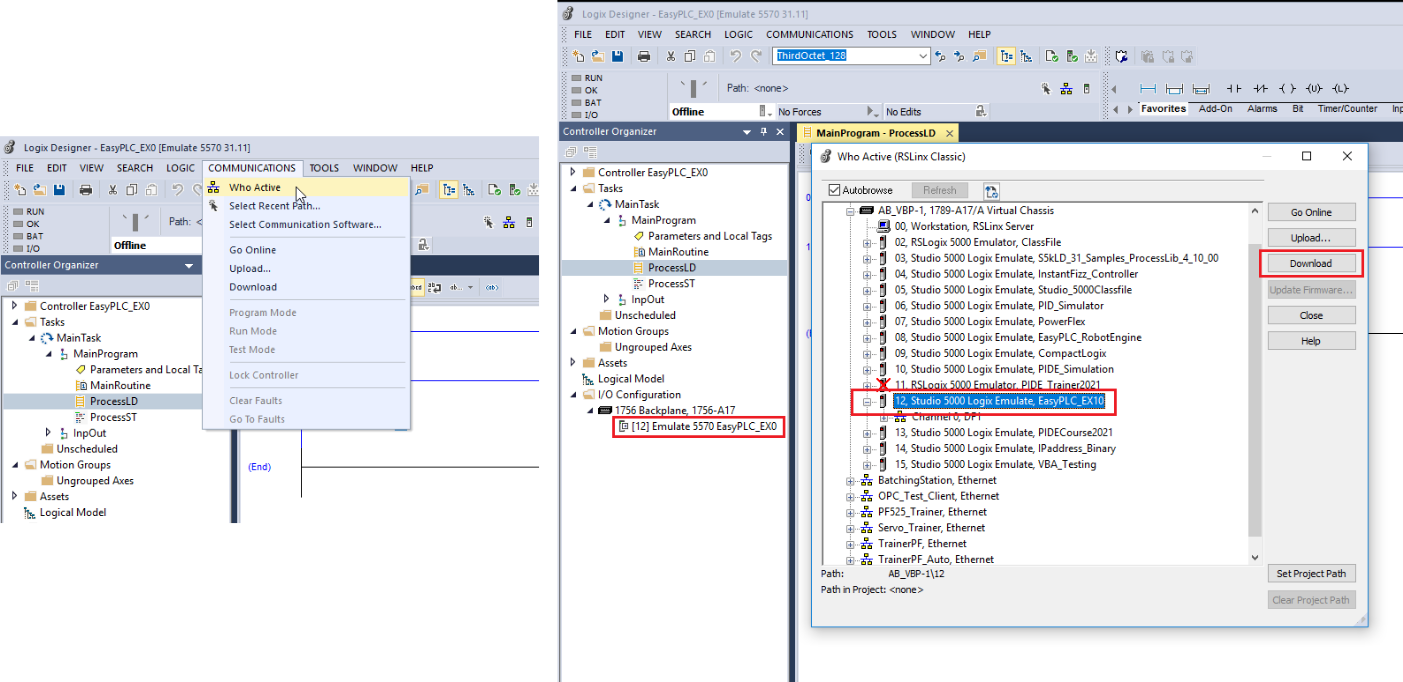
- To transfer the program, go to the Studio 5000 Main Menu: Communications -> Who Active.
- Select Virtual Chassis 12 (the one used in the I/O Configuration) and press Download.
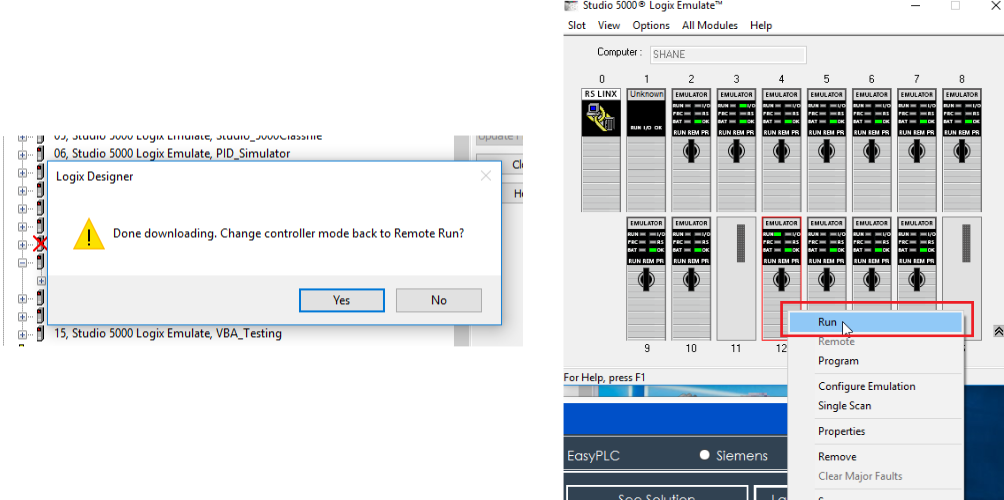
- Once the download is complete, confirm the dialog to set the controller into Remote Run mode.
- In the Logix Emulate window, right-click on Rack 12 and select Run from the context menu.
Step 3: RSLinx Topic Configuration
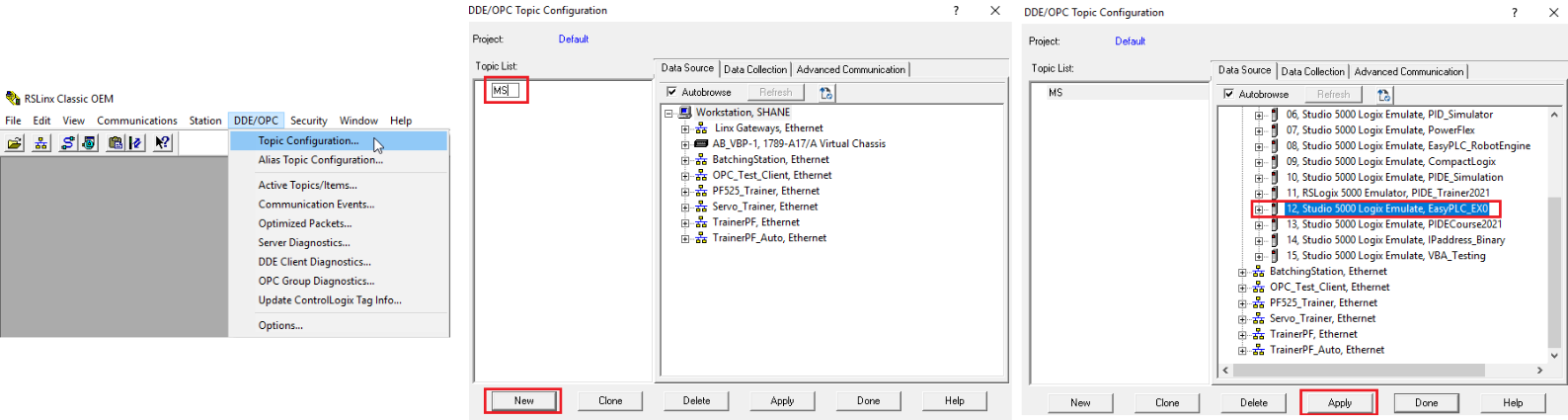
- Open RSLinx Classic.
- Go to DDE/OPC -> Topic Configuration.
- Click the New button and type
MSas the Topic name. - From the list on the right, select the Virtual Chassis node and then Sub-node 12.
- Click Apply and then Done.
NOTE
This configuration is only required once and will be valid for all future simulations.
Step 4: Launching the 3D Simulation
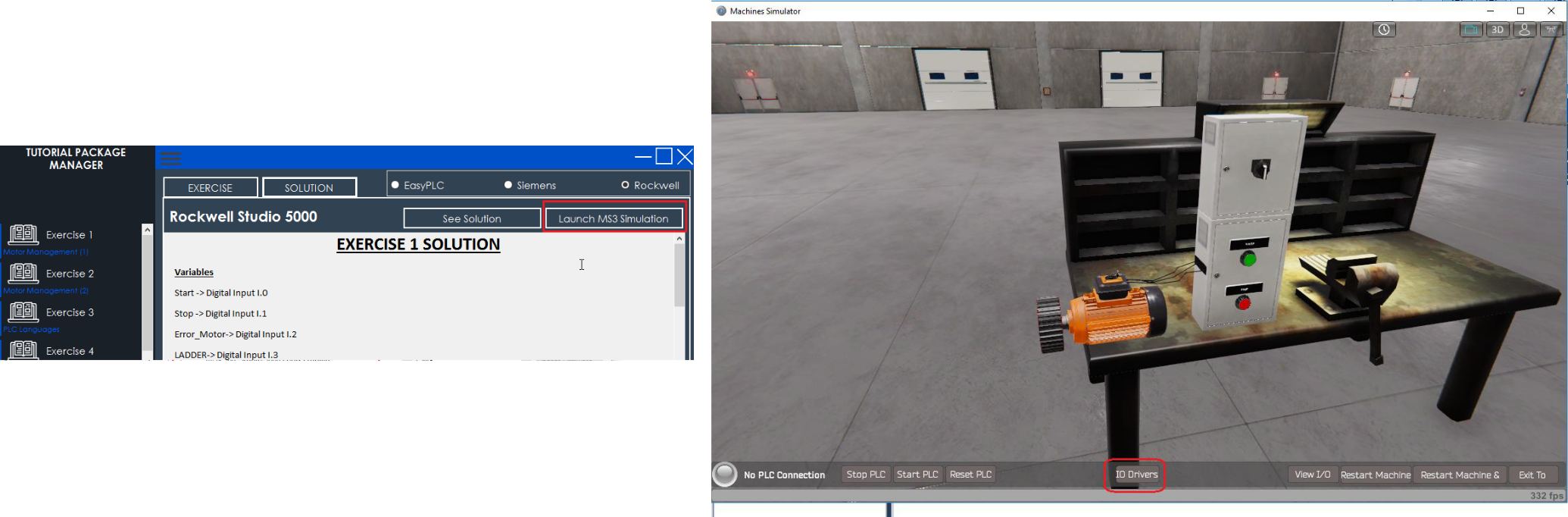
- In the Tutorial Manager, click the Launch MS3 Simulation button.
- Once Machines Simulator starts, click the IO Drivers button.
- Go to File -> Open Driver Configuration and select the
AB.drvfile. Click Load.
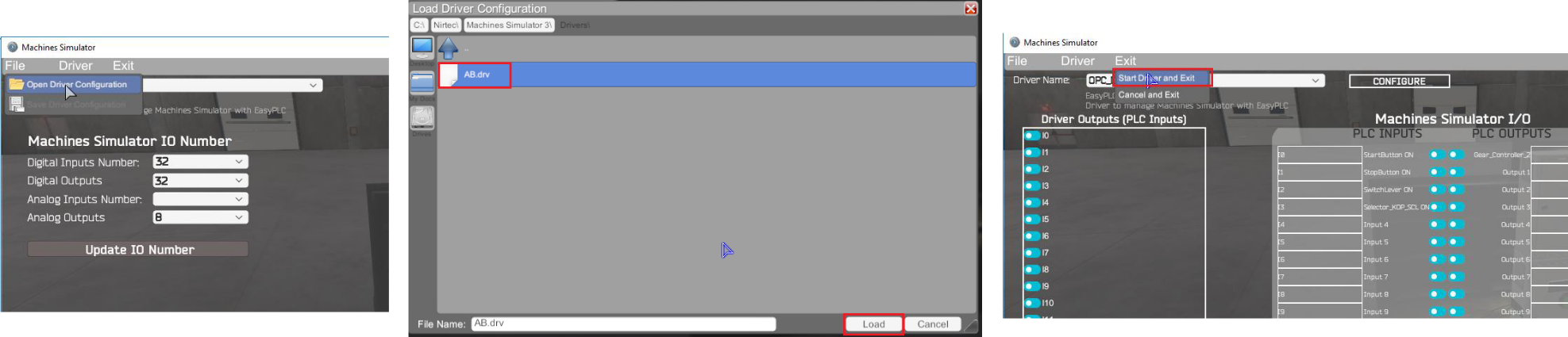
- Finally, go to the Exit menu and select Start Driver and Exit.
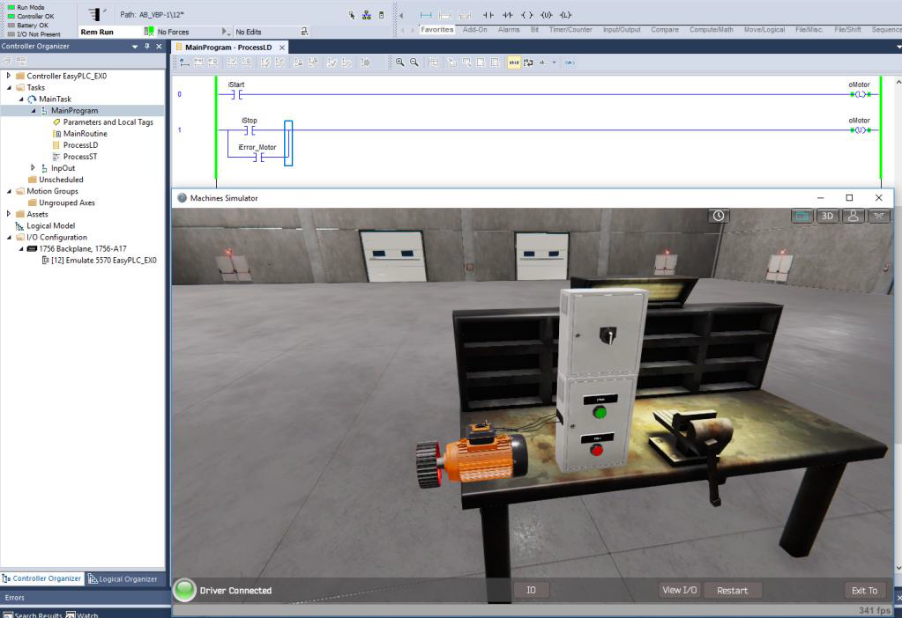
The simulation is now active and fully controlled by the Studio 5000 logic.