Getting Started
License Activation
The Tutorial Package Manager requires a valid license to access the exercises and solutions. The activation process depends on the type of license you have purchased.
USB License
If you own a physical USB dongle license:
- Install the software from the provided USB Key.
- Keep the USB key connected to the computer while the software is running.
- The software will automatically detect the key and read the license; no further digital activation is required.
Standalone and Server Licenses
For digital licenses (Standalone or Server), follow these steps to link your account:
- Navigate to the top menu and select Menu -> User.
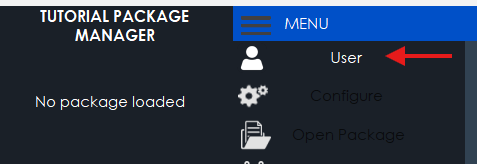
- The User Configuration window will appear.
- Enter your User Name and Password.
- Press the Log in button to authenticate.
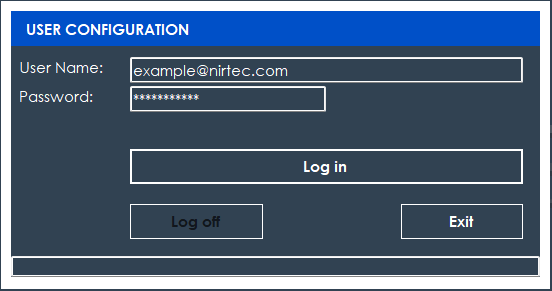
Use the same credentials you use for your Machines Simulator Standalone license or your Server seat license.
- Once the data is verified, your Tutorial Manager license will be activated.
- Press the Exit button to close the configuration and start using the tutorials.
Log Off
- Log off: Use this button if you need to disconnect your data account from the current computer.
Main Menu & Configuration
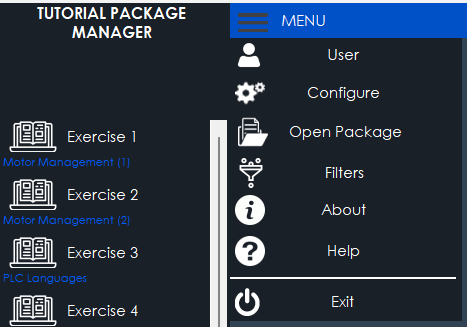
To access the program options, hover your mouse over the MENU Icon located in the upper blue title bar. This menu contains the essential settings to link the Tutorial Manager with your automation software suite.
System Configuration
When you click on Configuration, a window opens to define the communication paths between applications. This is a critical step for the "Launch" buttons to function correctly.
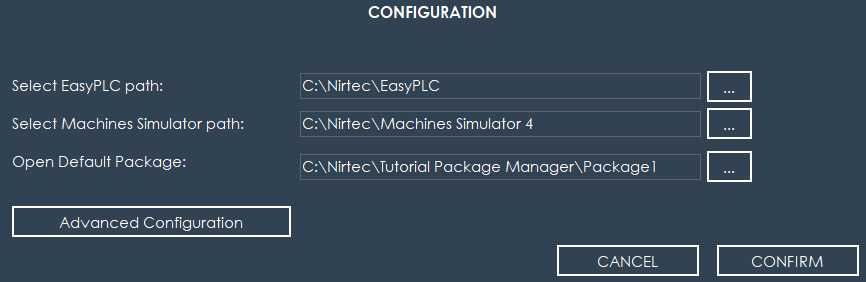
- Select EasyPLC Path: Click the folder icon on the right to browse and select the directory where EasyPLC is installed. This allows the Tutorial Manager to automatically open the editor and load the proposed solutions.
- Select Machines Simulator Path: Click the folder icon to select the installation path for Machines Simulator.
If you prefer to use the Virtual Reality version, select the installation path of Machines Simulator VR instead.
Advanced Configuration
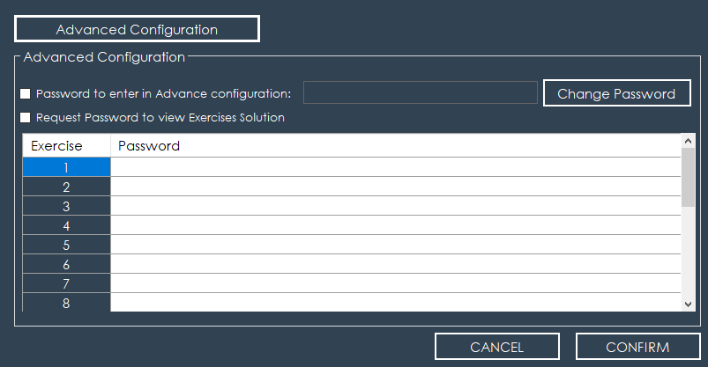
In the Advanced Configuration section, you can manage administrative settings:
- Access Control: Set a global password to protect this configuration area.
- Solution Security: You can assign individual passwords for each of the 20 exercises to control when users are allowed to view the proposed solutions.
Package & Content Management
- Open Package: Use this option to load a different tutorial package (if purchased or created). Each package contains a unique set of exercises and solutions.
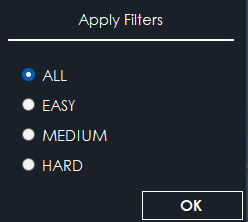
- Filters: Opens a window to filter the exercise list based on their level of difficulty (Basic, Medium, or Complex).
Information & Support
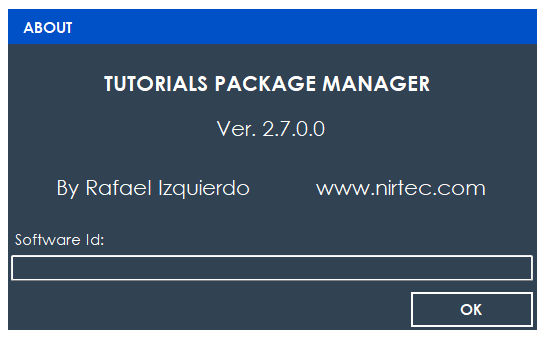
- About: Displays program version and your Software ID.
- Help: Launches the official user PDF guide for the Tutorial Manager.
- Exit: Safely closes the application.