Program Modules
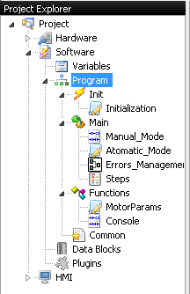
Programs in EasyPLC are composed of sequences, which represent the minimum programming unit. These sequences can be developed using various languages: Ladder, Script, Logic Blocks, or Grafcet. To maintain a structured development environment, the logic is organized into specific functional nodes.
Init
Sequences located under the Init node are executed only once when the program starts. This module is specifically designed for initialization routines, such as resetting variables or defining initial hardware states.
Main
Sequences under the Main node execute cyclically according to their order in the project tree. While the default execution is sequential, jump tools can be used to alter the flow if the logic requires specific branching.
Functions
Functions are specialized sequences called from either Init or Main modules, or from other functions. They are used to create reusable code blocks.
- Return Values: Only functions written in Script language can return a value using the
returnkeyword. Functions developed in Ladder or Logic Blocks do not support return values. - Special Function (Exit): If a function is named
Exit(defined with no parameters and avoidreturn type), the Virtual PLC CPU will automatically execute it when transitioning to Stop Mode. This is ideal for hardware shutdown or software unloading tasks. - Reusability: Functions can be exported and imported across different projects to facilitate code reuse.
Common Area
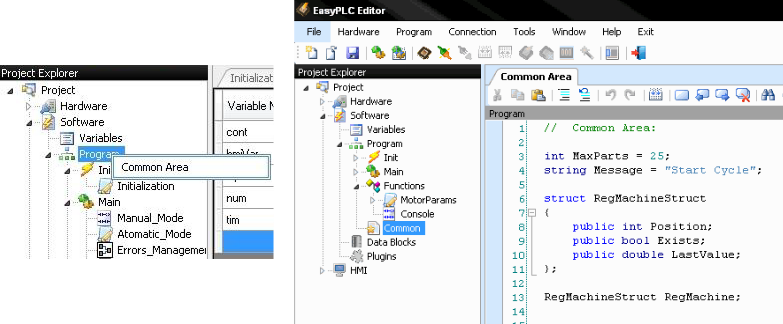
The Common Area is a dedicated Script-based sequence used to declare global components visible to all sequences in the program. This area is used for:
- Declaring Global Variables.
- Defining User-Defined Types (structures or classes).
To access it, right-click the Program node and select Common Area. Once created, it appears as a unique icon within the program tree.
Sequence and Function Management
Creating Sequences (Init / Main)
- Right-click the Init or Main node and select Add Sequence (or use the Program menu).
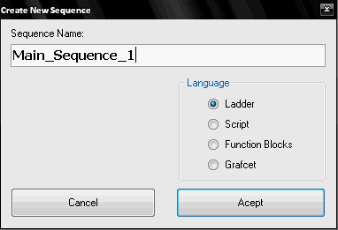
- In the Create New Sequence window, define the Name (no spaces allowed) and the Language.
- Press Accept to generate the node.
Creating Functions
- Right-click the Functions node and select Add Function.
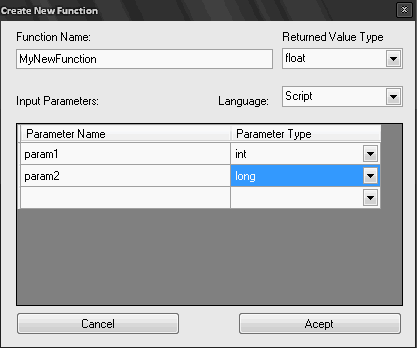
- In the Create New Function window, specify:
- Name: Unique identifier (no spaces).
- Language: The programming environment for the function.
- Return Type: The data type of the result (Script only).
- Parameters: The input variables and their respective data types.
- Press Accept to finalize.