Machine Object & Scripts
Machine Object
Each machine (or also called installation) has a special object located at the start of the Hierarchy Tree, the Machine Object. This object has special properties that will define the characteristics, properties and behavior of your machine.
Let’s see each of these properties:
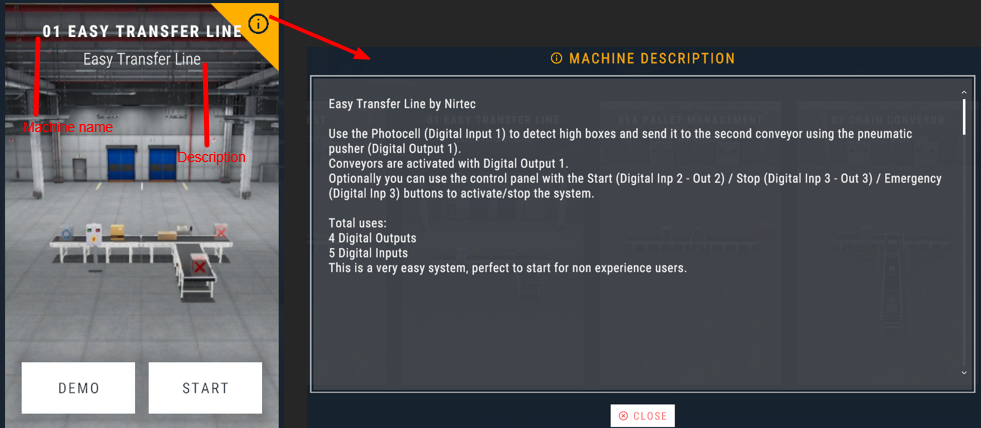
- Machine Name: is the file name of your Machine.
- Author: information about who has make the machine.
- Description: a short but descriptive text for your machine.
- Run Demo Program: if selected, when the machine is passed to Run Mode, will execute the create script or Logic Blocks Demo program in order to check if it works as expected.
- Sky Box: here you can select the sky box background world for your machine for Outdoor environment, for the Factory1 environment if is set to None will hide the factory building.
- BackgroundColor: changes the scene background color, useful when the factory environment or floor are hidden (using
Control + Hkeys). - Floor: shows, hides or disables the floor of the scene. Useful to customize your own floor textures (using a plane component) or create your own irregular floors.
- Virtual Reality Actor Scale: used to scale your world in the software Machines Simulator VR. Depends of the used and/or systems, here you can change the scale of the user in the virtual reality environment.
The Skybox property must to be set to None in order the background color would be shown.
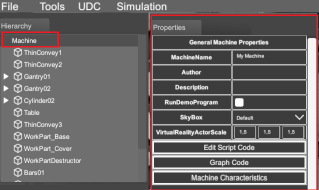
Edit Script Code Button
Here you can program particular behavior of your machine or the machine operation when the user selects demo mode on the machine selection screen. To know more about the programming see the Programming Reference section.
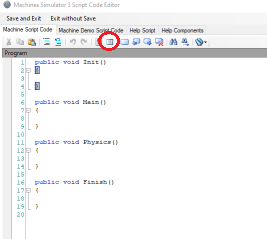
Pressing the Edit Script Code Button, the Machines Simulator 4 Script Code Editor window is showed:
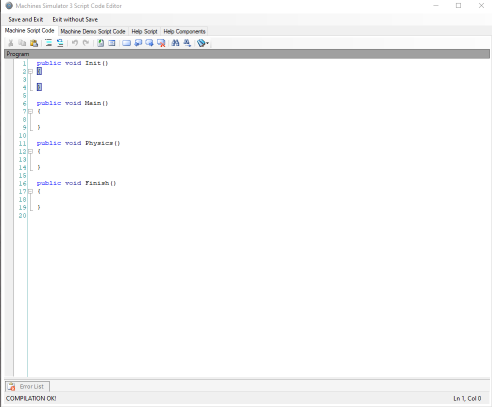
The Machines Simulator 4 Script Code Editor has four main tabs, each of them has the following functions:
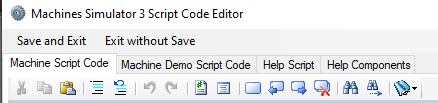
Machine Script Code: Here is where the script logic program can be edited and compiled, you can use it to write the script code, during the use of the Editor, Machines Simulator will be blocked until finished the program edition. Once you have finished the program edition, then press the Editor Save and Exit button to save the logic program or Exit without Save to not modify the logic program.
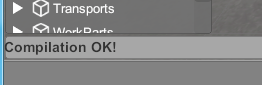
If you press Save and Exit, Machines Simulator 4 will compile automatically the program, and show the result in the Status Bar:
In case some errors exist, will be indicated:

Then open again the Editor, pressing the Machine Edit Script Code button in the Property Grid:
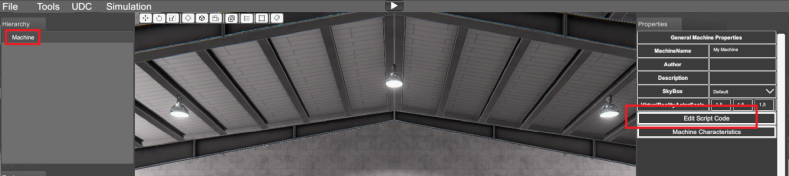
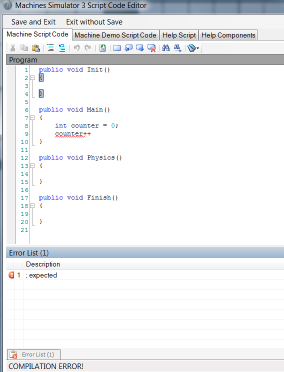
And the information on the error will be informed in the Editor Error List lower section, and the line that contain the error will be marked in red:
The Help Syntax button will launch the Script Code Help Window, and helps you about all the built-in functions, components & features available:
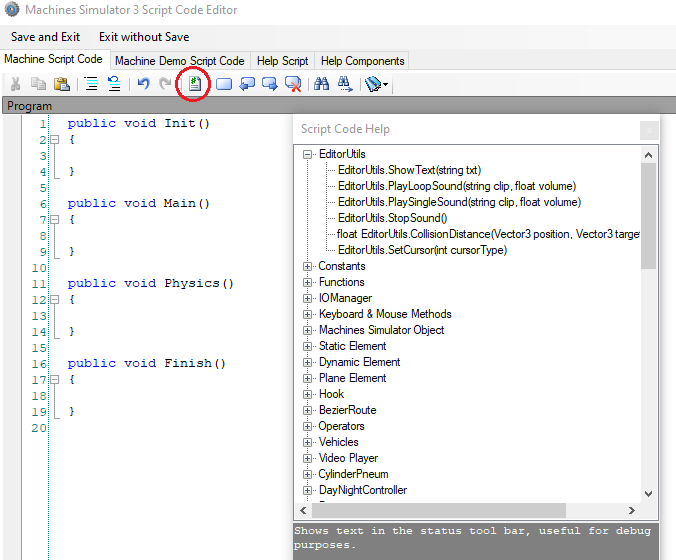
The Script Code Help Window has four tabs each one has the following functionalities:
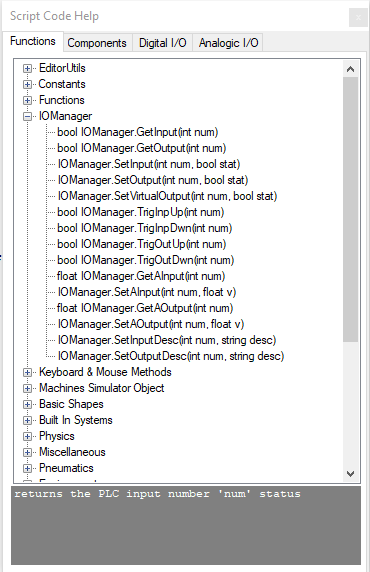
- Functions tabs: Shows all the available scripts functions & methods for Machines Simulator and all of the components. Clicking of each one will show in the bottom side a brief explanation, making doble click will copy the function text in the Script Program window.
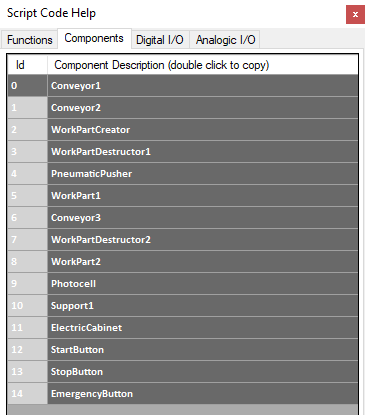
- Components: list all the components available in the machine, making doble click will copy the component name in the Script Program window.
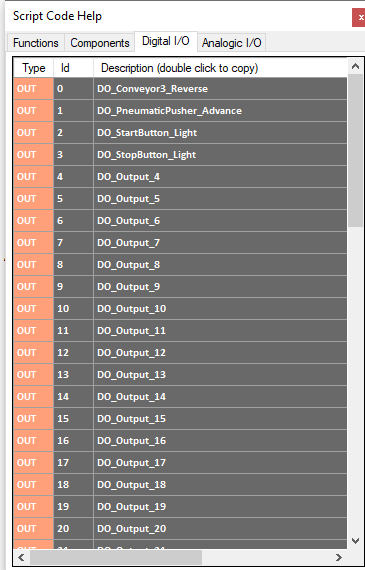
- Digital IO: Shows the list of all the digital I/O signals available in the machine, making doble click will copy the I/O name in the Script Program window.
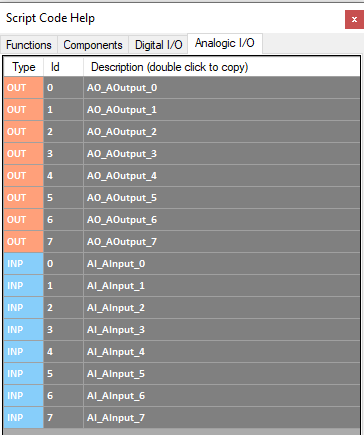
- Analog I/O: Shows the list of all the analog I/O signals available in the machine, making doble click will copy the I/O name in the Script Program window.
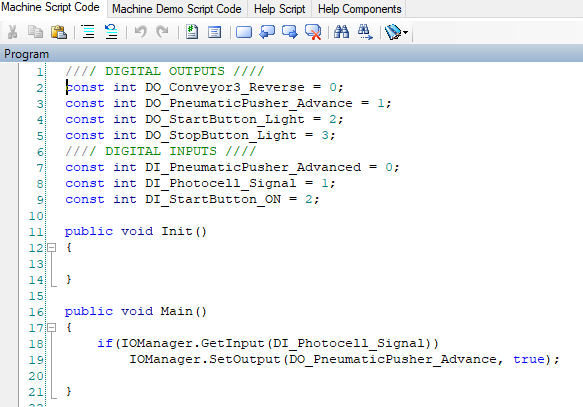
The Import I/O Data button will import in the script code all the digital & analog I/o used by the machine:
For example:
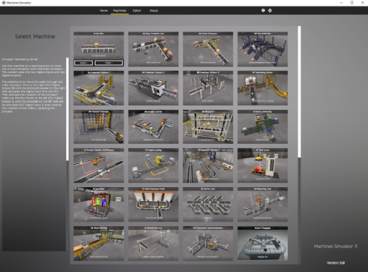
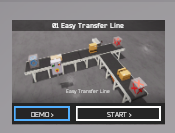
Machine Demo Script Code: Here is programmed the code will be executed when the user press DEMO button on machines selection screen:
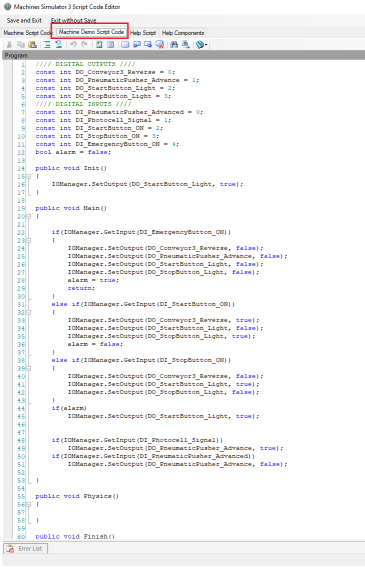
Help Script: In this tab are explained with examples the most common used objects, methods and functions available in Machines Simulator Script code.
Help Components: In this tab are explained all the script methods available for each Machines Simulator single Component.
How to use an external Script Code Editor
Instead of using the editor included with Machines Simulator to edit the script code in C# language, you can use the editor of your choice, however, as of version 4.4 of the software, compatibility with VS Code has been added.
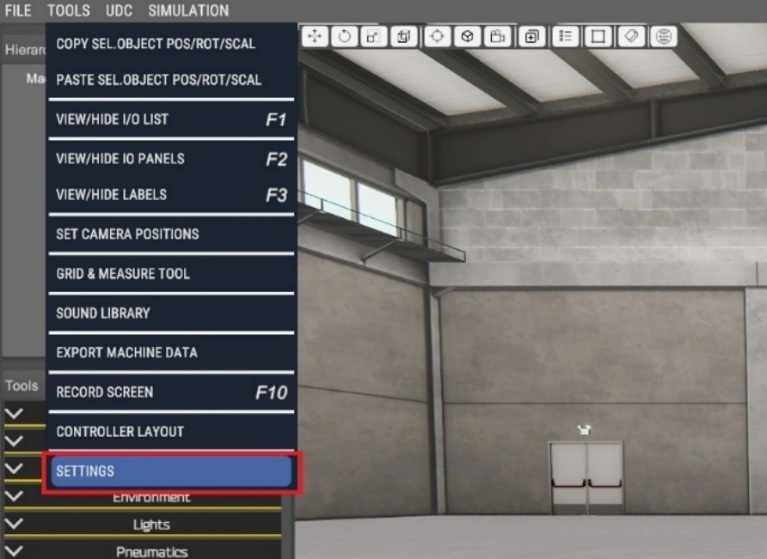
To change the script code editor, you'll need to go to the Machine Editor and select the Settings option:
Here select the option you prefer:
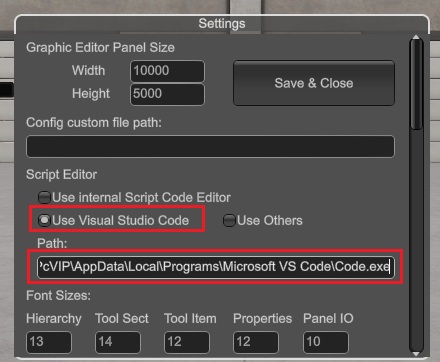
- Select Use Internal Script Code Editor to use the integrated code editor with all the features explained before.
- Select Use Visual Studio Code to program the machine script code with VS Code.
- Select Use Others to use your preferred code editor. (For this option, you'll need to select where the editor executable is located in the Path field).
How to integrate Visual Studio Code with Machines Simulator
If you want to use VS Code to edit the script code for Machines Simulator, please follow these instructions carefully.
- Download and install VS Code (if you didn't have it previously).
- Is recommended to add the Path variable to the system, available in the installer options:

- Once installed, you must add the following extension to VS Code -> C# Dev Kit.
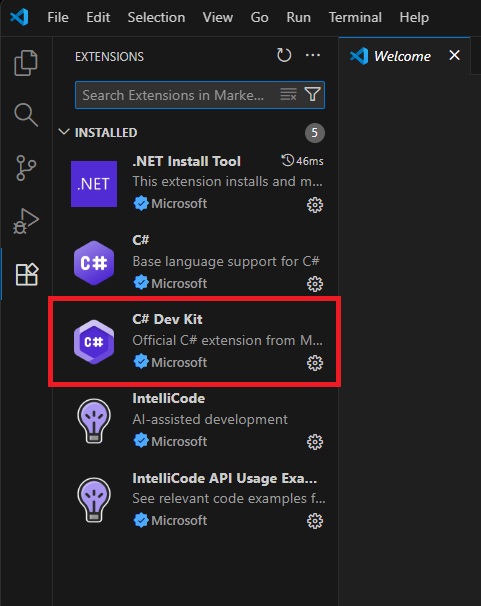
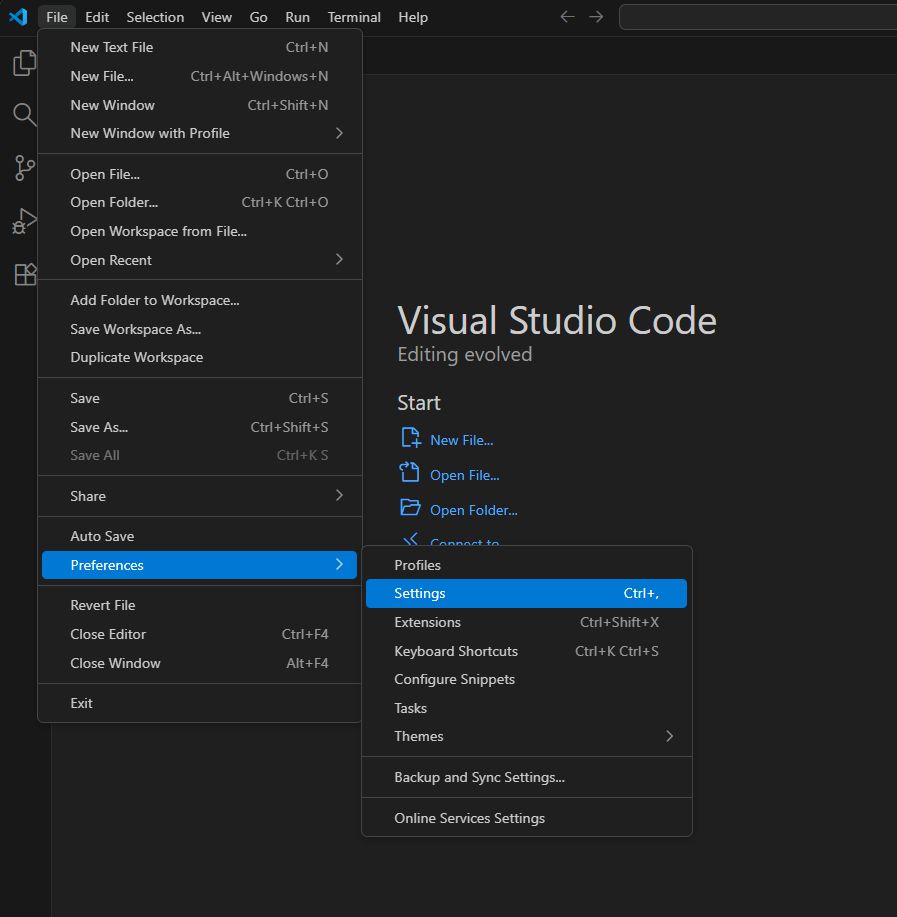
- Once you have added the C# Dev Kit Extension, go to File -> Preferences:
- In Text Editor -> Files -> Set Auto Save to off:
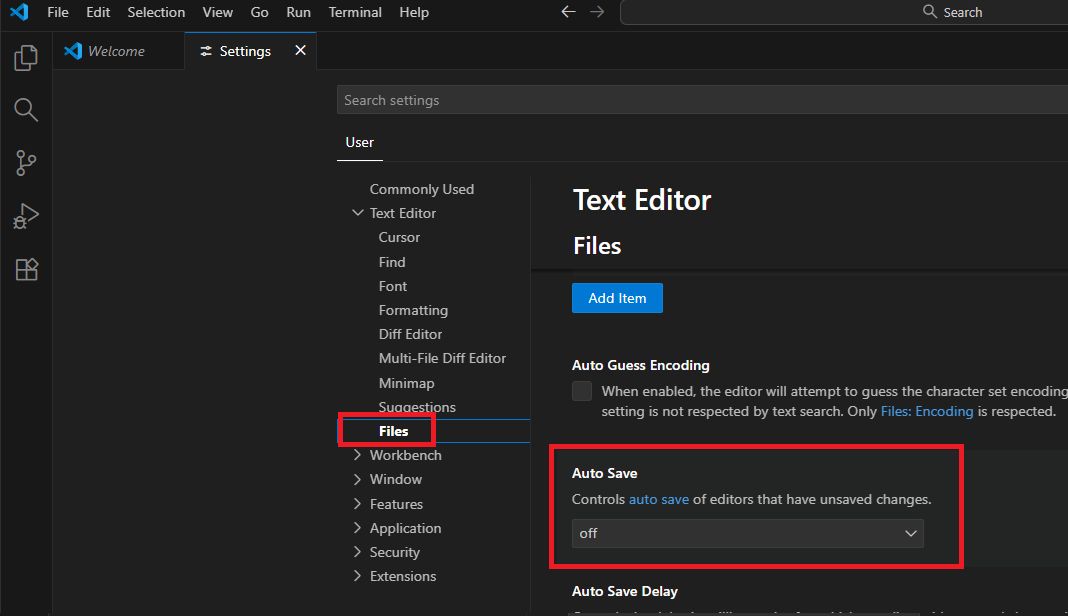
- Text Editor -> Files -> Set Hot Exit to off:
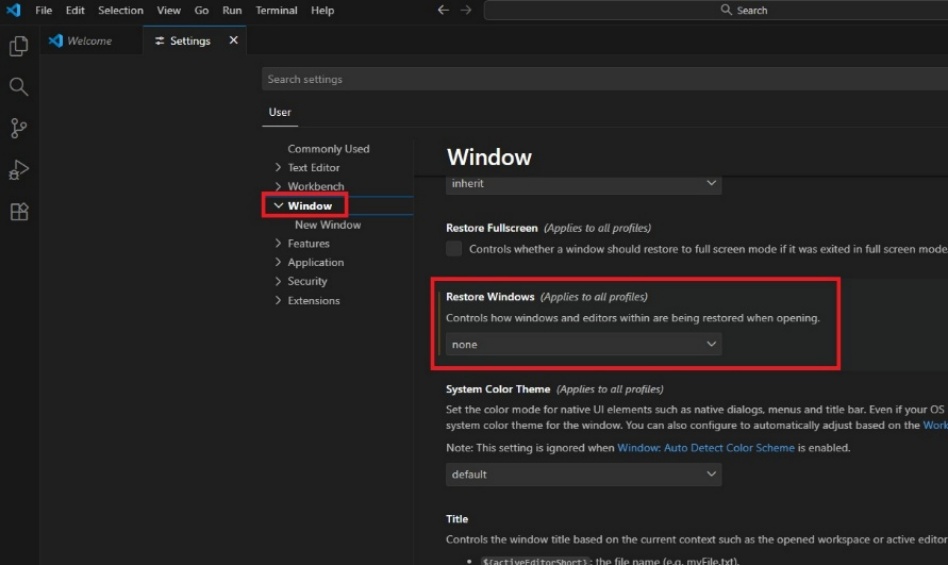
- Window -> Restore Windows -> to none:
Now VS Code is configured to work with Machines Simulator. The last step is to configure in Machines Simulator Editor the use of VS Code. To do it, in the Editor click on menu Tools -> Settings:
And select the option Use Visual Studio Code. Now type the path where is located VS Code in the Path text. If you don’t know where is located follow these instructions:
- In the Visual Studio Code icon (on your Desktop or in the Start Menu).
- Right-click on it → select Properties.
- In the Shortcut tab, look for the field named Target.
- This shows the full path to the executable file, for example:
"C:\Users\<your_username>\AppData\Local\Programs\Microsoft VS Code\Code.exe"
Now when you click on Edit Script Code button, VS Code will be launched to edit the Machines Simulator C# script code:
The first time VS Code is executed, a window will ask you to trust in the authors of the files in this folder:
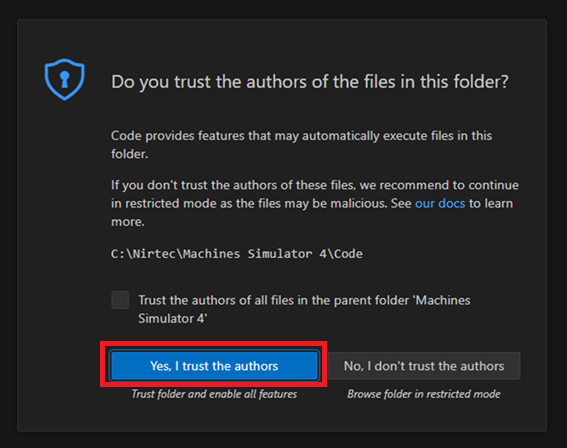
Click Yes, I trust the authors, then a new window will appear in the bottom right side:
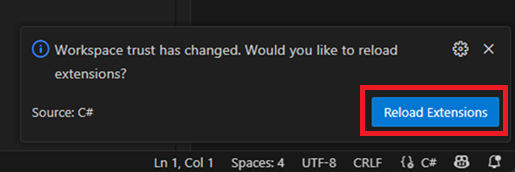
And click on Reload Extensions. These two steps must be done once, in the first VS Code launch. You have now configured VS Code to work as a script editor for Machines Simulator!
Graph Code Button
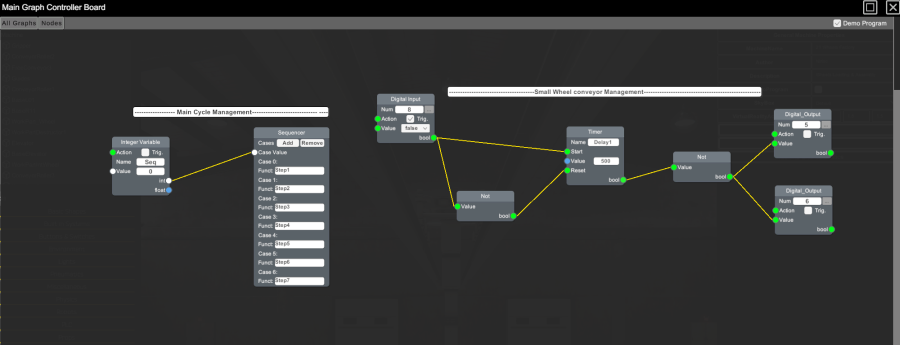
Starting Machines Simulator v3.10 a new programming language has been added to program the machines behavior, the Graphic Blocks language. This allows to customize your machine in a very fast way without using C#, controllers and without the need to know any programming language.
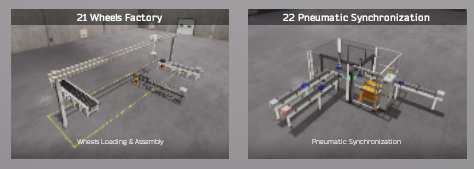
As example you can find the Machines 21 Wheels Factory and 22 Pneumatic Synchronization that has been programmed using only the Graph Code both for the operating logic of its components and for the Demo program to demonstrate how they should be programmed:
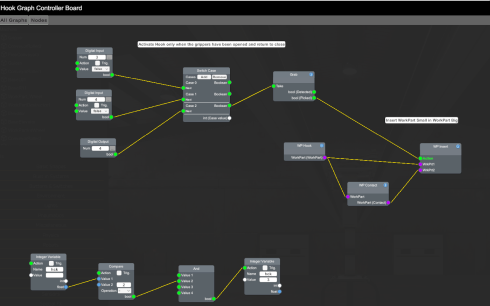
Go to the Graphic Code section to know more about this feature.
Machine Characteristics Button
Type here a detailed description about how your machine works and how must to be operated:
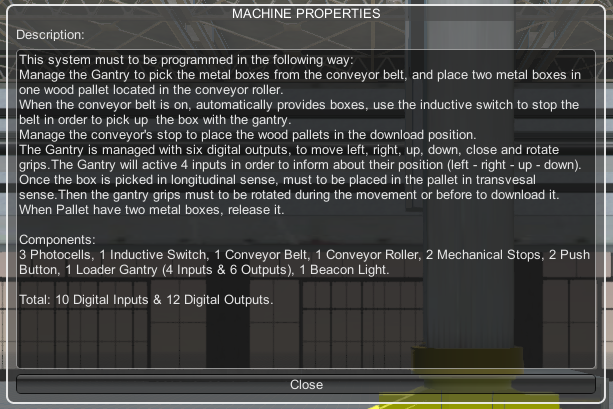
In Machines Simulator, these properties are show in the following places: