How to launch the PLC program simulation for Siemens TIA Portal
Follow these steps to load, configure, and simulate a proposed solution using Siemens TIA Portal and Machines Simulator.
Step 1: Accessing the Solution
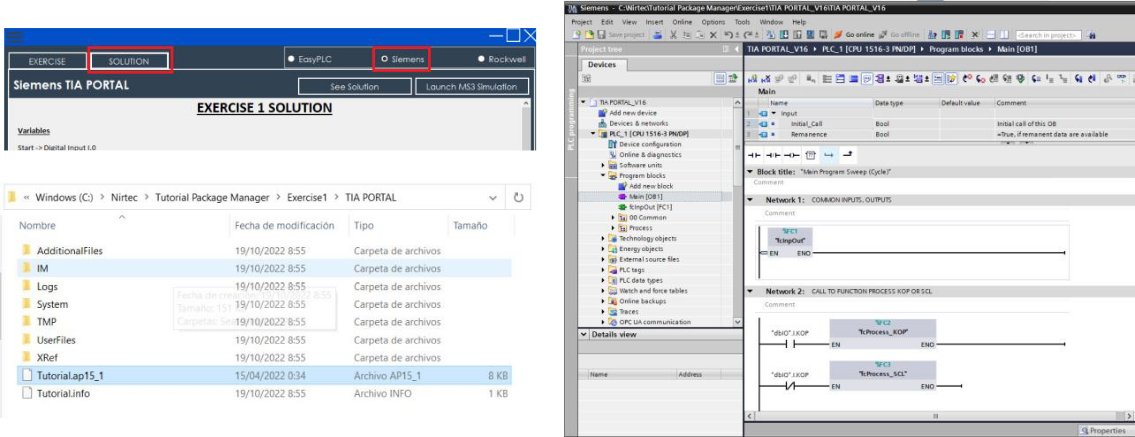
- In the Tutorial Manager, click the Solution button.
- Select the Siemens platform from the top-right toggle.
- Click the See Solution button. A Windows Explorer window will open automatically showing the TIA Portal project.
- Open the project with Siemens TIA Portal.
NOTE
If you are using a version higher than v15, allow TIA Portal to perform the project upgrade.
Step 2: Compiling and Simulating (PLCSIM)
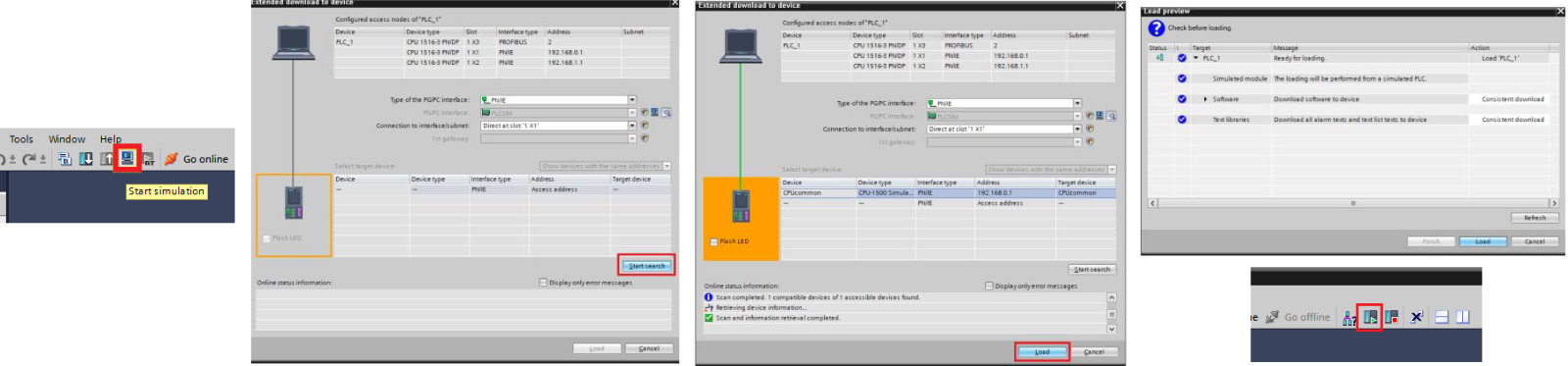
- Once the project structure is loaded, click the Start Simulation icon on the TIA Portal toolbar to launch PLCSIM.
- In the Extended download to device window:
- Click Start Search.
- Once the device is found, click Load.
- Click Load again in the following prompt.
- Click Finish and then select Start CPU.
Step 3: Network Configuration (NetToPLCsim)
To enable communication between the Siemens emulator and the simulation, you must use NetToPLCsim (run as Administrator).
- If a port 102 warning appears, click YES.
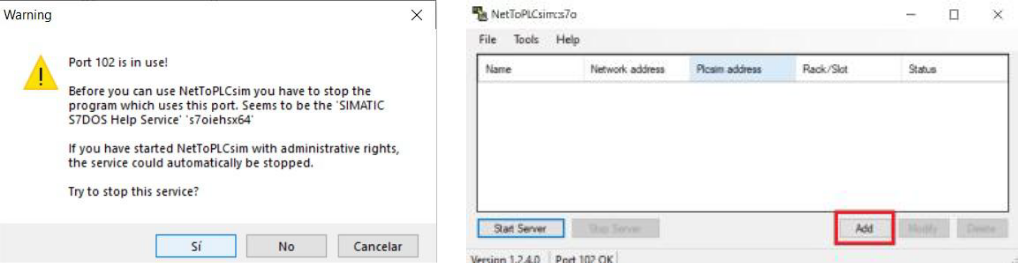
- Click the Add button and configure the following:
- Network Address: Set to
127.0.0.1. - PLCSIM IP Address: Click the browse button and select your CPU's IP.
- Rack / Slot: Set to
0 / 1.
- Network Address: Set to
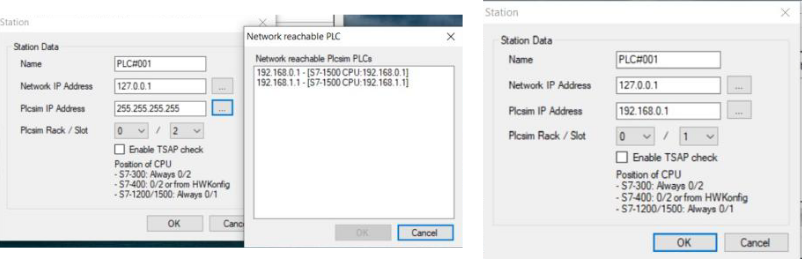
- Click OK and then click Start Server.
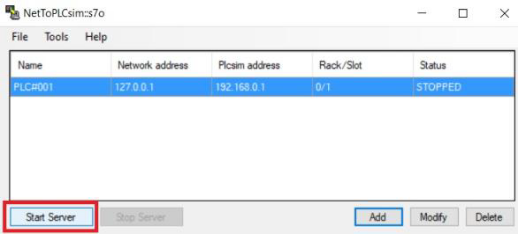
Step 4: Launching the 3D Simulation
- In the Tutorial Manager, click the Launch MS3 Simulation button.
- Once Machines Simulator starts, click the IO Drivers button.
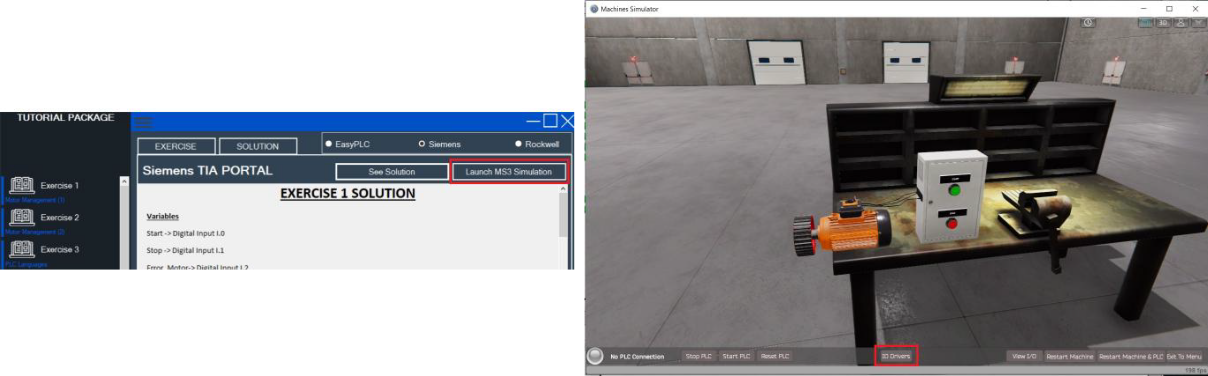
- Go to File -> Open Driver Configuration and select the
S7_1200_1500.drvfile (or the appropriate Siemens driver). Click Load.
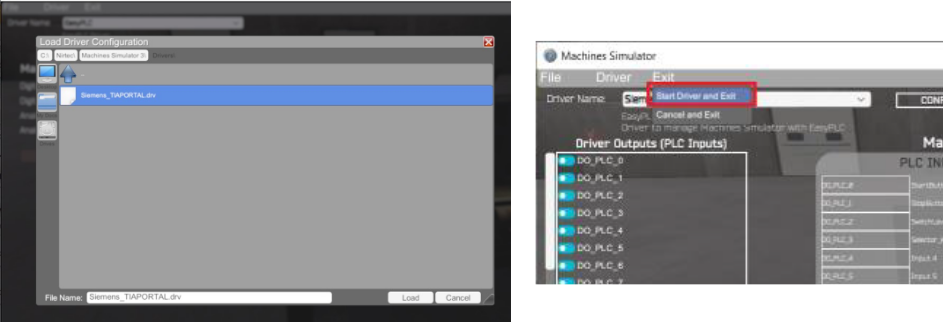
- Finally, go to the Exit menu and select Start Driver and Exit.
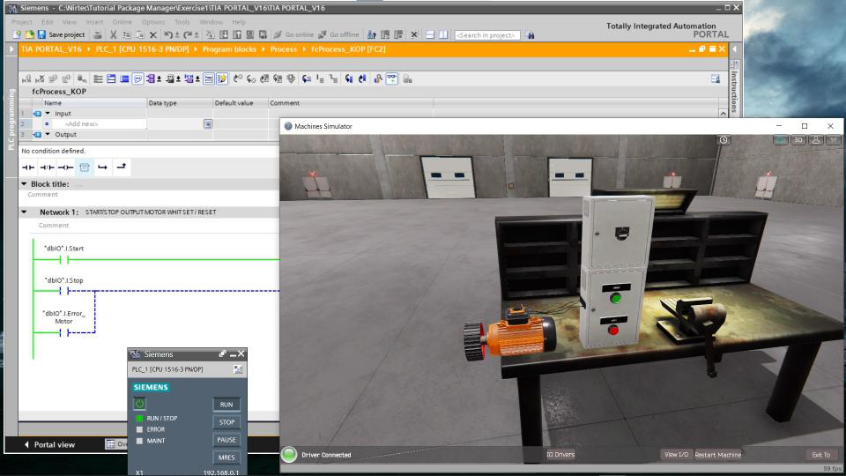
The simulation is now active, and the logic is being managed directly from TIA Portal.