How to launch the PLC program simulation for EasyPLC
Follow these steps to load, compile, and simulate the proposed solutions using the EasyPLC and Machines Simulator.
Step 1: Loading the Solution
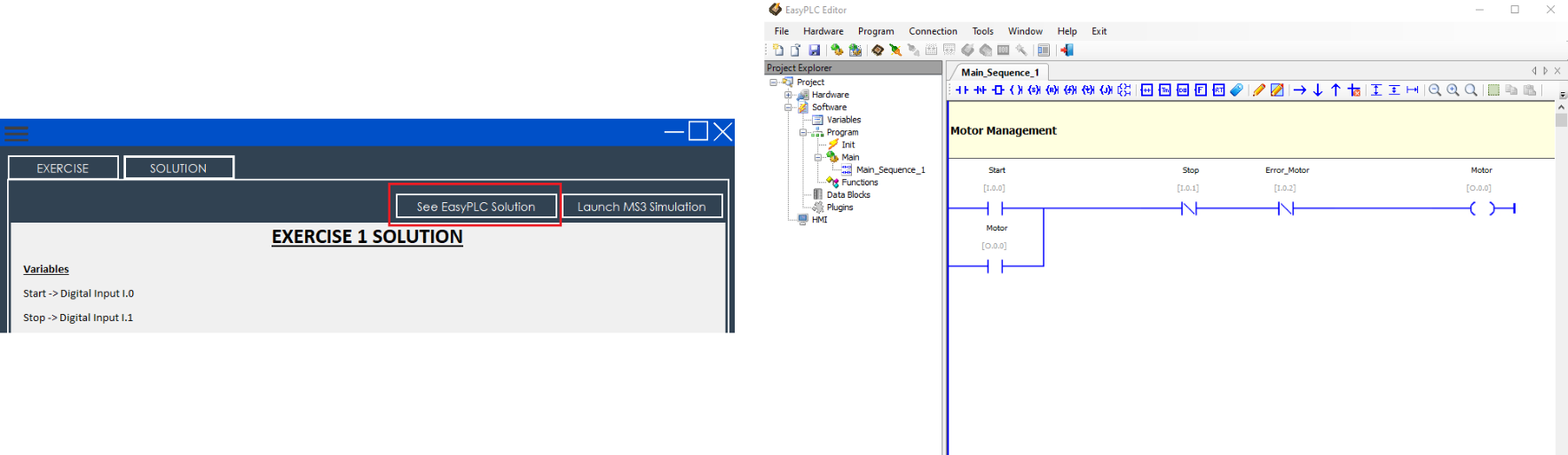
- In the Tutorial Manager, select your exercise and click the See EasyPLC Solution button.
- EasyPLC Editor will launch automatically, loading the specific PLC project for that exercise.
Step 2: Compiling and Preparing the Virtual PLC
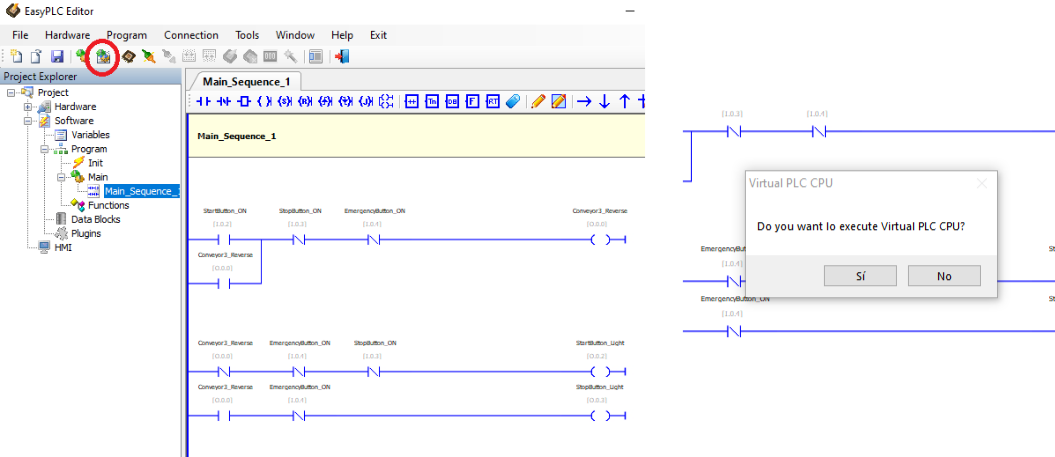
- Inside the EasyPLC Editor, click the Compile & Send Project icon on the toolbar.
- If prompted to launch the Virtual PLC, choose YES.
- The Virtual PLC CPU will start in Run Mode, indicating it is ready to execute the logic.
Step 3: Launching the 3D Simulation
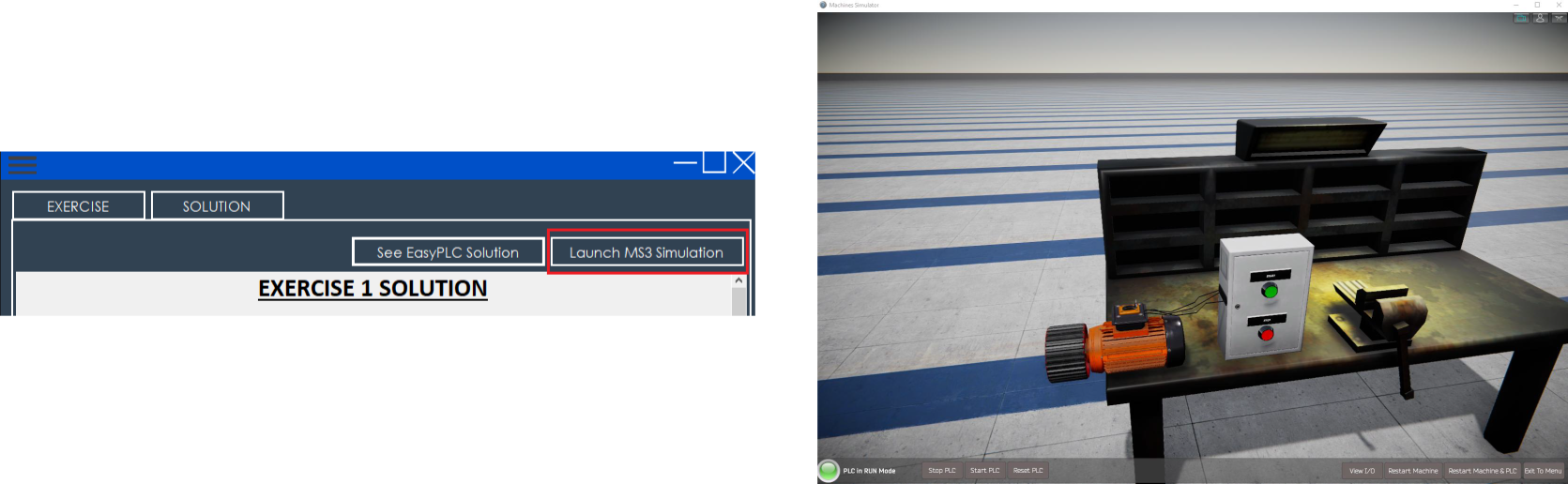
- Return to the Tutorial Manager and click the Launch MS3 Simulation button.
- Machines Simulator will start and automatically load the industrial environment (3D scene) required for the exercise.
- You can now test the program's behavior by interacting with the machine.
Advanced: Debugging the Logic in Real-Time
To identify errors or analyze specific logic conditions while the simulation is running, use the Online Monitoring mode:
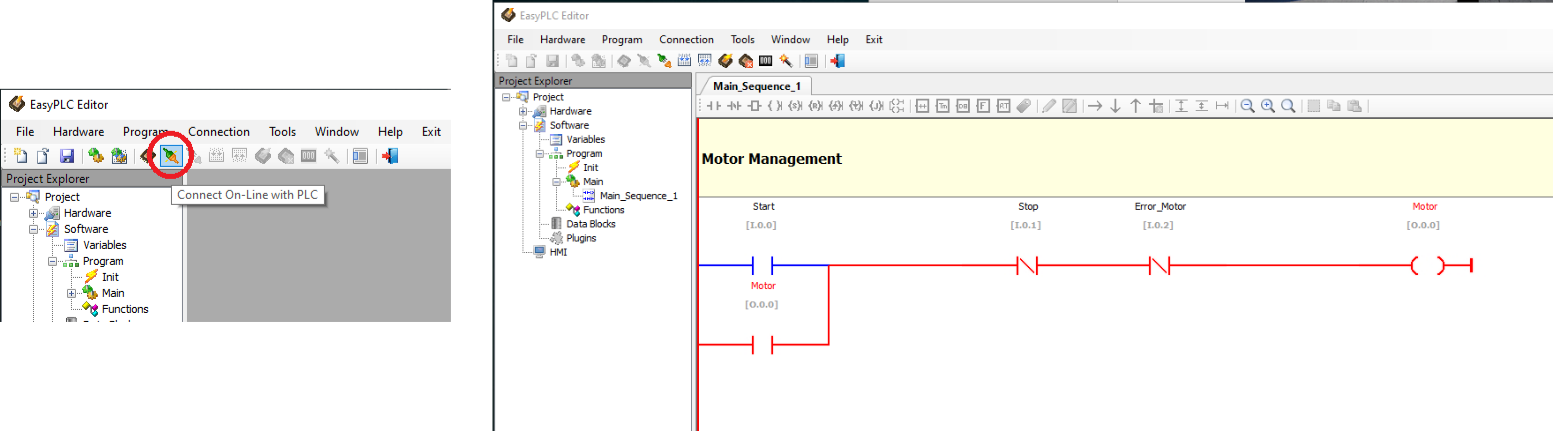
- In the EasyPLC Editor, click the Connect On-Line with PLC toolbar icon.
- In the project tree (left panel), navigate to:
Software->Program->Main->Main_Sequence_1. - The editor will display the logic with live status updates:
- Red Color: Indicates contacts or coils that are currently ON / TRUE.
- Blue Color: Indicates contacts or coils that are currently OFF / FALSE.
TIP
Using the debug mode is the most effective way to troubleshoot your code and understand how the PLC interacts with the 3D sensors and actuators in real-time.