Exercises & Solutions
Selecting an Exercise
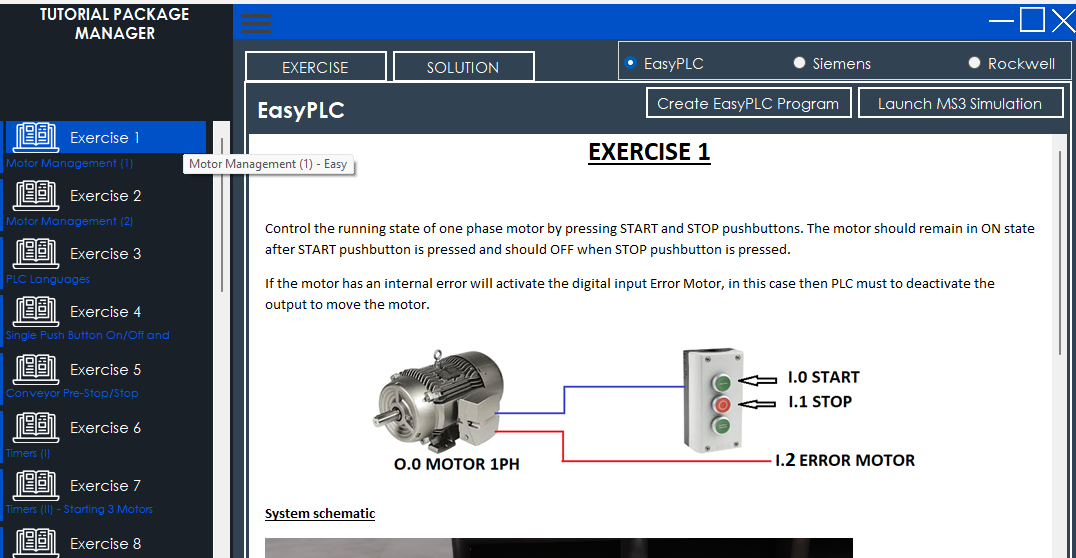
By default, Package 1 is loaded with 20 exercises once the program is started. To explore them:
- Navigation: Click on any item in the left-hand list to load its details.
- Tooltips: Hover your mouse over an exercise name to reveal a pop-up label containing a detailed description and the difficulty level.
- Platform Selection: In the upper right corner, select your preferred environment (EasyPLC, TIA Portal, or Studio 5000). The notes and instructions will update specifically for that platform.
Execution Workflow (EasyPLC)
If you are using the EasyPLC, follow these steps to develop and test your logic:
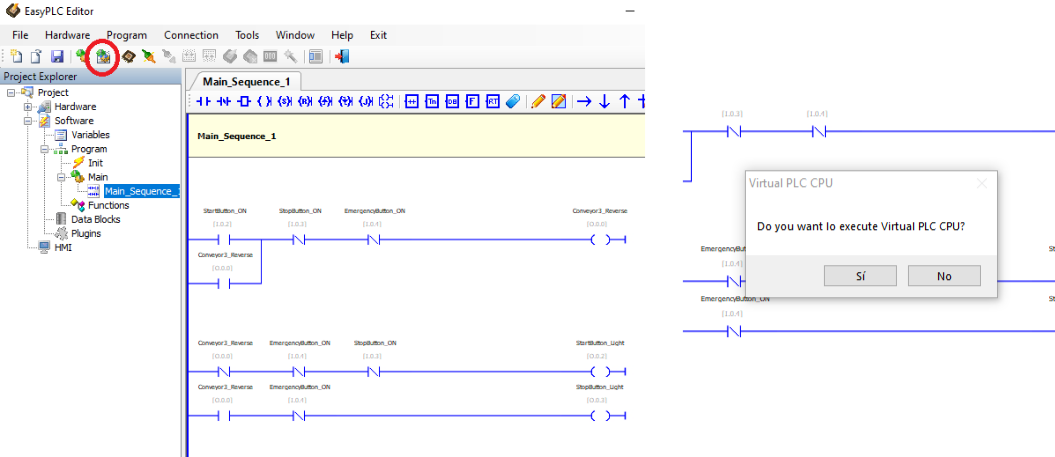
- Start Programming: Click the Create EasyPLC Program button. This will automatically launch the EasyPLC Editor.
- Compilation: Once your logic is finished, click the Compile & Send Project icon in the EasyPLC toolbar.
- Virtual PLC: The program will transfer the logic to the Virtual PLC. If prompted to launch the Virtual PLC, select YES.
- Simulation: Once the Virtual PLC is running, click the Launch MS3 Simulation button to open Machines Simulator and verify your program's behavior in the 3D environment.
Consulting the Proposed Solution
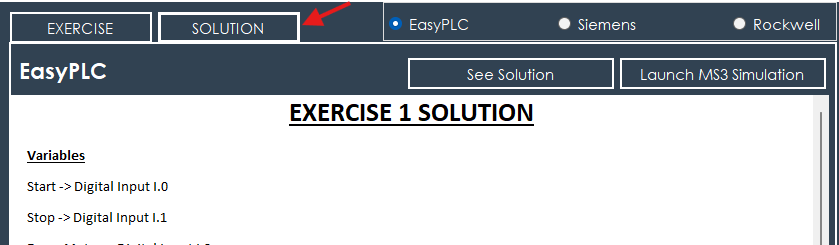
If you get stuck or want to compare your logic with a professional reference, use the Solution feature:
- Access: Click the Solution button (note that this may require a password if configured in Advanced Settings).
- Content: Each solution includes:
- A detailed explanation of the logic.
- A list of all Variables and Data Blocks used.
- Screenshots or diagrams of the code that solves the problem.
- Platform Specifics: Remember that the solution shown will correspond to the platform (EasyPLC, Siemens, or Rockwell) selected in the main window.