Connect MS Hologram AR with EasyPLC
Machines Simulator Hologram AR uses EasyPLC to run and manage the machine logic behind each simulation.
This guide explains how to start a scene using EasyPLC v5 and the Virtual PLC CPU.
Before you start
Make sure that:
- EasyPLC v5 is installed
- Machines Simulator Hologram AR is installed and licensed
- the Tilt Five system is already configured
Start the simulation with EasyPLC
- Launch EasyPLC v5.
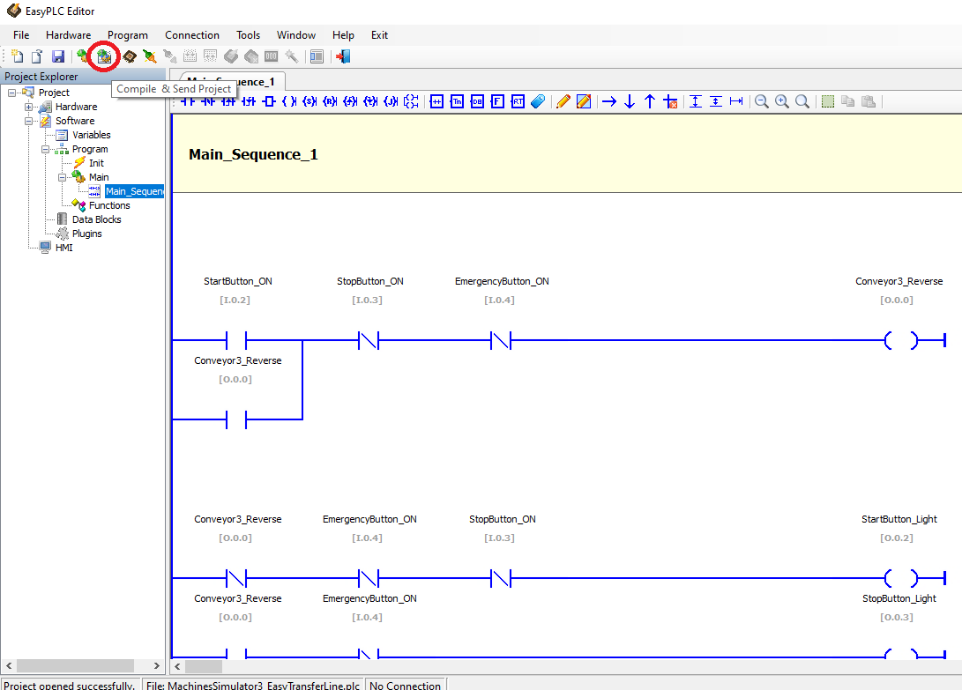
- Open the required logic project. For example:
MachinesSimulator3_EasyTransferLine.plc. - Click Compile & Send Project in the toolbar.
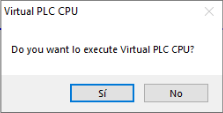
- When the Virtual PLC CPU window asks whether you want to execute it, click Yes.
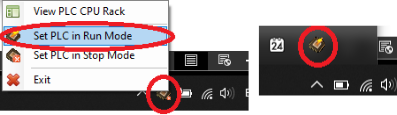
- In the Windows system tray, right-click the Virtual PLC CPU icon and select Set PLC in Run Mode.
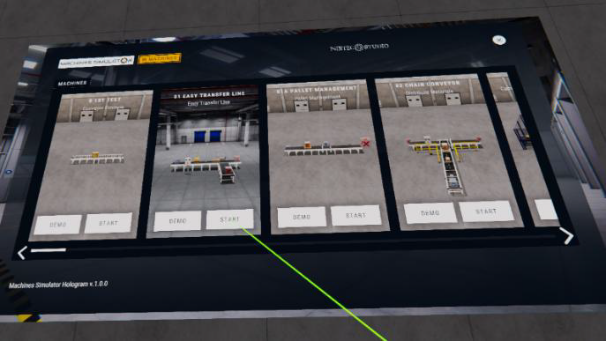
- Launch Machines Simulator Hologram AR.
- Open the target scene. For example: 01 Easy Transfer Line.
- Wait until the scene detects that the Virtual PLC CPU is running.
When the connection is active, the status indicator in the console turns green.
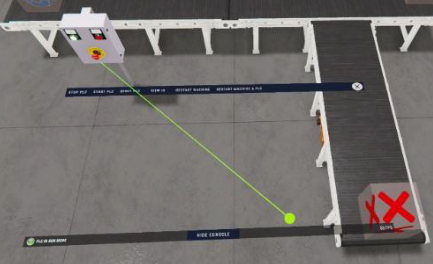
- Press the machine Start button in the scene to begin the simulation.
Once the simulation starts, you can monitor the program execution from the EasyPLC Editor.
Using third-party PLC software
Machines Simulator Hologram AR can also be used together with third-party environments through EasyPLC, including:
- Siemens TIA Portal
- Rockwell
- CODESYS
- Schneider
- Modbus
- OPC DA / OPC UA
In these cases, EasyPLC acts as the interface layer between the external system and Machines Simulator Hologram AR.