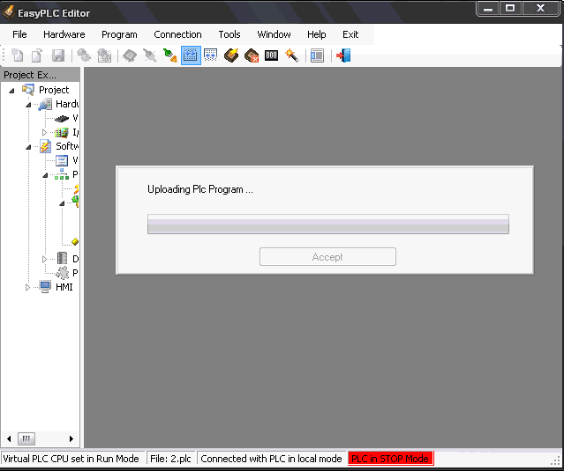
Virtual PLC CPU Connection
The EasyPLC Editor establishes a bidirectional communication link with the Virtual PLC CPU. This connection is required for transferring programs, performing real-time diagnostics, and monitoring the logic execution.
Local and Remote Connection Modes
The communication setup depends on where the Virtual PLC CPU is running relative to the Editor:
- Local Connection: Both the Editor and the Virtual PLC CPU are running on the same computer. The Hardware node in the project tree must be set to Local.
- Remote Connection: used when the Editor and the Virtual PLC CPU are on different computers within the same network.
- The IP Address and Listening Port of the target computer must be specified in the Hardware parameters.
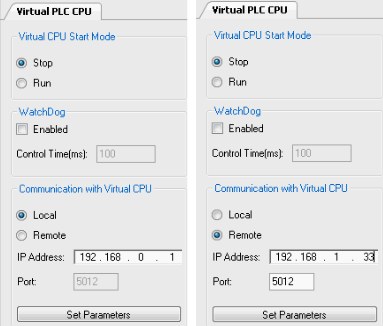
:::warning Important The designated port must be opened in the firewall of the computer running the Virtual PLC CPU. :::
In both modes, the Virtual PLC CPU must be running before attempting to connect. To start the link, click Connect On-Line with PLC or select Connection -> Connect with Virtual PLC CPU.

Available Operations
Once a successful connection is established, the Editor displays the Virtual PLC Status and enables the following operations:
| Operation | Direction | Description |
|---|---|---|
| Upload | from Editor to Virtual PLC | Transfers the compiled logic program to the Virtual PLC for execution. |
| Download | from VirtualPLC to Editor | Receives the current program stored in the Virtual PLC back into the Editor. |
| Control | from Editor to Virtual PLC | Change the PLC working status (Run/Stop/Reset) using the toolbar buttons. |