EasyPLC Configuration and Operations
EasyPLC Configuration
EasyPLC needs a special configuration to be able to work with Machines Simulation.
EasyPLC needs the Machines Simulator 4 Driver included in the I/O Devices of the current PLC Project to communicate with Machines Simulator. If this driver is not included in your EasyPLC project, the communication between EasyPLC and Machines Simulator will not be established.
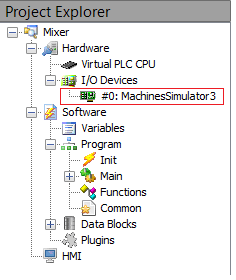
How it works Machines Simulator - EasyPLC - Virtual PLC?
Making a comparison with reality, the different software modules will be equivalent to following:
- EasyPLC: Computer with PLC Programming software
- Virtual PLC: The real/physic PLC
- Machines Simulator: the real/physic machine to operate.
Then EasyPLC is used to program the logic that VirtualPLC executes. VirtualPLC connects with Machines Simulator to receive/send the analogic and digital I/O signals in order to operate the virtual system.
Selecting a Machine
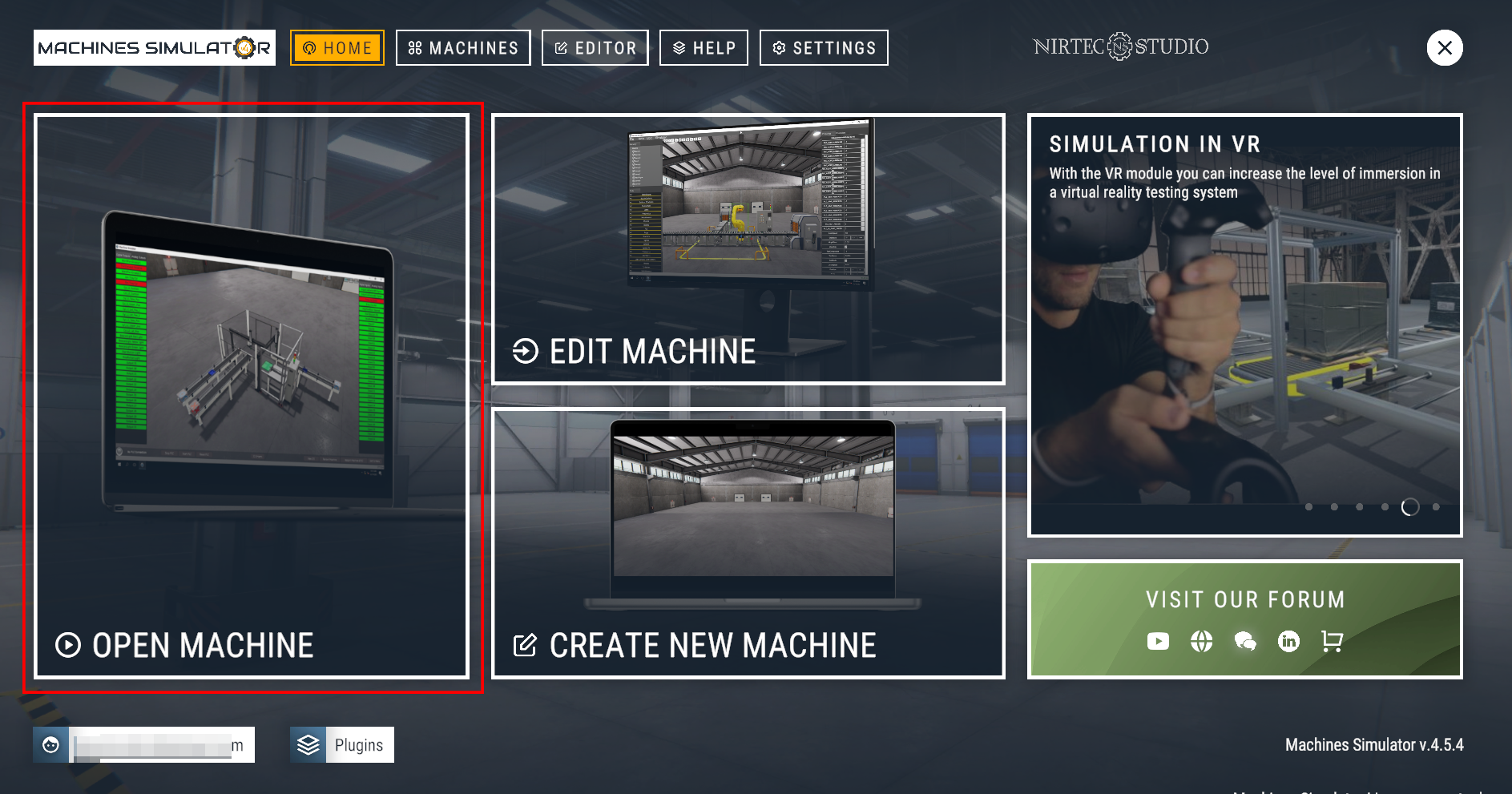
You can choose from the more than 50 machines available to automate, or those that you have created yourself. To select the chosen one in Home menu, press the button OPEN MACHINE:
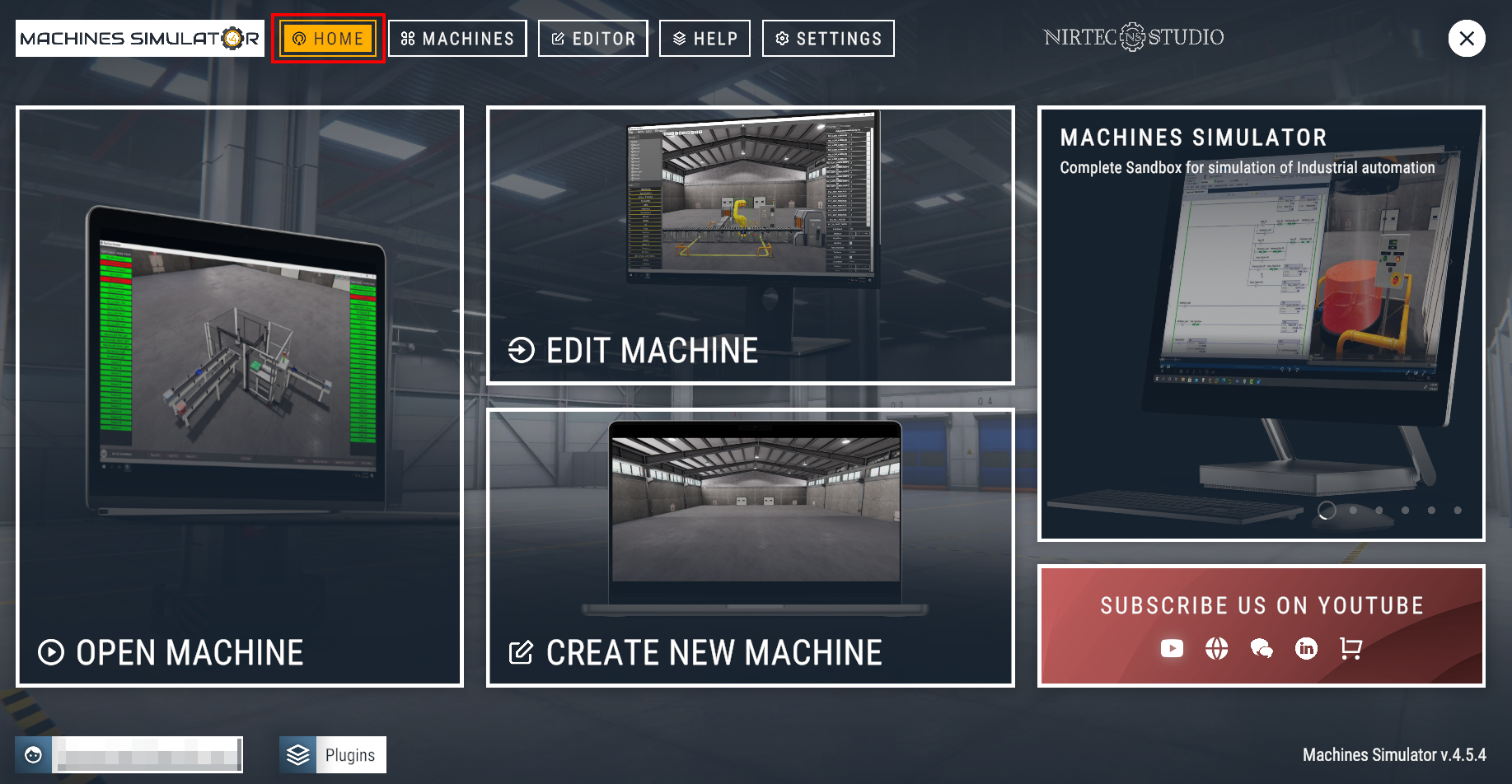
Or go to upper Menu and select Machines:
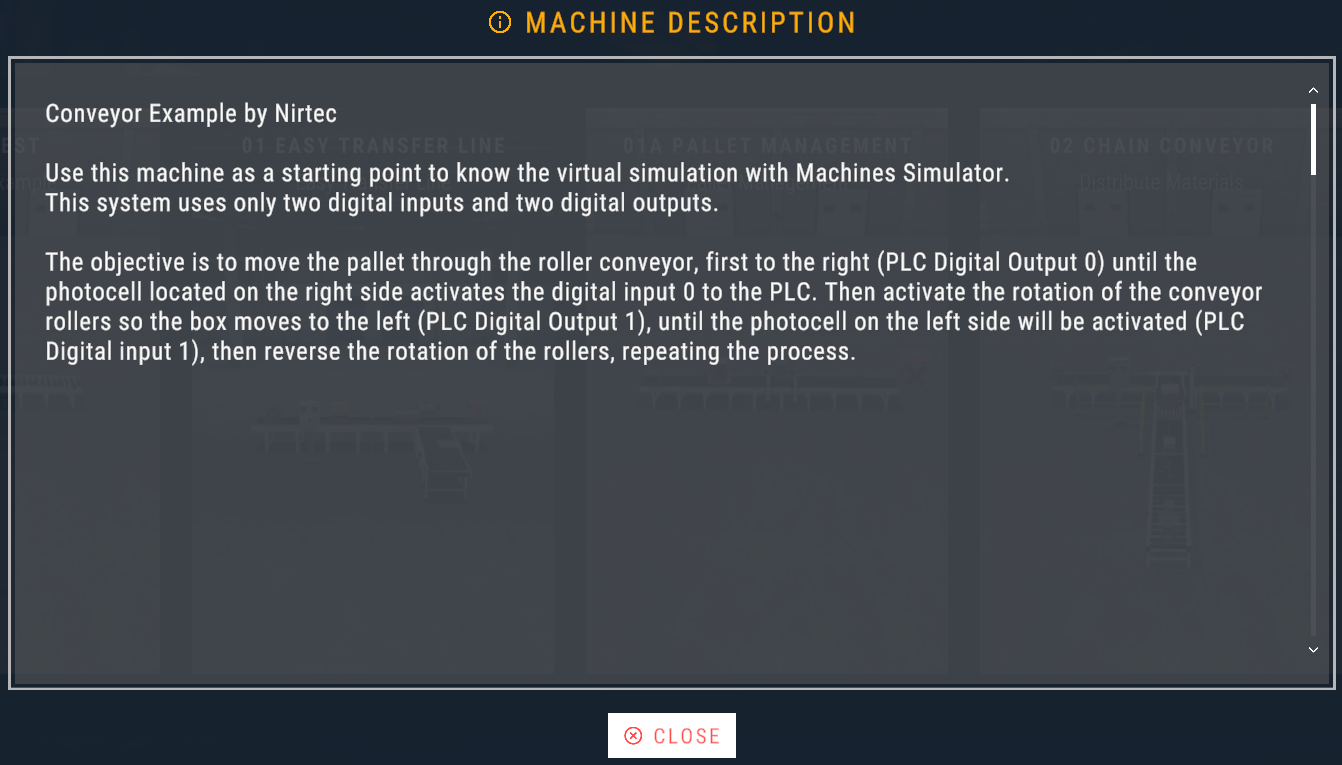
Then click over the machine image desired, and a description about how to operate the machine will be displayed.
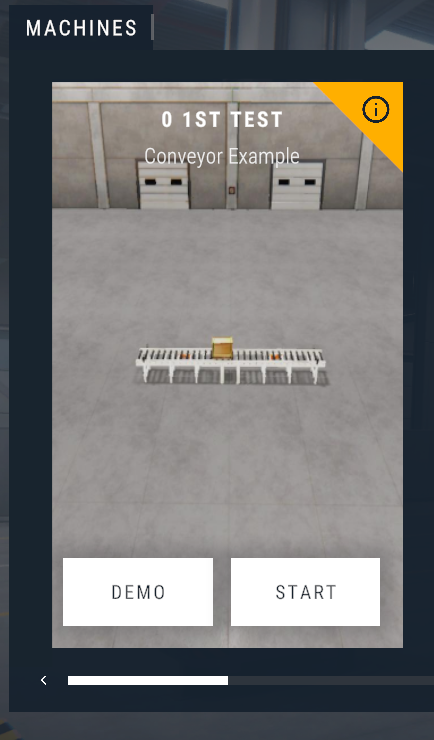
Over the machine image two buttons will be shown, DEMO and START:
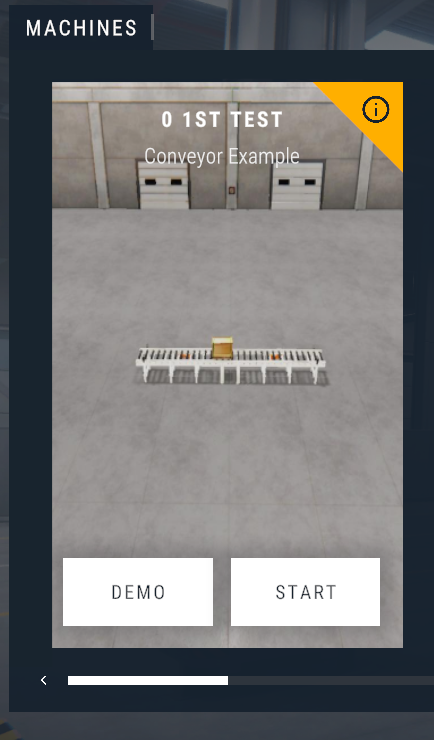
- If you press the DEMO button, the machine will start and will be operated as if was managed by a PLC, in this way you can see how the machine must to be programmed. In this mode there is not connection with EasyPLC or drivers.
- If you press the START button the machine will be started and will be ready to connect with EasyPLC (Virtual PLC CPU) or any selected driver to manage the logic.
Working with EasyPLC
When a machine is loaded, in the bottom left side of the screen appears the PLC Status lamp indicator. This lamp has the function to inform about the current state of the PLC.
- If VirtualPLC is in RUN Mode, this is, that is executing the logic program the signal appears in green color.
- If is in STOP mode, the logic program is not executing, then the signal is red lighted.
- If the lamp is gray, means that there is no communication with VirtualPLC.
The green signal indicates that VirtualPLC is in Run Mode, the program is executing:

The light red signal indicates that the PLC is in Stop Mode, the logic program is not executing:

The gray lamp indicates that there is no communication with the Virtual PLC:

From Machines Simulator you can manage the Virtual PLC status, with the buttons located at the toolbar:

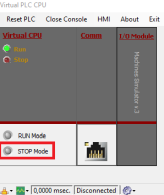
- Stop PLC: allows to stop Virtual PLC CPU (same as press the STOP Mode button from Virtual PLC CPU console)
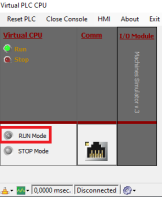
- Start PLC: starts Virtual PLC CPU (same as press the RUN Mode button from Virtual PLC CPU console)
- Reset PLC: resets Virtual PLC CPU (same as press the Reset PLC menu option from Virtual PLC CPU console)
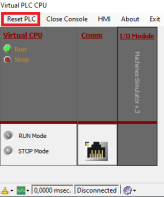
The Machines Simulator toolbar buttons has the following functions:

View IO: Shows the status for the Machines Simulator declared I/O’s. In the left side are showed the PLC Outputs (digital & analog), in the right side the PLC Inputs (digital & analog). Select the Digital or Analog tabs to view the different signal types.
If VirtualPLC CPU is not launched, the user will be able to press the PLC Outputs or enter the analog values for PLC analog Outputs to force and simulate the signals, the PLC inputs digital states and analog values will be showed in the right side.
If Virtual PLC CPU is launched, the control is taken by Virtual PLC and it will not be possible to force the signals from the Machines Simulator I/O interface.
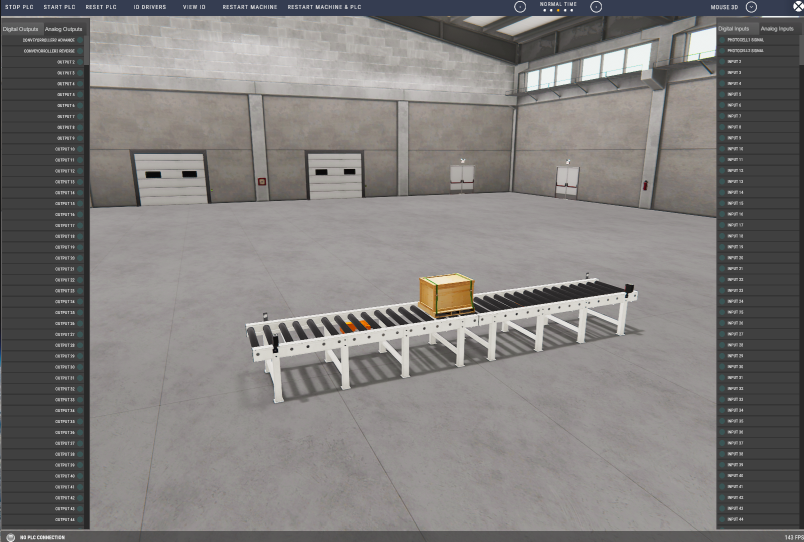
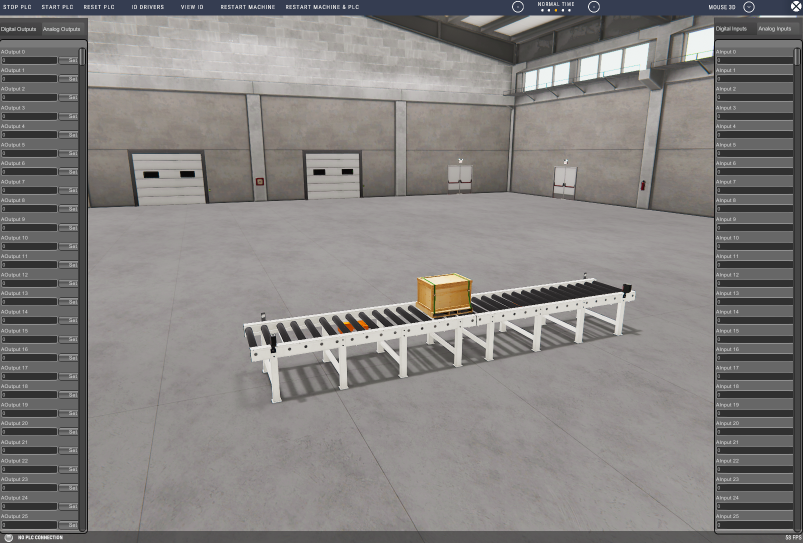
Restart Machine: resets the machine and loads it again in the original conditions, useful when you want to reset the machine status.
Restart Machine & PLC: same as previous but also makes a Virtual PLC Reset, useful when you want to make modifications in the PLC program and wants to reset all machine and plc to start again.

The Pause function (can also be toggled with the F9 key) allows you to stop the simulation if it is necessary to verify some tests or conditions during the simulation.