PLC & HMI
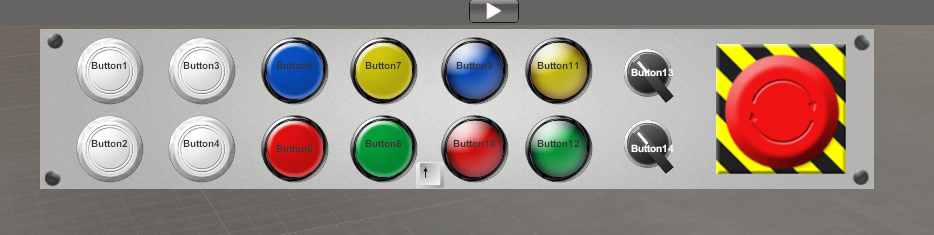
1. PushButton
A virtual push buttons console, where all the buttons, selector switches and lamp leds can be customized. This console appears in the upper side of the screen (press keyboard up & down arrows to move up and down).
2. HMI
This is a console that could be used as HMI for the machines you design.
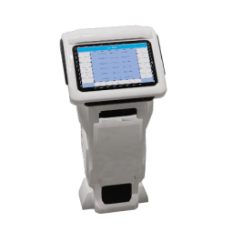
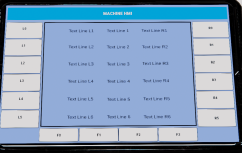
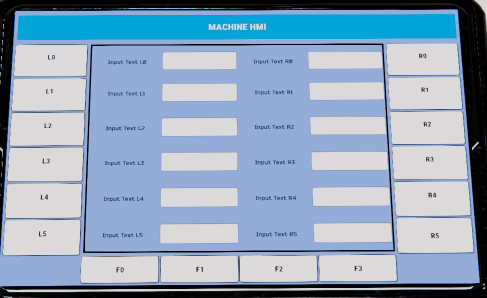
The HMI has 6 Press Button located in the screen left side, 6 at the right and 4 at the bottom. The IO to manage these buttons are configured with the properties:
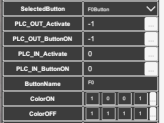
Select form the SelectedButton drop-down list the button you want to configure, then configure their properties with:
- PLC_OUT_Activate: activates the PLC output number selected when pressing this button.
- PLC_OUT_ButtonON: if the PLC out number selected is ON, the button will have the selected
ColorON, if falseColorOFF. - PLC_IN_Activate: activates the PLC input number selected when pressing this button.
- PLC_IN_ButtonON: if the PLC input number selected is ON, the button will have the selected
ColorON, if falseColorOFF. - ButtonName: the button text to show in the screen.
- ColorON: the button color when is ON.
- ColorOFF: the button color when is OFF.
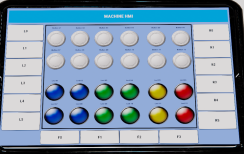
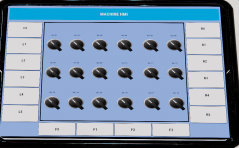
The HMI includes 5 configurable screens:
TextLines:
InputData:
Buttons:
Switches:
Mix:
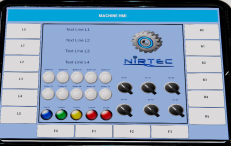
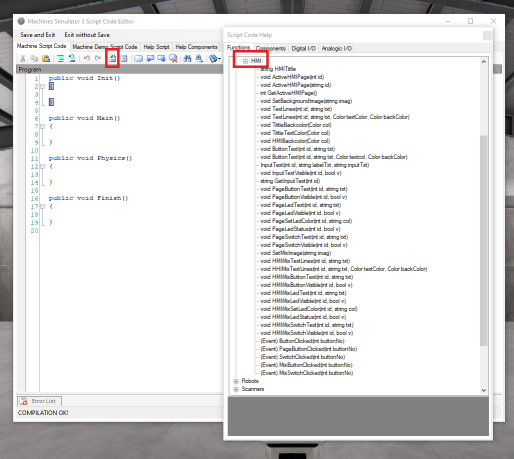
The controls available in each page can be managed by script code: